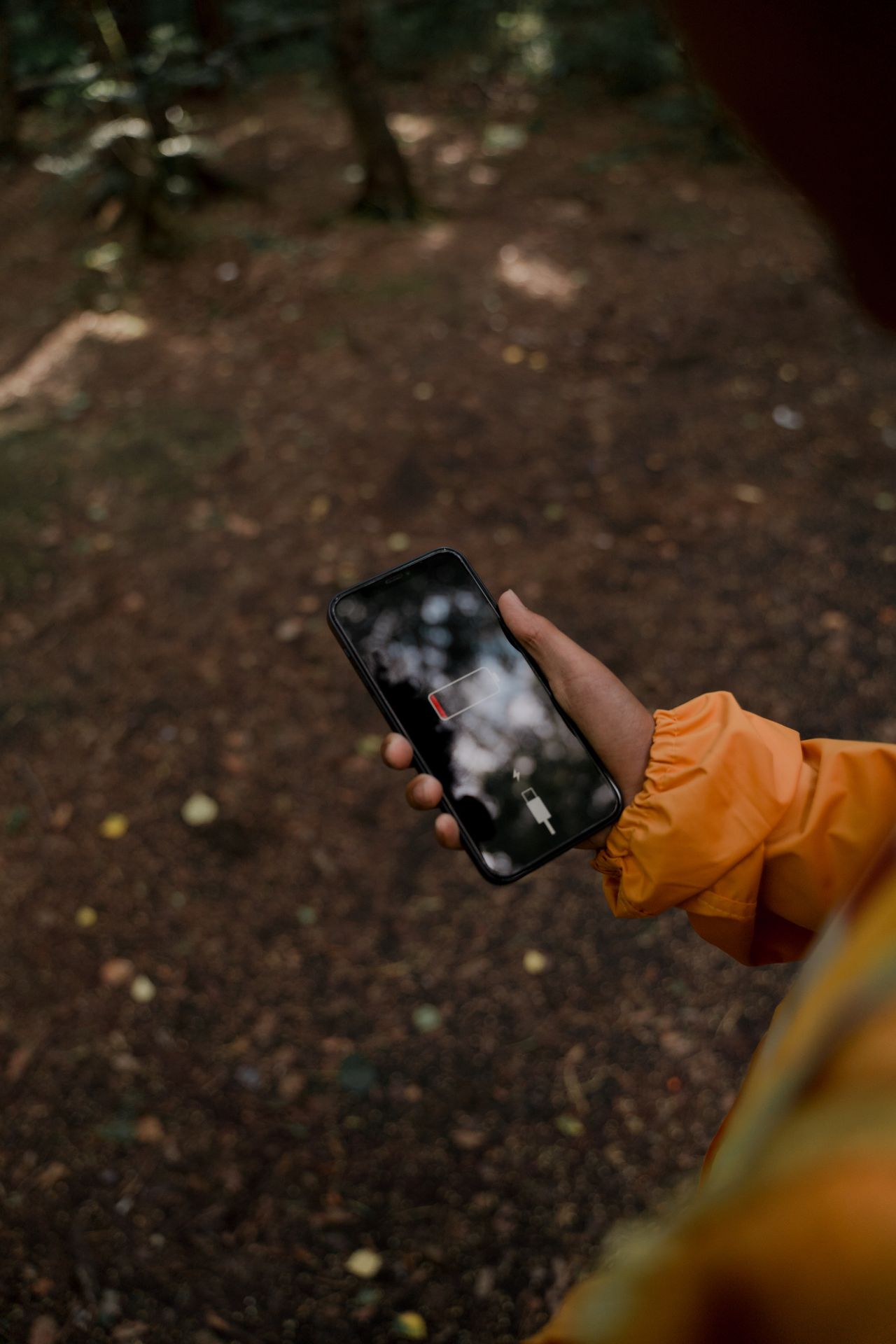
You unplug your phone at 100 percent in the morning, and by lunchtime it’s already begging for a charger. A year ago it lasted all day without complaint. Now you carry a cable everywhere and watch the battery percentage like a fuel gauge on a long road trip.
Fast battery drain is one of the most common phone complaints, on both Android and iPhone. The frustrating part is that it rarely has a single cause. It’s usually a mix of things: a screen that’s brighter than it needs to be, an app quietly working in the background, weak signal, an aging battery or settings that keep the phone busy all day long.
Below, we’ll help you find out what’s actually draining your battery and fix it. We’ll start with how to read your phone’s battery usage screen, then go through the most common causes one by one, with practical fixes for each. We’ll cover both Android and iPhone, and we’ll be honest about which popular battery tips actually work and which are myths.
📋 Table of Contents
- First, find out where your battery is going
- The screen: your biggest battery user
- Apps running in the background
- Location services and GPS
- Weak signal: the hidden battery killer
- Notifications and constant wake-ups
- Battery saver modes that actually help
- Heat and your battery
- Is your battery simply worn out?
- Battery myths you can ignore
- Frequently asked questions
- A last word
One small piece of advice before we begin: change one thing at a time and give it a day or two. Battery life varies a lot from day to day depending on how much you use your phone, where you’re and how strong your signal is. If you change ten settings at once, you’ll never know which one actually helped.
First, find out where your battery is going
Before changing any settings, look at the data your phone already collects. Both Android and iPhone show exactly which apps and features used your battery.
On iPhone: go to Settings, then Battery. You’ll see a chart of battery level and activity over the last 24 hours or 10 days, and a list of apps sorted by how much battery they used. Tap an app to see how much of its usage happened on screen versus in the background.
On Android: go to Settings, then Battery, then Battery usage or Usage since last full charge. On Samsung phones, look in Battery or Battery and device care. You’ll see apps and system components ranked by battery use.
When reading this list, ask yourself two questions:
- Does this match how I used my phone? If you watched videos for two hours, it makes sense that the video app is at the top. If an app you barely opened is near the top, that’s suspicious.
- How much is background usage? Apps using a lot of battery in the background, while you’re not looking at them, are prime suspects.
Also look at the Screen or Display entry. On most phones, the screen is the single biggest battery user, and that’s normal. But if it’s much higher than you expect, brightness and screen settings are your first target.
It also helps to look at the battery chart rather than only the list. A steady, gentle slope during the night is normal. A steep drop while the phone was sitting on your desk untouched means something is working hard in the background. On iPhone, tapping a specific hour on the chart shows which apps were active during that time, which can quickly reveal the culprit.
If the list looks completely normal and the battery still drains quickly, the problem is more likely to be hardware related, such as an aging battery or weak signal. Keep that in mind as you go through the rest of this guide, because it will help you focus on the sections that matter for your situation.
The screen: your biggest battery user
The display uses more power than almost anything else on your phone. Small changes here make a noticeable difference.
Lower brightness and use auto-brightness
Many people keep brightness much higher than they need, especially indoors. Turn on Auto-brightness or Adaptive brightness so the phone adjusts to your surroundings. On Android, adaptive brightness learns your preferences over time. On iPhone, auto-brightness is in Settings, then Accessibility, then Display and Text Size.
Shorten the screen timeout
If your screen stays on for two or five minutes after you stop using it, that’s wasted battery every time you put the phone down. Set Screen timeout or Auto-Lock to 30 seconds or one minute.
Use dark mode on OLED screens
Most mid-range and flagship phones use OLED screens, where black pixels are turned off completely. On these screens, dark mode genuinely saves battery, especially at higher brightness. On LCD screens, which are common on budget phones, dark mode makes little difference to battery life.
Consider the refresh rate
Many phones have smooth 90 Hz or 120 Hz screens. They look great but use more power than the standard 60 Hz. Most phones adjust the refresh rate automatically, but if battery is a priority, you can choose the standard rate in your display settings. On iPhone Pro models, ProMotion adjusts automatically, and Low Power Mode limits it.
Turn off always-on display if you don’t need it
Always-on display shows the time and notifications on a dimmed screen while the phone is locked. It’s convenient but uses a small, constant amount of battery. If you’re struggling to get through the day, turning it off can help.
A useful experiment is to spend one day with brightness a little lower than usual, a 30 second screen timeout and dark mode turned on. Compare your battery level at the end of the day with a normal day. Many people are surprised by how much difference these three simple settings make, especially if they spend a lot of time reading or scrolling.
Apps running in the background
Apps that keep working when you’re not using them are one of the most common causes of sudden battery drain, especially after an app update introduces a bug.
Identify the culprits
Go back to your battery usage screen and look for apps with high background usage. Social media, navigation, fitness, shopping and some messaging apps are frequent offenders.
Restrict background activity
On iPhone: go to Settings, then General, then Background App Refresh. You can turn it off completely or choose Wi-Fi only, but it’s usually better to turn it off for individual apps that don’t need to update in the background.
On Android: go to Settings, then Apps, choose the app, then Battery or App battery usage, and select Restricted or Optimized. Samsung phones let you put apps into Sleeping apps or Deep sleeping apps in the battery settings.
Be careful with messaging and email apps. Restricting them can delay notifications.
Update or reinstall problem apps
If one app suddenly starts draining your battery, check for an update. Developers often fix battery bugs quickly. If the problem continues, uninstalling and reinstalling the app can help.
Remember that background activity isn’t always bad. Your messaging app needs to check for new messages, your podcast app may need to download new episodes overnight, and your backup app needs to upload photos. The goal isn’t to block everything, but to stop apps that do a lot in the background without giving you anything useful in return.
Widgets are part of this picture too. A weather, news or stock widget that refreshes every few minutes keeps waking up the phone. Keep the widgets you actually look at and remove the ones that are just decoration. Live wallpapers on Android work in a similar way, animating constantly and using a little power every second the home screen is visible.
Location services and GPS
GPS is accurate but power hungry, and many apps ask for your location far more often than they need it.
On iPhone: go to Settings, then Privacy and Security, then Location Services. Review each app and choose While Using the App instead of Always where possible. Turn off Precise Location for apps that don’t need your exact position, like weather apps.
On Android: go to Settings, then Location, then App location permissions. Change apps from Allow all the time to Allow only while using the app where you can.
You don’t need to turn off location completely. Maps, ride-sharing and Find My services need it. The goal is to stop apps from tracking you constantly in the background without a good reason.
Some apps also use Bluetooth scanning or Wi-Fi scanning to improve location accuracy even when Bluetooth or Wi-Fi seem to be off. On Android, you can find these options under Location services. Turning them off can save a little battery, at the cost of slightly less accurate location in apps like maps. For most people, the difference in daily use is hard to notice.
Weak signal: the hidden battery killer
When your phone has poor cellular reception, it increases power to its radio to stay connected and searches constantly for a better signal. If you spend a lot of time in a basement office, a rural area or a building with thick walls, this alone can drain your battery noticeably.
What helps:
- Use Wi-Fi where you can. Wi-Fi typically uses less power than a struggling cellular connection.
- Turn on Wi-Fi Calling if your carrier supports it, so calls go over Wi-Fi in areas with weak signal.
- Use Airplane Mode in places with no useful signal, such as on a flight or in remote areas, turning Wi-Fi back on if needed.
- Consider 5G settings. In areas with patchy 5G coverage, switching between 5G and 4G can use extra power. iPhones have a 5G Auto setting that balances speed and battery. Some Android phones let you choose a preferred network type.
If you notice that your battery drains much faster on certain days, think about where you spent those days. A long train ride through tunnels, a day at a crowded stadium or a visit to a rural area can all push your phone radio to work hard. In those cases, the battery itself is fine. It’s simply working harder than usual to keep you connected.
Notifications and constant wake-ups
Every notification wakes up your screen, triggers a vibration or sound and may pull data from the internet. Dozens of notifications an hour add up.
Go through your notification settings and turn off notifications for apps that don’t need them, like games, shopping apps and news apps that send too many alerts. On iPhone, consider Scheduled Summary, which bundles non-urgent notifications into a few deliveries a day. On Android, adjust notification categories within each app so only important ones come through.
A good test is to look at your notification history or Notification Center at the end of a day and count roughly how many alerts you received. Many people discover that a few apps account for most of them. Silencing just those apps often gives you a calmer day and a few extra percent of battery at the same time, which is a rare win-win.
Battery saver modes that actually help
Both platforms include power saving modes that limit background activity and visual effects.
Low Power Mode on iPhone reduces background activity, mail fetch, some visual effects and display refresh rate. Turn it on from Control Center or Settings, then Battery. You can also set up a Shortcuts automation to turn it on automatically at a certain battery percentage.
Battery Saver on Android works similarly and can be scheduled to turn on automatically at a set percentage. Many Android phones also offer Adaptive Battery, which learns which apps you use and limits the rest. Samsung phones include several power saving levels.
These modes are designed for everyday use, not just emergencies. If you need your phone to last a long day, it’s perfectly fine to keep power saving on all the time.
On iPhone, you can also look at Optimized Battery Charging and the charging limit options on newer models, while on Android, many phones offer adaptive or protective charging. These features don’t make your battery last longer today, but they reduce long-term wear, which means your battery will still be in good shape a year or two from now.
Heat and your battery
Heat is bad for batteries in two ways. A hot phone uses more energy, and long-term heat exposure speeds up battery aging.
Common causes of heat include gaming, video calls, navigation in a car mount in direct sunlight, charging while using demanding apps, and thick cases that trap warmth. If your phone often feels hot, take the case off during heavy use and charging, keep it out of direct sun and give it a break when it gets warm.
Cold can be a problem too. In freezing temperatures, batteries deliver power less efficiently, and the percentage may drop suddenly or the phone may shut down. Keeping your phone in an inside pocket close to your body during winter helps it stay warm enough to work normally. Once it warms up again, the battery usually recovers its charge reading.
If your phone is already hot, don’t put it in the fridge or under cold water. Follow our step-by-step guide on how to cool down a hot phone safely, and see the most common causes of phone overheating to stop it from happening again.
Is your battery simply worn out?
All lithium-ion batteries lose capacity over time. After a few hundred charge cycles, a battery may hold noticeably less charge than when it was new.
Signs of a worn battery include:
- The phone dies suddenly at 10 to 20 percent.
- The percentage drops quickly or jumps around.
- The phone shuts down in cold weather.
- Battery life is much worse than it was a year ago, even with the same usage.
On iPhone: check Settings, then Battery, then Battery Health or Battery Health and Charging. If maximum capacity is around 80 percent or lower, a replacement may help significantly.
On Android: some phones show battery health in Settings, under Battery. Samsung users can use the Samsung Members app and run a battery diagnostic. Other brands have their own diagnostic tools.
A battery replacement from an authorized service provider can make an older phone feel new again and costs much less than a new phone.
If you decide to replace your battery, use an authorized service provider or a reputable repair shop. Cheap replacement batteries from unknown sources may have lower real capacity than advertised and can lack important safety protections. A quality battery replacement is one of the best value repairs you can make on a phone.
Not sure whether your battery is the problem? Our guide explains how to tell if your phone battery is bad and how to check battery health on any phone.
Battery myths you can ignore
- Closing all your apps saves battery. Not really. Reopening apps from scratch can use more power than keeping them suspended. Close only apps that are frozen or misbehaving.
- You should let your battery drain to zero. Modern lithium-ion batteries don’t need full discharge cycles. Frequent deep discharges are actually harder on them.
- Charging overnight ruins the battery. Modern phones manage charging and many slow down or pause near 80 percent to reduce wear.
- Turning off Bluetooth and Wi-Fi saves lots of power. Modern Bluetooth uses very little power, and Wi-Fi often uses less than cellular data. Turn them off only if you have a specific reason.
- Battery saver apps from app stores help. Your phone’s built-in tools are better. Many third-party battery apps add ads and background activity of their own.
Frequently asked questions
Why did my battery start draining faster after an update?
After a major update, phones often reindex files, optimize apps and update photos in the background for a day or two, which uses extra battery. If the drain continues after several days, check battery usage for a misbehaving app and look for app updates.
Does dark mode really save battery?
On phones with OLED screens, yes, especially at higher brightness levels. On LCD screens, the difference is minimal.
Is it bad to use my phone while charging?
Light use is fine. Heavy use like gaming while fast charging can make the phone hot, which isn’t good for battery health. If the phone gets warm, take a break or remove the case.
How long should a phone battery last before it needs replacing?
It depends on usage, but many batteries show noticeable wear after two to three years. Heavy daily use and heat speed up the process.
Should I keep Low Power Mode or Battery Saver on all the time?
You can if you prefer longer battery life over maximum performance. It limits some background activity and effects but doesn’t harm your phone.
Can a phone case affect battery life?
Indirectly, yes. Thick cases can trap heat, and heat makes batteries less efficient. Removing the case while charging or gaming can help.
A last word
Fast battery drain usually has a few specific causes, and most of them are fixable. Start with your battery usage screen to find the real culprits, then work on the screen, background apps, location access and notifications. Use power saving modes without guilt, keep your phone cool and remember that batteries age. If your phone is a few years old, a new battery might be the best upgrade you can buy.
If you have tried everything here and your battery still struggles, contact the manufacturer or an authorized service center. They can run diagnostics that go beyond what the settings screens show and tell you whether the battery or another component needs attention. Sometimes the best fix is simply a professional opinion.