Author: Grissby Tech Team

  • How to Check Your Phone Battery Health on Android and iPhone

    How to Check Your Phone Battery Health on Android and iPhone

    Every phone battery wears out eventually. It’s not a defect, it’s chemistry. But knowing how healthy your battery is right now can save you a lot of guesswork. Is your phone dying early because of an app, or because the battery itself is tired? Should you replace the battery, or is the phone fine and you just need to change a few settings? Is that used phone you’re thinking of buying actually a good deal?

    The answer to all of these questions starts with checking your battery health. On iPhones, it’s built right into Settings. On Android, it depends on your phone’s brand and software version, but there’s almost always a way to get useful information.

    In this guide, we’ll explain what battery health actually means, show you how to check it on iPhone and on the most popular Android phones, explain how to interpret the numbers and help you decide when it’s time for a replacement.

    You do not need any special tools for most of this. In many cases, everything you need is already on your phone. And even when your phone hides battery information, a few simple methods can give you a useful picture of how your battery is doing.

    What battery health actually means

    When people talk about battery health, they usually mean the battery’s maximum capacity compared to when it was new. A new battery is at about 100 percent. As it ages, it can store less energy, so its maximum capacity drops to 95 percent, 90 percent, 85 percent and so on.

    This is different from your battery percentage. Your phone can show 100 percent charged even when the battery’s health is 80 percent. It simply means that 100 percent now represents less actual energy than it did when the phone was new. That’s why an older phone at 100 percent doesn’t last as long as it used to.

    Two other terms are useful to know:

    • Charge cycles: one cycle means using 100 percent of the battery’s capacity, though not necessarily all at once. Using 50 percent today and 50 percent tomorrow counts as one cycle. Batteries are typically designed to keep a good portion of their original capacity after several hundred cycles, and some newer phones are rated for many more.
    • Peak performance capability: an aging battery can struggle to deliver power quickly during demanding tasks. Some phones manage performance to prevent unexpected shutdowns when this happens.

    A helpful comparison is a water bottle that slowly gets smaller over time. When it is new, a full bottle lasts you all afternoon. A year later, it still fills to the brim, but the bottle itself has shrunk a little, so a full bottle does not last quite as long. Battery health measures how much the bottle has shrunk, while the percentage tells you how full it is right now.

    Signs your battery health is declining

    Even before you check the numbers, your phone may be telling you something. Watch for these signs:

    • Battery life is noticeably shorter than it was when the phone was new, with similar use.
    • The phone shuts down unexpectedly, often at 10 to 20 percent.
    • The battery percentage jumps around, for example dropping from 30 to 10 percent in minutes.
    • The phone shuts down or struggles in cold weather.
    • The phone feels slower, especially when the battery is low.
    • The phone gets warm during light use or charging.
    • The back cover or screen appears to be lifting, which can indicate a swollen battery and requires immediate attention.

    If you notice several of these, checking battery health is the next step.

    One sign deserves special emphasis: a swollen battery. If the screen starts to lift away from the frame, the back panel bulges or the phone no longer lies flat on a table, stop using and charging it. A swollen battery can be dangerous. Do not press on it or try to fix it yourself. Take it to a professional repair service as soon as possible.

    How to check battery health on iPhone

    Apple makes this easy.

    1. Open Settings.
    2. Tap Battery.
    3. Tap Battery Health or Battery Health and Charging, depending on your iOS version.

    You’ll see:

    • Maximum Capacity: the battery’s current capacity relative to when it was new.
    • Peak Performance Capability: a message telling you whether the battery is supporting normal peak performance or whether performance management has been applied after an unexpected shutdown.
    • Battery Health status: on some models, a simple status like Normal or Service.

    On newer iPhones, you can also find more details under Settings, then General, then About, including the cycle count, the manufacture date and the date the battery was first used.

    Apple considers a battery that retains about 80 percent of its original capacity after a certain number of cycles to be in good condition. The exact rating depends on the model, with newer models designed for more cycles. If your iPhone shows a service message or a capacity well below 80 percent, it’s a good time to consider a replacement.

    If you see a message saying your iPhone was unable to determine battery health, or that the battery is not a genuine Apple part, it usually means the battery was replaced with a non-genuine part or by an unauthorized repair shop. The phone may still work, but battery health information may not be shown or may be less reliable.

    How to check battery health on Samsung Galaxy phones

    Samsung offers a few ways, depending on your model and software.

    In Settings

    On recent Galaxy phones with newer versions of One UI, you may find battery information under Settings, then Battery, then Battery information or within About phone, then Status information. Some models show battery capacity and health directly here.

    With the Samsung Members app

    The Samsung Members app, preinstalled on most Galaxy phones, includes diagnostics:

    1. Open Samsung Members.
    2. Go to Support or Get help.
    3. Tap Phone diagnostics or View tests.
    4. Choose Battery status.

    The result shows whether your battery’s life is good, normal or weak, along with its current capacity information.

    If your Samsung shows the battery as weak but you have not noticed any problems in daily use, do not panic. Run the test again after a full charge and a restart, ideally when the phone is at room temperature. Results can vary slightly depending on conditions, and a single weak result is less meaningful than a consistent pattern.

    How to check battery health on Google Pixel phones

    Newer Pixel models running recent versions of Android include a battery health screen:

    1. Open Settings.
    2. Tap Battery.
    3. Tap Battery health.

    Depending on your model, you’ll see an estimate of your battery’s capacity and whether it’s in normal condition or degraded. On some Pixel models, battery information also appears under Settings, then About phone, then Battery information, showing manufacture date and cycle count.

    Older Pixel phones may not have this screen. In that case, try the methods described below for other Android phones.
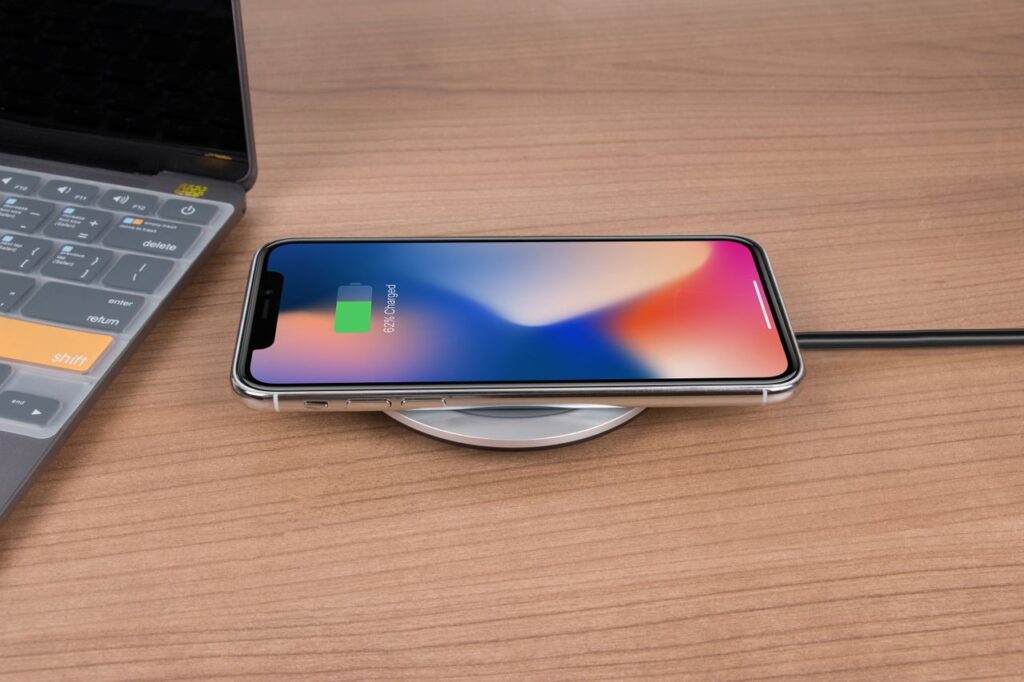
    Phone charging wirelessly next to a laptop

    Pixel phones may also show a notification when the battery is degraded, suggesting a replacement. If you see that message, it is worth taking seriously, because it is based on the phone own measurements over time rather than a single snapshot.

    How to check battery health on other Android phones

    Other brands, including Motorola, Xiaomi, OnePlus, OPPO and others, vary in what they show. Here are the most common methods:

    • Check Settings first. Search for battery health, battery information or battery status. Many brands added these screens in recent software updates.
    • Look for a diagnostics app. Some brands include a device diagnostics or phone check app. Motorola, for example, has had a Device Help app with hardware tests.
    • Try an Android dialer code. On some Android phones, typing a code like star hash star hash 4636 hash star hash star into the phone app opens a testing menu with battery information. This doesn’t work on every phone, and the information varies. Don’t change any settings in that menu.
    • Use a reputable battery app. Apps like AccuBattery estimate battery capacity by measuring how much charge goes into the battery during charging. They need a few charge cycles to give a reliable estimate, and their results are estimates, not official measurements.

    If none of these work, a manufacturer service center can test your battery with professional tools.

    Whatever method you use, check your battery health more than once over a few weeks. A single reading can be affected by temperature, recent charging and calibration. Several readings give you a much clearer and more trustworthy picture of where your battery really stands.

    How to interpret your battery health numbers

    Here’s a rough guide to what the numbers mean in real life:

    • 95 to 100 percent: excellent. The battery is new or nearly new.
    • 85 to 95 percent: good. You might notice slightly less battery life than when the phone was new, but it’s usually still fine for daily use.
    • 80 to 85 percent: fair. Battery life is noticeably shorter. Depending on your usage, you may need a midday charge.
    • Below 80 percent: worn. Most manufacturers consider this the point where a replacement makes sense, especially if you notice shutdowns or performance issues.

    Remember that capacity numbers can fluctuate slightly. Some phones recalibrate their estimates over time, so a number might go up or down by a percent or two. What matters is the overall trend.

    It is also worth thinking about your own needs. Someone who uses their phone lightly and charges it every night might be perfectly happy at 78 percent. Someone who travels, uses navigation all day or works outdoors might feel the difference at 88 percent. Battery health numbers are a guide, not a verdict. What matters most is whether the battery still fits the way you live.

    Battery health vs app problems: how to tell the difference

    Battery drain isn’t always caused by a worn battery. Before replacing anything, rule out software problems.

    If your battery health is high, say above 90 percent, but battery life is poor, the problem is likely an app, a setting or weak signal. Check your battery usage screen for apps using a lot of power in the background, review location access and screen brightness, and make sure your software is up to date.

    If your battery health is low, say below 80 percent, the battery itself is likely the main cause, though apps and settings can make it worse.

    If battery problems started suddenly after an update or after installing a new app, software is a likely culprit, even if battery health is moderate.

    A simple test helps here. Restart your phone, charge it fully, then use it normally for a day while keeping an eye on the battery usage screen. If a single app stands out, deal with that app first. If the usage looks normal but the battery still struggles, the battery itself is the likely problem.

    How to slow down battery aging

    You can’t stop battery aging, but you can slow it down.

    • Avoid heat. High temperatures are one of the biggest causes of battery wear. Don’t leave your phone in a hot car or in direct sunlight, and remove thick cases if it gets warm while charging.
    • Use battery protection features. iPhones offer Optimized Battery Charging and charging limits on newer models. Samsung, Google Pixel and other brands offer similar options that keep charge around 80 percent.
    • Avoid frequent full discharges. Letting your phone regularly drop to zero is harder on the battery than charging it partially throughout the day.
    • Use quality chargers. Reputable chargers and cables provide stable power.
    • Keep software updated. Updates often improve battery management.
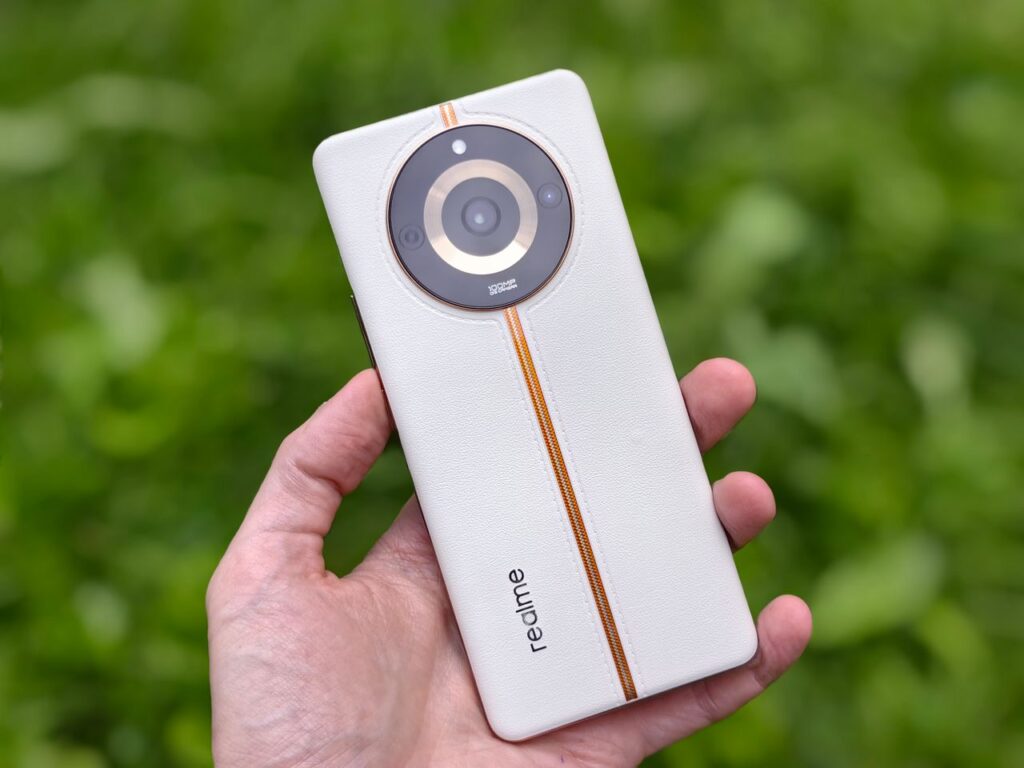
    Close-up of a hand holding a modern smartphone outdoors

    Even small changes add up. Someone who keeps their phone cool, uses an 80 percent charging limit and avoids running it down to zero every day may still have a battery in good health after three years, while the same phone used in a hot car and drained daily might need a new battery after eighteen months. The phone is the same. The habits make the difference.

    If you use your phone for navigation in a car, try to mount it near an air vent instead of on the windshield or dashboard in direct sunlight. Navigation, a bright screen, charging and summer sun together are one of the toughest combinations for any phone battery.

    When should you replace your battery?

    Consider a replacement if:

    • Battery health is below about 80 percent.
    • Your phone shuts down unexpectedly.
    • You need to charge more than once a day with moderate use.
    • Your phone shows a service warning for the battery.
    • The battery appears swollen, which requires immediate professional attention.

    A battery replacement is usually much cheaper than a new phone and can make a two or three year old phone feel much better. Use an authorized service provider or a reputable repair shop that uses quality parts. On some phones, using non-genuine parts may cause warning messages or affect features like battery health reporting.

    Before your appointment, back up your phone. Battery replacements are routine, but any repair carries a small risk, and some service centers may need to reset the device during testing. A fresh backup means you can relax and let the technician do their job.

    Checking battery health on a used phone

    If you’re buying a used phone, always check the battery health before paying.

    • On an iPhone, ask the seller to show you Settings, then Battery, then Battery Health, and the cycle count under About if available.
    • On a Samsung, ask them to run the battery test in Samsung Members.
    • On a Pixel, check the battery health screen if available.

    A phone with low battery health isn’t necessarily a bad buy, but you should factor the cost of a battery replacement into the price.

    Also ask the seller when the battery was last replaced, if ever. A recently replaced battery with high health is a nice bonus. A phone that is several years old with original battery and suspiciously high health on a third-party app is worth checking more carefully with official tools.

    Frequently asked questions

    Is 85 percent battery health good?

    It’s reasonable. You’ll likely notice somewhat shorter battery life than when the phone was new, but most people can still get through a day with moderate use.

    Can battery health go back up?

    Not truly. Battery wear is permanent. Sometimes the displayed number rises slightly after the phone recalibrates its estimate, but the battery itself isn’t recovering.

    How long does a phone battery last?

    Most phone batteries keep good health for about two to three years of typical use. Heavy use, frequent heat exposure and lots of full discharges can shorten that.

    Are battery health apps accurate?

    Third-party apps provide estimates based on charging behavior. They can be helpful, especially over several charge cycles, but official tools from your phone maker are more reliable.

    Does fast charging lower battery health?

    Fast charging can create more heat, and heat speeds up wear. Modern phones manage fast charging carefully, so normal use is fine. Avoid heavy use and heat while fast charging.

    Is it safe to replace a battery myself?

    It’s possible on some phones with the right tools and parts, but it carries risks, including damage to the phone and to the battery itself. For most people, an authorized service center is the safer choice.

    Final thoughts

    Checking your battery health takes less than a minute and tells you a lot about your phone. On iPhone, it’s right in Settings. On Android, check Settings first, then use your manufacturer’s diagnostic tools. If health is high but battery life is poor, look at apps and settings. If it’s low, a battery replacement may be the most cost-effective upgrade you can make. And whatever your current number is, keeping your phone cool and using battery protection features will help it stay healthy for longer.
  • How to Choose a Power Bank That Actually Fits Your Phone

    How to Choose a Power Bank That Actually Fits Your Phone

    A power bank seems like the simplest gadget in the world. It’s a battery in a box. You charge it, you carry it, you plug your phone into it when you’re running low. But anyone who has bought one knows it’s not quite that simple. The 20,000 mAh power bank that should charge your phone five times barely manages three. The one you bought for its speed charges your phone painfully slowly. The one you packed for a trip gets stopped at airport security.

    The problem isn’t that power banks are complicated. It’s that the numbers on the box don’t tell the whole story, and a few details make the difference between a power bank you love and one that sits in a drawer.

    In this guide, we’ll explain what capacity really means, why you never get the full number printed on the box, how to match a power bank to your phone’s charging speed, what ports and features to look for, how to travel with one safely and how to spot cheap power banks that aren’t worth buying.

    We will keep the technical side as simple as possible. You do not need to understand battery chemistry to make a good choice. You just need to know which three or four numbers matter, and how to read them in a way that reflects real life rather than marketing.

    Start with how you’ll actually use it

    Before looking at specifications, think about your situation. The right power bank for one person is the wrong one for another.

    • Daily top-ups: if you just need an extra 30 to 50 percent to get through a long day, a small, light power bank around 5,000 mAh is often enough. It fits in a pocket or small bag.
    • Full recharges: if you want to fully recharge your phone once or twice, look at 10,000 mAh models. They’re the most popular size for good reason.
    • Travel and multiple devices: for long trips, camping or charging a phone, tablet and headphones, consider 20,000 mAh or more.
    • Laptops: some USB-C laptops can charge from power banks, but they need high-wattage output, often 45 to 100 watts, and a large capacity.

    Bigger isn’t always better. A large power bank is heavier, takes longer to recharge itself and may be overkill if you only need a small boost.

    It also helps to think about how often you will actually use it. A power bank you need every day should be small enough to live in your bag permanently. One you only need for trips can be larger, since you will pack it deliberately. Many people end up owning two: a slim one for daily life and a bigger one for travel.

    Capacity explained: why you never get the full number

    Power bank capacity is listed in mAh, or milliamp-hours. It’s tempting to divide the power bank’s capacity by your phone’s battery capacity and assume that’s how many charges you’ll get. For example, a 10,000 mAh power bank and a 5,000 mAh phone battery should mean two full charges, right?

    In practice, you’ll usually get noticeably less. There are two main reasons.

    Voltage conversion

    Power bank capacity is usually measured at the internal battery cells’ voltage, around 3.7 volts. When the power bank charges your phone, it converts that to USB output voltage, often 5 volts or higher for fast charging. That conversion means the usable capacity at the output is lower than the number on the box. Many good power banks list a rated capacity on the label, which reflects what you can actually get out.

    Energy losses

    Some energy is lost as heat in the power bank, the cable and the phone’s charging circuitry. Wireless charging from a power bank loses even more.

    A realistic rule of thumb

    Expect to get roughly 60 to 70 percent of the advertised capacity into your phone. So a 10,000 mAh power bank typically delivers around 6,000 to 7,000 mAh to your phone. With a phone that has a 5,000 mAh battery, that’s a bit more than one full charge, not two.

    Using watt-hours, often written as Wh, is a more accurate way to compare power banks. Many manufacturers print it on the label. It’s also the number airlines care about, as we’ll see later.

    This is not the power bank cheating you. It is simply how the physics works, and every honest manufacturer faces the same losses. The difference is that some brands are more transparent about it, printing both the cell capacity and the rated output capacity, which makes comparison much easier.

    Keep in mind that your phone is also using energy while it charges, especially if the screen is on. Charging from a power bank while scrolling or navigating means more of that energy is consumed immediately rather than stored. For the most charge per power bank, plug in, lock the phone and let it charge undisturbed.

    Match the charging speed to your phone

    Capacity tells you how much energy you carry. Output tells you how fast you can use it. A big power bank with slow output will take ages to charge your phone.

    Check your phone’s charging standard

    Most modern phones use USB Power Delivery, or USB PD, for fast charging over USB-C. iPhones and Google Pixel phones use it, as do many other Android phones. Samsung’s fastest charging modes use PPS, an extension of USB PD. Some brands use their own proprietary fast charging systems.

    For most people, a power bank with a USB-C port that supports USB PD at 20 watts or more is a great choice. If you have a recent Samsung Galaxy and want its fastest speed, look for PPS support at the appropriate wattage.

    Watts matter more than amps

    Power banks list output in watts, volts and amps. The number that matters most for speed is watts. A 20 watt output is enough for fast charging most phones. 25 to 45 watts suits some Samsung and other Android phones. Higher outputs mainly matter for tablets and laptops.

    Remember the cable

    Even the best power bank won’t fast charge your phone through a cheap, low-rated cable. Use a good quality USB-C cable rated for the power you need.

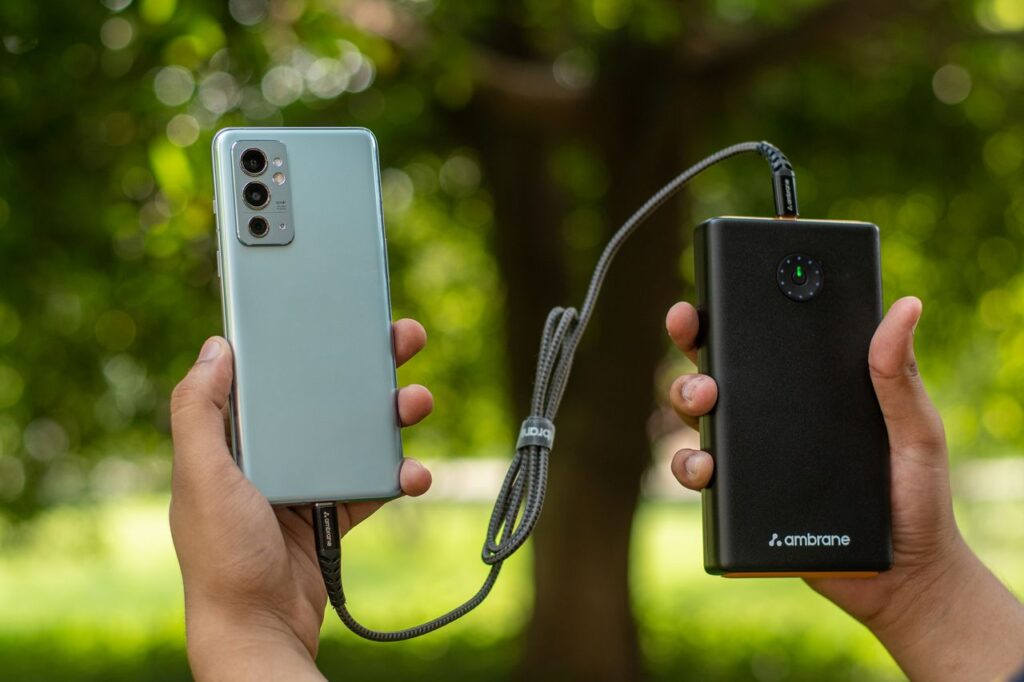
    Hands holding a smartphone connected to a power bank outdoors

    If you own several devices from different brands, a power bank with USB PD and PPS support covers most of them well. It might not reach the absolute maximum speed of every proprietary system, but it will charge everything reasonably fast, which is usually more useful than being perfect for just one phone.

    Ports, recharging and useful features

    USB-C is the priority

    Look for at least one USB-C port that works as both input and output. It charges your phone quickly and recharges the power bank quickly. USB-A ports are useful for older cables and accessories, but they’re usually slower.

    How fast does the power bank recharge itself?

    This is often overlooked. A 20,000 mAh power bank with slow input can take many hours to recharge. Look for a high input wattage, ideally via USB-C PD, so it refills overnight or in a few hours.

    Pass-through charging

    Some power banks can charge your phone while they’re plugged into the wall, which is called pass-through charging. It’s handy when you have only one wall outlet. Not all models support it, and some do it more slowly.

    Built-in cables

    Power banks with built-in cables are convenient, because you don’t need to remember a separate cable. Make sure the built-in cable matches your phone’s port.

    Displays and indicators

    A digital display showing the exact percentage is more helpful than four small lights. It tells you exactly when the power bank needs charging.

    Wireless and magnetic power banks

    Magnetic wireless power banks snap onto compatible phones, including iPhones with MagSafe and some Android phones with magnetic cases. They’re convenient, but wireless charging is less efficient and generates more heat, so you’ll get fewer charges from the same capacity.

    When reading product listings, check that the advertised fast charging output is available on the port you plan to use. Some power banks only offer full speed on one specific USB-C port, while other ports are slower. If you plan to charge two devices at once, check how the total output is shared between them.

    Size and weight: find the balance

    Capacity adds weight. A 5,000 mAh power bank might weigh little more than a deck of cards. A 20,000 mAh model can weigh as much as a smartphone or two. Before buying, think about where you’ll carry it. If it’s too heavy, you’ll leave it at home, and a power bank at home doesn’t help anyone.

    For most people, a 10,000 mAh power bank with 20 watt USB-C PD output is the sweet spot between capacity, speed and portability.

    A good way to decide is to hold something of similar weight in your bag for a day. If it feels annoying, choose a smaller power bank. Many people find that two small charges during a day are more practical than carrying one heavy brick around. You can always top up the small power bank whenever you sit down near an outlet, at a cafe, at work or on a train.

    Shape matters too. Slim, flat power banks slide easily into pockets and laptop sleeves, while thick cylinders can be awkward. Some models are designed to sit flush against the back of a phone so you can hold both together while charging, which is handy when you need to keep using the phone.

    Flying with a power bank

    Airlines have specific rules for power banks because they contain lithium batteries.

    • Carry-on only. Power banks must usually go in your carry-on bag, not checked luggage.
    • Watt-hour limits. Many airlines and aviation authorities allow power banks up to 100 Wh without special approval. Between 100 and 160 Wh may require airline approval. Above 160 Wh is generally not allowed. A typical 20,000 mAh power bank is around 74 Wh at 3.7 volts, which is within the common limit.
    • Labels matter. Make sure the capacity in Wh or mAh is clearly printed. Unlabeled power banks may be confiscated.
    • Airline rules vary. Some airlines have additional restrictions, such as not allowing power banks to be used or charged during the flight. Always check your airline’s current rules before you travel.

    To convert mAh to Wh yourself, multiply mAh by the voltage, usually 3.7, and divide by 1,000. For example, 10,000 mAh times 3.7 divided by 1,000 equals 37 Wh.

    If you are unsure whether your power bank qualifies, look at the label before you leave home. If the capacity is printed only in mAh, do the quick conversion described above and write the Wh number down. It can save an awkward conversation at the security checkpoint, and it shows staff you know the rules.

    Safety: avoid cheap and counterfeit power banks

    A power bank is a large lithium battery that you carry close to your body. Quality matters.

    • Buy from reputable brands and sellers. Counterfeit and low-quality power banks are common online.
    • Be wary of unrealistic claims. A tiny, very cheap power bank claiming 30,000 mAh or more is a red flag.
    • Look for safety protections, such as overcharge, over-discharge, short-circuit and temperature protection.
    • Check certifications relevant to your region.
    • Stop using damaged power banks. If a power bank is swollen, dented, unusually hot or smells strange, stop using it and dispose of it at a battery recycling point.
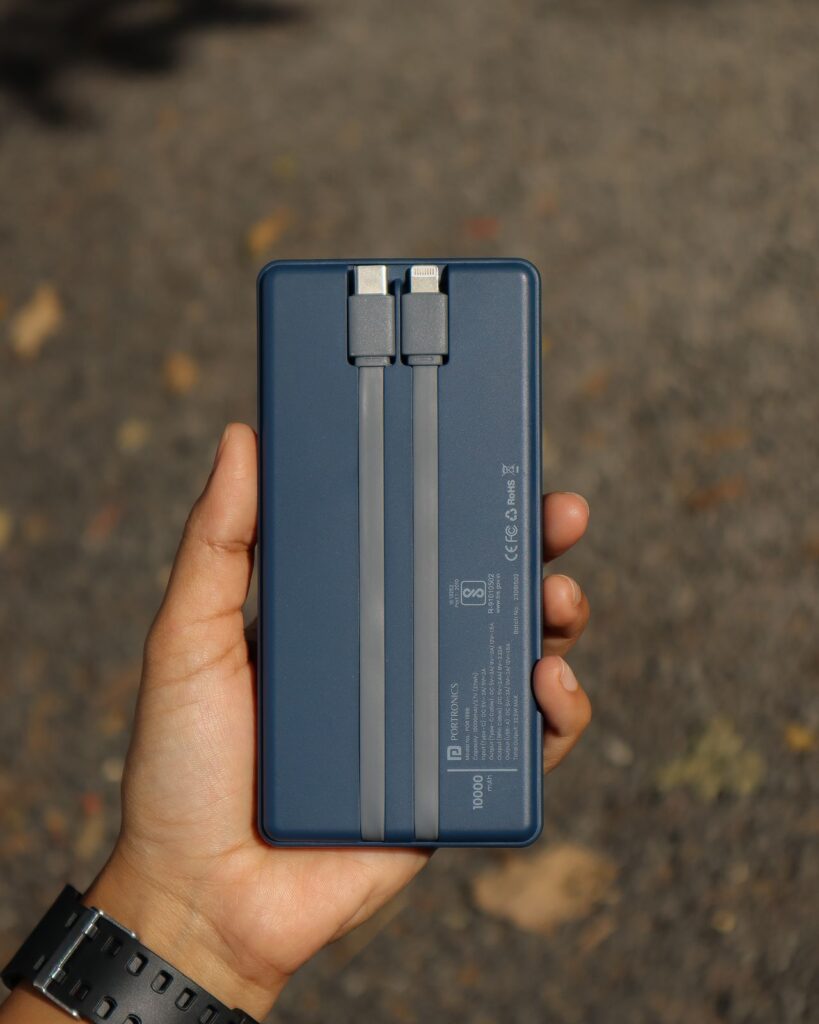
    Hand holding a blue power bank with built-in cables

    Price can be a useful signal. Quality power banks with genuine capacity and proper safety circuits cost a certain amount to make. If a listing is dramatically cheaper than well-known brands with the same specifications, it is worth asking why. With batteries, saving a few dollars is rarely worth the risk.

    How to take care of your power bank

    • Don’t leave it empty for long periods. Store it partly charged, around 50 percent if you won’t use it for months.
    • Avoid heat. Don’t leave it in a hot car or direct sunlight.
    • Recharge it every few months even if you don’t use it, so it’s ready when you need it.
    • Use good cables and chargers to recharge it.
    • Replace it when it wears out. Like phone batteries, power banks lose capacity over time.

    It is also a good idea to label your power banks if you own several, with the purchase year written on a small sticker. After two or three years of regular use, you may notice they no longer last as long. Knowing roughly how old each one is helps you decide when to retire it and buy a fresh one.

    When a power bank reaches the end of its life, do not throw it in the regular trash. Lithium batteries can cause fires in garbage trucks and recycling facilities. Take it to an electronics store, a recycling center or a battery collection point, many of which accept old power banks for free.

    Frequently asked questions

    How many times will a 10,000 mAh power bank charge my phone?

    Usually about one to two full charges for most modern phones, depending on the phone’s battery size and charging efficiency. Expect around 60 to 70 percent of the advertised capacity to reach your phone.

    Can a power bank damage my phone?

    A quality power bank from a reputable brand won’t damage your phone. Cheap, uncertified power banks may lack proper protections and are best avoided.

    Is it okay to leave my phone connected to a power bank?

    Yes. Your phone stops charging when it’s full. Just avoid leaving the phone and power bank in a hot place.

    Why does my power bank charge my phone slowly?

    Common reasons include using a USB-A port instead of USB-C, a low-quality cable, a power bank that doesn’t support your phone’s fast charging standard, or several devices charging at once.

    Can I take a power bank on a plane?

    Usually yes, in your carry-on bag, if it’s within the airline’s watt-hour limits, commonly up to 100 Wh. Check your airline’s rules before flying.

    Are wireless power banks worth it?

    They’re convenient, especially magnetic ones, but they’re less efficient than wired charging and produce more heat. If you value maximum capacity and speed, wired is better.

    If you are still unsure what to buy after reading this guide, start with a well-reviewed 10,000 mAh power bank with a USB-C PD port from a reputable brand. It is the safest all-round choice for most phones and most people. You can always add a larger or smaller one later once you understand how you actually use it.

    Final thoughts

    The right power bank depends on how you’ll use it. For most people, a 10,000 mAh model with a USB-C port supporting 20 watt USB PD fast charging hits the sweet spot. Expect to get about two-thirds of the advertised capacity into your phone, use a good cable, buy from a reputable brand and check airline rules before you travel. Choose well, and a power bank becomes one of those small gadgets you’ll be grateful for every time your battery runs low far from an outlet.

  • How to Scan Documents With Your Phone, No Scanner Needed

    How to Scan Documents With Your Phone, No Scanner Needed

    Not long ago, sending a signed form or a copy of a receipt meant finding a scanner, figuring out how to connect it to a computer and fighting with software that hadn’t been updated in years. Today, the phone in your pocket can do the same job in seconds, often with better results.

    Modern phones can scan documents and turn them into clean, flat, easy-to-read PDFs. They automatically detect the edges of the page, straighten it, remove shadows and even recognize the text so you can search for it later. And you don’t need to buy anything. Both iPhone and Android include excellent free scanning tools.

    In this guide, we’ll show you how to scan documents with your iPhone using the Notes and Files apps, how to scan on Android with Google Drive and the camera, how to get the best results every time, how to sign documents and how to keep your scans organized and private.

    Whether you need to send a signed lease, keep a digital copy of an important receipt for a warranty claim, or submit a form for school, the process is the same: a few taps, a steady hand and good light. Once you learn it, you will find yourself scanning things you never would have bothered with before, like children drawings, handwritten recipes and old letters.

    Why scan instead of taking a photo?

    You might wonder why you shouldn’t just take a regular photo of the document. You can, and sometimes that’s fine. But a proper scan offers real advantages:

    • Flat and straight. Scanning tools correct perspective, so a page photographed at an angle looks like it was placed on a flatbed scanner.
    • Cropped automatically. The table, your fingers and the background disappear.
    • Cleaner contrast. Shadows and uneven lighting are reduced, and text becomes easier to read.
    • Multiple pages in one file. You can combine several pages into a single PDF.
    • Searchable text. Many scanning tools recognize the text, so you can search your scans later.
    • Smaller and more professional. A PDF is easier to email, upload and print than a large photo.

    If you’re sending documents to a bank, a school, an employer or a government office, a proper scan looks far more professional than a crooked photo.

    There is also a practical benefit for whoever receives your document. A clean PDF prints well, opens on any device and does not need to be rotated, cropped or enlarged to be readable. If you have ever received a dark, sideways photo of a form, you know how much friction that creates. A proper scan is a small courtesy that makes life easier for everyone involved.

    How to scan documents on iPhone

    iPhones have a powerful document scanner built into the Notes and Files apps.

    Using the Notes app

    1. Open Notes and create a new note.
    2. Tap the paperclip or camera icon and choose Scan Documents.
    3. Hold your iPhone over the document. In automatic mode, the iPhone detects the page and captures it when it’s steady. In manual mode, tap the shutter button.
    4. Adjust the corners if needed, then tap Keep Scan.
    5. Continue scanning more pages, or tap Save when you’re done.

    The scan is saved inside your note as a document. Tap it to view, crop, rotate or apply filters like Color, Grayscale, Black and White or Photo. To share it as a PDF, tap the share button.

    Using the Files app

    If you want to save scans directly as PDFs in a folder, use the Files app:

    1. Open Files and go to the folder where you want to save the scan, such as iCloud Drive or On My iPhone.
    2. Tap the three dots menu at the top and choose Scan Documents.
    3. Scan your pages the same way as in Notes.
    4. Tap Save. The scan is saved as a PDF in that folder.

    This is ideal for organizing scans like receipts, contracts and forms in specific folders.

    Using the Camera and Live Text

    If you just need to copy text from a document rather than create a scan, point your iPhone camera at it. When the Live Text icon appears, tap it to select and copy the text. It’s handy for copying an address, a phone number or a paragraph from a printed page.

    A tip that many iPhone users miss: you can rename a scan inside Notes by tapping its title, and the name carries over when you share it as a PDF. Instead of sending a file called Scanned Document, you can send one called Signed Rental Agreement, which looks far more professional and is easier for the recipient to find later.

    How to scan documents on Android

    Android offers several built-in scanning options, depending on your phone.

    Using Google Drive

    Google Drive includes a reliable scanner that works on almost every Android phone.

    1. Open Google Drive.
    2. Tap the plus button or the camera icon, then choose Scan.
    3. Point your camera at the document. Drive detects the edges and captures the page, either automatically or when you tap the shutter.
    4. Adjust the crop, apply a filter and add more pages if needed.
    5. Tap Save, choose a file name and a folder in Drive.

    The scan is saved as a PDF in your Google Drive, where it’s backed up and accessible from any device. Drive can also recognize the text in scanned documents, so you can search for words inside them later.

    Using your phone’s camera

    Many Android phones include document scanning directly in the camera app. On Samsung Galaxy phones, the Scene optimizer detects documents and offers a Scan button. Google Pixel phones and others can detect documents through Google Lens in the camera. The exact feature names vary by brand.

    Using Google Lens

    Google Lens can copy text from paper documents, translate text and, depending on your phone, help create a scan. Open Lens from the Google app, the camera app or the search bar, point it at the document and choose the text option to select and copy text.

    Desk with a laptop, phone and paper documents

    If you scan often for work or school, it is worth creating a dedicated folder in Google Drive for scans, such as Scans 2026, and always saving there. It keeps your Drive tidy and gives you one place to look whenever you need to find something you scanned weeks or months ago.

    Third-party scanning apps

    Built-in tools are enough for most people, but dedicated scanning apps can offer extra features like advanced text recognition, automatic cloud upload, business card scanning or batch processing. Adobe Scan is a popular free option on both iPhone and Android.

    Before installing any scanning app, check its privacy policy. Scanned documents often contain sensitive information like addresses, ID numbers and financial details. Prefer apps from well-known developers and be cautious about apps that require subscriptions for basic features or upload everything to their own servers.

    Keep in mind that free versions of scanning apps often add watermarks, limit the number of scans or push you toward a subscription. If the built-in scanner on your phone already does what you need, there is no reason to install another app. Fewer apps also means fewer places where your sensitive documents are stored, which is good for both privacy and storage space.

    Tips for getting perfect scans

    The app does a lot of the work, but a few simple habits make a big difference.

    Light it well

    Scan in a bright room, ideally with natural daylight or even overhead light. Avoid using the flash if possible, because it can create glare on glossy paper.

    Avoid shadows

    Your own hand and phone can cast shadows on the page. Hold the phone slightly to the side of the light source, or move the document so the light falls evenly.

    Use a contrasting background

    Scanning a white page on a white table makes edge detection harder. Place the document on a dark surface, like a dark table or a book cover, so the app can easily find the edges.

    Keep the page flat

    Curled or folded pages produce distorted scans. Press the document flat or put a book on the edges outside the area being scanned.

    Hold steady and parallel

    Hold the phone directly above the page, parallel to it. The app corrects small angles, but straighter is better.

    Check the result

    After each scan, zoom in to make sure the text is sharp and readable, especially small print like signatures, dates and numbers.

    Receipts deserve a special mention. Thermal paper receipts fade over time, sometimes within months. If you need a receipt for a warranty, an expense report or a tax deduction, scan it soon after you get it. A scan made the same week will still be perfectly readable years later, long after the original has turned into a blank strip of paper.

    If you scan the same kind of document regularly, such as weekly invoices or monthly bills, set up a small scanning spot at home. A dark desk mat or a piece of dark cardboard near a window or under a good lamp makes every scan look consistent with almost no effort. It sounds like overkill, but it takes thirty seconds to set up and saves you from rescanning blurry pages.

    When scanning photos or colorful documents, choose the color or photo filter instead of black and white. The black and white filter is excellent for text, making it crisp and easy to read, but it can turn photos and colored charts into a muddy mess. Most scanners let you change the filter after scanning, so you can try a few and keep the one that looks best.

    How to sign documents on your phone

    Often you need to scan a form, sign it and send it back. You can do all of this on your phone.

    On iPhone: open the PDF in the Files app or from Mail, tap the Markup icon, tap the plus button and choose Signature. Draw your signature with your finger, then place and resize it on the document. Save and share.

    On Android: Google Drive and many PDF viewers include markup tools. Adobe Acrobat Reader, which is free, lets you fill in forms and add signatures. Samsung phones also include markup and signing features in their built-in apps.

    For official documents, check whether the recipient accepts electronic signatures. Many organizations do, but some still require a handwritten signature on paper.

    It is also worth keeping a copy of your signature saved in the markup tools. Both iPhone and many Android apps let you store your signature, so you only need to draw it once. Next time, you can add it to a document with a single tap, which makes signing paperwork on the go almost effortless.

    Organize your scans so you can find them later

    Scanning is easy. Finding the right scan six months later is where people struggle. A little organization goes a long way.

    • Name files clearly. Use names like 2026 Car Insurance Policy or Receipt Laptop Store March instead of Scan 1.
    • Use folders. Create folders for categories like Receipts, Medical, Home, Work and Taxes.
    • Use searchable storage. Google Drive and iCloud can search text inside many scanned PDFs.
    • Back up important scans. Keep important documents in cloud storage so they’re safe if your phone is lost.
    Office workspace with a laptop and smartphone

    Every few months, take ten minutes to sort through recent scans. Move them into the right folders, rename anything with a vague name and delete duplicates. It is the digital equivalent of tidying a desk drawer, and it means that when you urgently need a document, such as for an insurance claim or a visa application, you can find it in seconds instead of minutes.

    Some people also keep a simple index note listing important documents and where they are stored, like passport copy in Drive folder Personal or car title in iCloud folder Home. It is especially helpful for families, because another trusted person can find important documents in an emergency.

    Keep your scanned documents private

    Scanned documents can contain some of your most sensitive information. Treat them accordingly.

    • Lock sensitive notes. On iPhone, you can lock notes containing scans with Face ID, Touch ID or a password.
    • Be careful with sharing. Double-check the recipient before sending scans of ID documents or financial records.
    • Delete scans you no longer need. Old copies of IDs and statements sitting in your gallery or chats are a risk if your phone or account is compromised.
    • Avoid scanning sensitive documents with unknown apps. Stick with built-in tools or trusted developers.
    • Protect your accounts. Use a strong passcode on your phone and two-step verification on your cloud accounts.

    When you need to send a sensitive scan, consider sharing a link to a file in cloud storage with restricted access instead of attaching it to an email. That way, you can remove access later, and the document does not sit forever in multiple inboxes. For particularly sensitive documents, many organizations offer secure upload portals, which are a better choice than email or messaging apps.

    Frequently asked questions

    Is a phone scan as good as a real scanner?

    For most everyday documents, yes. A good phone scan in decent light is perfectly readable and acceptable for emails, forms and records. For archival quality or very detailed images, a dedicated scanner may still be better.

    How do I scan multiple pages into one PDF?

    In Notes, Files and Google Drive, keep scanning pages before tapping Save. All pages are combined into one document.

    Can I edit the text in a scanned document?

    Scans are images of text, but many tools recognize the text so you can copy or search it. To fully edit the content, you’d need to convert it to an editable document with a text recognition tool.

    Why is my scan blurry?

    Common causes are low light, movement while capturing, a dirty camera lens or holding the phone too close. Clean the lens, improve the lighting and hold steady.

    Can I scan documents without an internet connection?

    Yes. Notes, Files and many Android camera scanners work offline. Google Drive needs a connection to upload the scan, though it may save it and upload later.

    Is it safe to scan my ID with my phone?

    It’s generally safe with built-in tools, but be careful where you store and send the scan. Delete copies you no longer need, and only share ID scans with trusted organizations through secure channels.

    Final thoughts

    Your phone is a capable document scanner that’s always with you. On iPhone, use the Notes or Files app. On Android, use Google Drive or your camera’s document mode. Scan in good light on a contrasting background, sign documents with built-in markup tools, name and organize your files clearly, and treat sensitive scans with care. Once you get used to it, you may never miss a traditional scanner again.

  • How to Use Google Lens and Live Text to Copy Text From Anything

    How to Use Google Lens and Live Text to Copy Text From Anything

    How many times have you typed something you could already see? A Wi-Fi password printed on a router. A phone number on a shop sign. A paragraph from a book you wanted to send to a friend. A serial number on the back of an appliance. Typing all that by hand is slow, and one wrong character means starting over.

    Your phone can do this for you. Android’s Google Lens and the iPhone’s Live Text can recognize text in photos, screenshots and even through the live camera view, then let you copy, search, translate or act on it in seconds. They can also identify plants, products, landmarks and more.

    In this guide, we’ll explain what these tools are, how to use them on Android and iPhone, and share a long list of practical, everyday uses. We’ll also cover tips for better accuracy and a few privacy considerations to keep in mind.

    If you have never tried these features, you are in for a pleasant surprise. They are already on your phone, they require no setup in most cases, and they work remarkably well. The hardest part is simply remembering that they exist the next time you reach for your keyboard to type something you can already see.

    What are Google Lens and Live Text?

    Google Lens is Google’s visual search and recognition tool. It’s available on Android phones, inside the Google app on iPhone and in Google Photos. Lens can read text, translate it, identify objects, find similar products online, solve homework problems and recognize landmarks, plants and animals.

    Live Text is Apple’s built-in text recognition on iPhone, iPad and Mac. It works in the Camera app, the Photos app, screenshots, Safari and many other places. Live Text focuses on text, letting you select, copy, look up, translate and act on it. Apple’s related feature, Visual Look Up, identifies things like plants, pets, landmarks and artwork in photos.

    Both tools do most of their text recognition directly on your phone, and both are free.

    You might be wondering which one to use if you have an iPhone, since Google Lens is available there too. The answer is both. Live Text is faster for simple copying because it is built into the camera and Photos. Google Lens is better for searching products, identifying objects and translating more complex scenes. Having both on your phone gives you the best of each.

    How to use Google Lens on Android

    There are several ways to open Google Lens, depending on your phone.

    From the camera app

    On many Android phones, including Google Pixel and Samsung Galaxy models, Lens is built into the camera app. Look for a Lens icon or a More menu option. On some phones, pointing the camera at text shows a small text icon you can tap.

    From the Google app or search bar

    Open the Google app or tap the search bar on your home screen, then tap the Lens icon, which looks like a small camera. Point it at the text or object, or choose an image from your gallery.

    From Google Photos

    Open a photo in Google Photos and tap the Lens button. This is great for screenshots and photos you’ve already taken.

    Using text in Lens

    Once Lens is open, tap the Text option or simply tap the highlighted text. You can then:

    • Copy selected text to paste anywhere.
    • Listen to the text read aloud.
    • Translate it into another language.
    • Search for it on Google.
    • Copy to computer, if you’re signed into Chrome with the same Google account.

    If the text contains a phone number, email address, website or address, Lens often shows quick actions to call, email, open the link or get directions.

    Circle to Search

    Many newer Android phones support Circle to Search. Long-press the home button or navigation bar, then circle, highlight or tap anything on your screen to search for it or select its text, without leaving the app you’re in. It’s a quick way to use Lens on anything you see on screen.

    A small trick that saves time: add the Lens shortcut to your home screen or Quick Settings if your phone offers it. The fewer taps between seeing text and copying it, the more often you will actually use the feature instead of falling back to typing.

    How to use Live Text on iPhone

    Live Text is enabled by default on supported iPhones. If it doesn’t seem to work, check Settings, then General, then Language and Region, and make sure Live Text is turned on.

    In the Camera app

    1. Open the Camera app and point it at text.
    2. When a yellow frame appears around the text, tap the Live Text icon in the corner.
    3. Select the text you want, or use the quick actions shown at the bottom, such as Copy, Translate, Call or Open link.

    In Photos and screenshots

    Open any photo or screenshot that contains text. Touch and hold a word, then drag the selection handles to select more. You’ll see options to copy, look up, translate, search the web or share. You can also tap the Live Text icon to highlight all detected text.

    Everywhere else

    Live Text works in many places, including Safari images, Quick Look and some third-party apps. When typing in a text field, you can tap the cursor and choose the Scan Text option, if available, to insert text directly from your camera into the field.

    Visual Look Up

    In the Photos app, if you see a small star or leaf icon on the information button, Visual Look Up has recognized something in the image. Tap it to learn about a plant, a dog breed, a landmark or a piece of art.

    Smartphone with dual camera lenses on a white background

    Live Text is also fantastic for screenshots of messages, receipts and confirmation emails. Instead of switching apps to copy a booking reference or a tracking number, take a screenshot, open it and copy the code directly. It feels like a small thing, but once you get used to it, you will use it several times a week.

    15 practical everyday uses

    Here’s where these tools really shine. Some of these may change the way you use your phone.

    1. Copy a Wi-Fi password from the sticker on a router.
    2. Save a phone number from a business card, flyer or shop window and call it with one tap.
    3. Copy a serial number or model number from the back of an appliance when you need support or warranty service.
    4. Translate a menu in a restaurant abroad.
    5. Translate signs and instructions when traveling or using imported products.
    6. Copy a quote from a book to share or save in your notes.
    7. Grab text from a screenshot, such as an address someone sent as an image.
    8. Search for a product by pointing your camera at it to find reviews and prices.
    9. Identify a plant in your garden or on a hike.
    10. Look up a landmark or building while exploring a new city.
    11. Copy an email address from a poster or document and start a new email.
    12. Save recipe ingredients from a cookbook into your shopping list.
    13. Read small print aloud with Lens’s listen feature, helpful for tired eyes.
    14. Check homework or get step-by-step explanations with Lens’s homework features.
    15. Copy text from a video frame by pausing a video, taking a screenshot and using text recognition.

    If you only try a few of these, start with the Wi-Fi password, the serial number and the translation examples. They solve frustrating moments that almost everyone runs into, and they show just how much time these tools can save. After that, you will naturally start spotting other situations where text recognition can help.

    Parents and students will appreciate the homework features in Google Lens, which can explain math problems and science concepts step by step. Used thoughtfully, it is a helpful way to understand where you went wrong, rather than just copying an answer. The explanation is often more valuable than the solution itself.

    Tips for better accuracy

    Text recognition is impressively accurate, but a few habits help.

    • Good light. Dim light reduces accuracy. Turn on more lights or move closer to a window.
    • Steady hands. Rest your elbows on a table or hold the phone with both hands.
    • Get closer. Fill more of the screen with the text, especially small print.
    • Straight angle. Hold the phone parallel to the text when possible.
    • Clean your lens. A smudged camera lens makes everything blurry.
    • Double-check important details. Always verify numbers, passwords and codes after copying. A zero can become the letter O, and a one can become a lowercase L.

    Handwriting recognition works too, but accuracy depends on how neat the writing is.

    When copying something critical like a bank account number or a long Wi-Fi password, a good habit is to paste it somewhere you can see the full text, like a note, before using it. Read it once against the original. It takes a few seconds and prevents the frustration of a failed connection or, worse, a payment sent to the wrong account.

    Text in unusual fonts, on curved surfaces like bottles, or on reflective packaging can be harder to read. In those cases, try taking a regular photo first, then use Lens or Live Text on the saved photo. A still image often gives better results than the live camera view, because you can zoom in and select precisely what you need.

    Translation: a travel superpower

    Both tools can translate text in real time through the camera, which is incredibly useful when traveling.

    With Google Lens: open Lens, choose Translate and point your camera at the text. Lens overlays the translation on top of the original text in the image. You can download languages in the Google Translate app for offline translation.

    On iPhone: with Live Text, select text and tap Translate. The Apple Translate app also offers a camera mode, and you can download languages for offline use.

    Before you travel, download the languages you need so translation works without a data connection.

    Black and white close-up of a smartphone camera

    Translation is not perfect, especially for idioms, slang and handwritten text, but it is usually good enough to understand menus, signs, instructions and product labels. For important documents, such as contracts or medical information, use the camera translation to get the gist and then ask a professional translator or a native speaker to confirm the details.

    Privacy considerations

    These tools are designed with privacy in mind, but it’s still worth understanding what happens to your images.

    • On-device processing. Live Text processes text on your iPhone. Google Lens also performs some recognition on the device, but searches and some features send images or data to Google’s servers to return results.
    • Search history. Lens searches may be saved to your Google account activity, depending on your settings. You can review and delete this in your Google account’s activity controls.
    • Sensitive information. Be thoughtful about pointing visual search tools at documents containing sensitive information, like ID cards or bank statements. Copying text locally is one thing. Running a web search on it is another.
    • Screenshots of private conversations. Remember that screenshots you take for text recognition stay in your gallery and may be backed up to the cloud. Delete them when you’re done.

    If you use these tools on a work phone, check whether your employer has rules about sending images of work documents to cloud services. Copying text locally with Live Text is usually fine, but using a search or translation service may send that content outside your company systems. When in doubt, ask your IT team.

    Troubleshooting

    • Live Text icon doesn’t appear: make sure Live Text is enabled in Language and Region settings, and that your iPhone model and language are supported.
    • Lens doesn’t detect text: improve lighting, move closer and tap the Text option manually.
    • Wrong characters copied: try again with a straighter angle and better light, then correct small errors manually.
    • Translation not working offline: download the language in Google Translate or Apple Translate first.

    If text recognition suddenly stops working after an update, restart your phone and check for app updates, especially for the Google app and Google Photos on Android. These tools are updated frequently, and a quick update usually fixes temporary glitches.

    Frequently asked questions

    Is Google Lens free?

    Yes. Google Lens is free on Android and available through the Google app on iPhone.

    Does Live Text work on older iPhones?

    Live Text requires an iPhone with a relatively recent processor and a supported iOS version. Most iPhones from the last several years support it.

    Can these tools read handwriting?

    Yes, to a degree. Neat handwriting is usually recognized well. Messy handwriting may produce errors, so always check the result.

    Can I use Google Lens on iPhone?

    Yes. Install the Google app and tap the Lens icon in the search bar.

    Do these tools work without internet?

    Basic text recognition and copying often work offline. Searches, product identification and some translations need an internet connection unless you’ve downloaded offline language packs.

    Is Circle to Search available on all Android phones?

    No. It’s available on many recent Android phones, including newer Samsung Galaxy and Google Pixel models, but not on all devices.

    Final thoughts

    Google Lens and Live Text turn your camera into a tool that reads, translates and understands the world around you. Start with simple things, like copying a Wi-Fi password or a phone number, and you’ll quickly find yourself using them every day. Just remember to double-check important details and be thoughtful with sensitive information. Once it becomes a habit, typing what you can already see will start to feel like a thing of the past.

    Try this as a small challenge: for the next week, every time you are about to type something you can see printed somewhere, use Lens or Live Text instead. By the end of the week, you will know exactly which situations it handles best, and it will become second nature.

  • How to Organize Your Phone Home Screen for Less Distraction

    How to Organize Your Phone Home Screen for Less Distraction

    You unlock your phone to check the weather and twenty minutes later you’re deep in a video feed, wondering how you got there. It happens to almost everyone, and it’s not just a lack of willpower. Your home screen is designed, mostly by accident, to pull you in. Bright icons, red notification badges and your most tempting apps placed right under your thumb make distraction the path of least resistance.

    The good news is that you can redesign that path. A thoughtfully organized home screen won’t magically fix every habit, but it can make it noticeably easier to use your phone on purpose instead of on autopilot. And it makes your phone faster to use, because the things you actually need are right where you expect them.

    In this guide, we’ll walk through a practical approach to organizing your home screen on both Android and iPhone. We’ll cover what to put on your first screen, how to deal with the apps that distract you most, how to use folders, widgets and the app library or app drawer, and a few small changes that make a surprisingly big difference.

    This is not about using your phone less for the sake of it. Your phone is useful, and many apps genuinely add value to your life. The goal is simply to make sure that when you pick it up, you end up doing what you intended, and you put it down feeling like it helped you rather than ate your time.

    Why your home screen layout matters

    Your home screen is the first thing you see every time you unlock your phone, which for many people is dozens or even more than a hundred times a day. Whatever is on that screen gets a huge amount of your attention.

    If the first thing you see is a grid of social media, games and shopping apps, each with a red badge showing unread items, it’s natural to tap them, even if you unlocked your phone for something else. Psychologists call these visual cues triggers. Remove or soften the triggers, and you reduce how often you get pulled off track.

    A well-organized home screen also saves time. When your most useful apps are in consistent places, you can open them without searching, and your phone feels calmer and more like a tool than a slot machine.

    There is a reason app designers obsess over icon colors and notification badges. These small details are tested carefully because they influence how often people open apps. You do not need to fight that design with willpower alone. You can simply change the environment, which is far easier and far more reliable over the long run.

    Step 1: Audit your apps honestly

    Before rearranging anything, take five minutes to sort your apps into three groups. You can do this in your head or on a piece of paper.

    • Tools: apps you use to get things done. Messages, phone, calendar, maps, camera, notes, banking, email, transit.
    • Intentional fun: apps you enjoy and want to use, but on your terms. Music, a reading app, a podcast app, a favorite game.
    • Slot machines: apps that you open without thinking and then regret how much time you spent there. For many people, these are social media, short-form video, news feeds and some games.

    There’s no right or wrong answer. What matters is being honest about your own habits. One person’s slot machine is another person’s tool.

    While you’re at it, delete apps you haven’t used in months. Every unused app is clutter, takes up storage and may send notifications you don’t need.

    If deleting feels scary, remember that almost every app can be reinstalled in seconds, and many keep your data in the cloud. If you truly need an app again, it will be there. In practice, most people rarely reinstall the apps they remove during a cleanup, which tells you how much they really needed them.

    Step 2: Make your first screen a tools-only zone

    Your first home screen should contain only tools, the apps that help you do things quickly. Ideally, it should fit on one screen without scrolling.

    A good first screen might include:

    • Phone, messages and your main chat app in the dock.
    • Camera, calendar, maps and notes.
    • Your banking or payment app.
    • A useful widget, such as calendar or weather.

    Keep it simple. Many people find that eight to twelve apps on the first screen is plenty. Empty space is fine. In fact, it helps your eyes rest and makes the important apps stand out.

    Place your most-used apps where your thumb naturally reaches. On large phones, the bottom half of the screen is much easier to reach with one hand than the top corners.

    Some people like to go even further and keep their first screen almost empty, with just a single widget and the dock. It sounds extreme, but it creates a surprisingly calm feeling every time you unlock the phone. You can experiment with different amounts and see what feels right. There is no rule that says a home screen has to be full.

    Step 3: Move distracting apps out of sight

    The single most effective change you can make is to remove your slot machine apps from your home screen entirely.

    You don’t have to delete them. Just move them somewhere that requires a deliberate action to open them:

    • On iPhone: remove them from the Home Screen and leave them in the App Library. Touch and hold the app, tap Remove App, then Remove from Home Screen. To open it, swipe to the App Library or search for it.
    • On Android: remove them from the home screen and leave them in the app drawer. Touch and hold the app and choose Remove or drag it to the remove option. This doesn’t uninstall the app.

    When opening an app requires typing its name in search, you have a few seconds to ask yourself whether you really want to open it. That small pause is often enough to break the automatic habit.

    If you’re not ready to remove them completely, put them in a folder on your last home screen, where reaching them takes more effort.

    Young woman lying on a bed looking at her phone in a dim room

    You can also add friction in other ways. Logging out of a social app after each use means you have to log back in next time, which creates a natural pause. Using the website version in a browser instead of the app can make the experience a little less polished and therefore a little less addictive. Small inconveniences like these can be surprisingly effective.

    The goal is not to make your favorite apps impossible to use. It is to make using them a choice. When you decide to spend twenty minutes on a video app because you want to relax, that is completely fine. The problem is only when it happens dozens of times a day without you deciding.

    Step 4: Use folders thoughtfully

    Folders are useful for grouping related apps you use occasionally. Good examples include:

    • Travel: airline apps, hotel apps, translation and currency apps.
    • Money: banking, budgeting and payment apps.
    • Home: smart home controls, utilities and delivery apps.
    • Health: fitness, medication reminders and health records.
    • Work: apps you need for your job but not every minute.

    Name folders by action or purpose rather than by category. A folder called Pay or Book can be faster to scan than Finance or Lifestyle.

    Avoid putting your most important daily tools inside folders. Every folder adds an extra tap. Reserve folders for apps you use a few times a week or less.

    If you share a phone with a child, or set up a phone for an older relative, folders can also make the phone much simpler to use. A folder called Family with the photo app, video calls and messages, for example, gives them one place to find everything they need without getting lost among dozens of icons.

    Step 5: Use widgets that save taps

    Widgets show information directly on your home screen, so you don’t need to open an app. Used well, they reduce how often you need to unlock and wander.

    Helpful widgets include:

    • Calendar: see your next events at a glance.
    • Weather: check the forecast without opening an app.
    • Reminders or to-do lists: keep your tasks in view.
    • Notes: pin a quick note or checklist.
    • Battery: see the battery level of your phone, watch and earbuds.

    Avoid widgets that feed you endless content, like news feeds or social media widgets, if you’re trying to reduce distraction. They bring the slot machine right back to your home screen.

    On iPhone, touch and hold an empty area of the Home Screen, tap Edit or the plus button, and choose a widget. On Android, touch and hold an empty area, choose Widgets and drag one onto your screen.

    A widget is most useful when it answers a question you ask often. If you check your calendar ten times a day, a calendar widget saves you ten trips into the app, and ten chances to get distracted on the way. If you rarely look at the weather, a weather widget is just decoration. Choose based on your real habits.

    Step 6: Tame notification badges

    Those little red numbers on app icons are powerful attention grabbers. They create a sense of something unfinished that needs your attention.

    Turn off badges for apps where the number doesn’t matter, such as social media, games, shopping and news. Keep them for apps where a count is genuinely useful, like messages or email if you need to see unread items.

    On iPhone, go to Settings, then Notifications, choose an app and turn off Badges.

    On Android, go to Settings, then Notifications, and look for App icon badges or Notification dots. You can turn them off for all apps or for individual apps.

    After you turn off badges, you might feel a little anxious at first, as if you are missing something. That feeling fades quickly. Important messages still arrive as notifications, and the apps are still there when you choose to open them. Most people find that life without a wall of red numbers is noticeably calmer.

    Step 7: Consider a calmer look

    A few visual changes can make your home screen feel less busy:

    • Use a simple wallpaper. A calm, low-detail image makes icons easier to see and reduces visual noise.
    • Try dark mode for a softer look, especially at night.
    • Use grayscale for a while. Some people use grayscale mode during certain hours to make apps less visually tempting. It’s available in accessibility settings on both platforms, and Android’s bedtime mode can turn it on automatically.
    • Hide app labels on Android if you prefer a cleaner look, though labels can help if you’re still learning your new layout.
    Minimal desk with laptop, smartphone, notebook and earbuds

    It also helps to remember that you are the one in control. You can always rearrange things again, put an app back on the first screen or try a completely different layout. Treat it like rearranging furniture in a room: try something, live with it for a week and adjust until it feels right for you.

    For extra motivation, check your screen time report before and after reorganizing. On iPhone it is under Screen Time in Settings, and on Android under Digital Wellbeing. Seeing the numbers change, even modestly, can be encouraging and helps you decide which changes are worth keeping.

    Step 8: Create different home screens for different times

    Both platforms let you change what you see based on context.

    On iPhone, Focus modes can show different Home Screen pages depending on what you’re doing. For example, a Work Focus can show only work apps, while a Personal Focus can hide work apps in the evening. Set this up in Settings, then Focus, choose a Focus, and tap Customize Screens.

    On Android, Samsung’s Modes and Routines can change settings and behavior based on time or activity, and Digital Wellbeing offers Focus mode, which pauses distracting apps during set times. Some launchers also support multiple home screen profiles.

    This turns your phone into different tools at different times of day, which is a powerful way to protect both your focus and your downtime.

    Give your new layout time

    The first few days, you’ll probably reach for apps in their old places. That’s normal. Your thumb has memorized the old layout. Give it a week. Most people adapt quickly, and many find that they open distracting apps less often simply because they’re no longer one tap away.

    Revisit your layout every few months. Your needs change, new apps arrive and old ones become irrelevant. A quick reorganization keeps your home screen working for you.

    Frequently asked questions

    Will removing an app from the home screen delete it?

    No. On iPhone, Remove from Home Screen keeps the app in the App Library. On Android, removing an app from the home screen keeps it in the app drawer. Only uninstalling deletes the app.

    Should I use a third-party launcher on Android?

    Launchers can offer more customization, like gestures and hidden apps. Some people love them. But your phone’s default launcher is usually well optimized, and many customizations are possible without installing anything new.

    How many apps should be on my home screen?

    There’s no perfect number, but many people find one screen with eight to twelve essential apps and a widget or two works well. The goal is quick access to tools without visual clutter.

    Does organizing my home screen really reduce screen time?

    It can help. Making distracting apps slightly harder to reach adds a moment of friction, which often interrupts automatic habits. Combined with fewer notifications, many people notice a difference.

    Can I back up my home screen layout?

    On iPhone, your layout is included in your iCloud or computer backup. On Android, Google backup and brand-specific backups like Samsung Cloud can restore layouts on many phones.

    What about the dock at the bottom?

    The dock stays visible on every home screen page, so use it for the four or five apps you use most, like phone, messages, camera and your browser.

    Final thoughts

    Your home screen shapes how you use your phone more than you might think. Put your everyday tools front and center, move your most distracting apps out of easy reach, use folders and widgets with purpose and turn off badges that pull at your attention. You don’t need to throw your phone in a drawer to use it more intentionally. Sometimes all it takes is moving a few icons.

  • How to Manage App Notifications So Your Phone Stops Interrupting You

    How to Manage App Notifications So Your Phone Stops Interrupting You

    Buzz. A delivery update. Buzz. Someone liked a photo. Buzz. A game wants you back. Buzz. A news alert about something that doesn’t affect you. Buzz. A group chat you muted months ago found a new way to reach you. By the end of the day, your phone may have interrupted you a hundred times, and only a handful of those interruptions actually mattered.

    Notifications were supposed to make life easier by telling us what’s important. Instead, for many people, they’ve become a constant stream of noise that breaks concentration, drains the battery and makes it harder to notice the messages that truly matter.

    You don’t have to accept that. Both Android and iPhone give you detailed control over which apps can notify you, how and when. In this guide, we’ll show you a simple system for taking back control: how to audit your notifications, what to turn off, what to keep, how to use notification categories, summaries and Do Not Disturb, and how to make sure you never miss something important.

    This is not about going off the grid. It is about making notifications useful again. When only meaningful alerts reach you, you can actually trust your phone. A buzz once again means something worth your attention, and that makes your phone more helpful, not less.

    The real cost of constant notifications

    Every notification is a small interruption. Even if you don’t pick up your phone, the sound or vibration pulls your attention away from what you were doing. Research on attention suggests that getting back into deep focus after an interruption can take a while, which means a stream of small interruptions can quietly eat a big chunk of your day.

    Notifications also have practical costs. Each one wakes your screen, may play a sound or vibration and often triggers background data activity. Dozens of them throughout the day add up to a noticeable amount of battery.

    And there’s the problem of signal versus noise. When your phone buzzes constantly, you start ignoring it. That’s when you miss the message from your kid’s school, the call from your doctor or the delivery driver trying to reach you.

    There is also an emotional side. Many people describe a low level of background stress from constant pings, a feeling that something always needs their attention. Reducing notifications often brings a surprising sense of calm, even if you still check the same apps the same number of times. The difference is that you choose when to check, rather than being summoned.

    Step 1: Find out who’s interrupting you

    Before changing settings, see which apps send the most notifications.

    On Android: go to Settings, then Notifications. Many phones show App notifications or App settings with options to sort by Most recent or Most frequent. Choose Most frequent to see the biggest offenders. Turning on Notification history also lets you review everything you received over the last 24 hours.

    On iPhone: go to Settings, then Screen Time, and tap See All App and Website Activity. Scroll down to Notifications to see which apps sent the most. You can also review Notification Center at the end of the day.

    You’ll probably find that a few apps are responsible for most of the noise. Those are your first targets.

    Do not be surprised if the results are a little embarrassing. Many people discover that a single game, a shopping app or one particularly chatty social network sends more notifications than all of their friends and family combined. That discovery alone is often enough motivation to make changes.

    Step 2: Sort your apps into three groups

    Think about every app that sends notifications and put it into one of three groups:

    • Always notify: messages and calls from real people, calendar reminders, security alerts, banking alerts, ride and delivery updates when you’re waiting for them. These deserve to reach you.
    • Notify quietly or later: email, news you actually care about, app updates, social media from close friends. Useful, but not urgent.
    • Don’t notify: games, shopping promotions, most social media activity, apps you rarely use, news alerts that aren’t relevant to you.

    The goal is to make the first group small and meaningful, the second group quiet and the third group silent.

    If you find it hard to decide which group an app belongs to, ask a simple question: if this notification arrived three hours late, would it matter? If the answer is no, it does not belong in the always notify group. Most notifications pass this test easily, which shows how few truly need to interrupt you in real time.

    Step 3: Turn off the noise completely

    For apps in the Don’t notify group, turn notifications off.

    On Android: go to Settings, then Notifications, then App notifications, and switch off the apps you don’t want to hear from. You can also long-press any notification when it arrives and tap Turn off notifications.

    On iPhone: go to Settings, then Notifications, choose an app and turn off Allow Notifications. You can also swipe left on a notification in Notification Center, tap Options and choose Turn Off.

    Don’t worry about missing out. The app still works normally when you open it. You just won’t be interrupted by it.

    When you turn off notifications for an app, also look at whether you still need the app at all. If you only kept it because it reminded you to open it, and you never open it otherwise, it may be time to uninstall it. Fewer apps means fewer notifications, fewer updates and more free storage.

    Step 4: Use notification categories on Android

    Android lets apps split notifications into categories, sometimes called notification channels. This is incredibly useful. Instead of turning off all notifications from an app, you can turn off just the annoying ones.

    For example, a shopping app might have categories for Order updates, Promotions and Recommendations. You can keep order updates and turn off the rest. A social app might have separate categories for Direct messages, Likes, Comments and Suggested content.

    Go to Settings, then Notifications, then App notifications, tap an app and look at its categories. Turn off what you don’t need. For categories you keep, you can often choose whether they make a sound or arrive silently.

    Smartphone lying face down on a desk

    Categories are especially useful for apps you cannot live without but that also love to send marketing. Banking apps, airline apps and delivery services often mix essential alerts with promotional messages. With categories, you can keep the fraud alerts and boarding notifications while silencing the special offers and app tips.

    Step 5: Make some notifications silent

    Not every notification needs a sound or vibration. Silent notifications still appear in your notification list, but they don’t interrupt you.

    On Android, long-press a notification and choose Silent instead of Default or Alerting. Silent notifications appear in a separate section of the notification shade.

    On iPhone, in an app’s notification settings, you can turn off Sounds and choose where alerts appear. You can also use Deliver Quietly from Notification Center, which sends notifications straight to Notification Center without sounds, banners or lock screen alerts.

    This is perfect for the Notify quietly or later group. Email and news can arrive silently, and you’ll see them the next time you check your phone.

    To get the most from Scheduled Summary, choose times that fit naturally into your day, such as after breakfast and after work. Many people add a third summary at lunchtime. Treat the summary like checking your mailbox: a quick scan, a few actions and then back to your day.

    You can also use summaries as a gentle test. Move an app into the summary for a week. If you never feel the need to see its notifications sooner, it belongs there permanently. If you find yourself constantly opening the app to check, it may deserve to notify you immediately after all.

    Step 6: Batch notifications with summaries

    On iPhone, Scheduled Summary collects non-urgent notifications and delivers them in a tidy bundle at times you choose, such as 8 a.m. and 6 p.m. Go to Settings, then Notifications, then Scheduled Summary, turn it on, choose your times and select which apps to include. Time Sensitive notifications and messages from people can still arrive immediately.

    On Android, there isn’t a direct equivalent on every phone, but you can achieve a similar effect by making less important notifications silent and checking them at set times. Some phones and Digital Wellbeing features offer notification scheduling or batching, and Samsung’s Modes and Routines can change notification behavior based on the time of day.

    Batching is powerful because it turns dozens of interruptions into two or three planned check-ins.

    Try setting a Do Not Disturb schedule that starts an hour before bed and ends after breakfast. That window protects your sleep and gives you a calm start to the morning, before the day messages start arriving. Alarms still ring normally, so there is no risk of oversleeping because of it.

    Step 7: Use Do Not Disturb and Focus modes

    Do Not Disturb silences notifications during certain times, like overnight or during meetings, while letting important people through.

    On Android, go to Settings, then Notifications, then Do Not Disturb, or Modes on newer versions. Set a schedule, then choose exceptions under People and Apps. Allow calls from starred contacts and repeated callers so emergencies can reach you.

    On iPhone, use Focus modes in Settings, then Focus. You can create modes for sleep, work and personal time, each with its own allowed people and apps, and schedule them to turn on automatically.

    The key setting in both cases is allowing repeated calls. If someone calls twice within a few minutes, the second call rings through. People with real emergencies usually try again.

    Lock screen privacy matters more than most people think. Verification codes, private messages and bank alerts can all appear on a lock screen that anyone can glance at. Hiding sensitive content is a simple step that protects you in shared offices, on public transport and at home with curious family members.

    Step 8: Control lock screen notifications for privacy

    Notifications on your lock screen can reveal private messages to anyone nearby. You can hide their content while still seeing that something arrived.

    On Android, go to Settings, then Notifications, then Notifications on lock screen or Lock screen, and choose to hide sensitive content or show only the app name.

    On iPhone, go to Settings, then Notifications, then Show Previews, and choose When Unlocked. With Face ID, previews appear as soon as the phone recognizes you.

    If you are in many group chats for work, school or family, consider setting aside one or two times a day to catch up on them all at once. Muted chats do not disappear. They simply wait for you. Catching up in one go is often faster and less stressful than reacting to every message as it arrives throughout the day.

    Step 9: Manage notifications from group chats

    Group chats are one of the biggest sources of notification overload. Most messaging apps let you mute individual chats.

    In WhatsApp, Telegram, Signal and Messages, open the group, tap its name and choose Mute or Hide Alerts. Many apps let you mute for a set time or forever. Some also let you receive notifications only when someone mentions you directly, which is a great middle ground.

    You’ll still see the messages when you open the app, but your phone won’t buzz every time someone sends a sticker.

    Couple using their phones in bed in the dark

    Step 10: Review regularly

    New apps arrive with notifications turned on by default, and apps sometimes add new notification types after updates. Every month or two, check which apps are sending the most notifications and adjust.

    A good habit: when an app asks for permission to send notifications, pause before tapping Allow. Ask yourself whether you’ll actually want to hear from it. You can always turn notifications on later if you change your mind.

    Remember that the perfect setup is different for everyone. A small business owner may need customer messages to come through instantly, while a student may want everything silent during class. Use the steps here as a toolkit and build the version that fits your own life.

    Frequently asked questions

    Will turning off notifications make me miss important messages?

    Not if you keep notifications on for people and essential apps. The goal is to turn off the noise, not the signal. Use exceptions for important contacts and allow repeated calls in Do Not Disturb.

    What are Time Sensitive notifications on iPhone?

    They are notifications that apps mark as needing immediate attention, like a delivery arriving or an appointment reminder. You can choose whether each app is allowed to send them during Focus modes.

    Why do some apps keep asking me to turn notifications back on?

    Many apps rely on notifications to bring you back. They may show reminders inside the app. You can simply decline. Your phone settings are what actually control notifications.

    Do notifications really drain the battery?

    Each one uses a small amount of power to wake the screen, play sounds and fetch data. Many notifications throughout the day can add up to a noticeable difference.

    Can I see notifications I accidentally dismissed?

    On Android, turn on Notification history in notification settings. On iPhone, dismissed notifications are gone, but most apps keep the content inside the app itself.

    What’s the quickest way to stop a noisy app?

    Long-press its notification when it arrives on Android, or swipe left and tap Options on iPhone, then turn off or silence that app’s notifications.

    Final thoughts

    Notifications should serve you, not the other way around. Spend twenty minutes auditing which apps interrupt you, turn off the noise, silence what can wait, batch the rest and protect your sleep and focus with Do Not Disturb or Focus modes. Keep the people and alerts that truly matter. You’ll likely notice the difference within a day: a calmer phone, a longer battery life and a lot more attention left for the things you actually care about.

  • How to Set Up Two-Factor Authentication on Your Most Important Accounts

    How to Set Up Two-Factor Authentication on Your Most Important Accounts

    Passwords alone aren’t enough anymore. Data breaches leak millions of passwords every year, and many people reuse the same password across several accounts. Once a criminal has your password from one leaked site, they can try it on your email, your bank, your social media and your shopping accounts. It’s called credential stuffing, and it works far too often.

    Two-factor authentication, often shortened to 2FA, is one of the most effective ways to stop this. With 2FA turned on, knowing your password isn’t enough. A criminal would also need a second proof that it’s really you, usually something on your phone. Even if your password leaks, your account stays locked.

    In this guide, we’ll explain how two-factor authentication works, the different types and which are safest, how to set it up on your most important accounts, how to avoid locking yourself out and what to do if you change or lose your phone.

    If the idea of 2FA sounds technical or annoying, you are not alone. Many people put it off for years. But setting it up is usually a matter of a few minutes per account, and after the initial setup, it rarely gets in your way. Most of the time, your phone quietly confirms that it is you, and you barely notice.

    How two-factor authentication works

    Authentication is how a service checks that you are who you say you are. Traditionally, that means a password, something you know. Two-factor authentication adds a second, different type of proof:

    • Something you know: a password or PIN.
    • Something you have: your phone, a security key or an authenticator app.
    • Something you are: your fingerprint or face.

    When you log in with 2FA, you enter your password and then confirm with your second factor, such as a code from an app or a tap on your phone. Many services remember trusted devices, so you don’t need the second step every single time on your own phone or computer.

    You’ll also see the terms two-step verification and multi-factor authentication. For everyday purposes, they mean essentially the same thing.

    Think of it like the door of your home. A password is the lock. Two-factor authentication is a second lock that needs a different key, one that you carry with you. Even if someone manages to copy your first key, they still cannot get in without the second one, which never leaves your pocket.

    The different types of 2FA, from good to best

    Not all second factors are equally secure. Here’s a quick overview, roughly from weakest to strongest.

    SMS text message codes

    The service sends a code to your phone number by text message. It’s easy and widely available, and it’s much better than no 2FA at all. However, text messages can be intercepted in some situations, and criminals sometimes use SIM swapping, convincing a mobile carrier to transfer your number to their SIM card, to receive your codes. Use SMS if it’s the only option, but choose something stronger when you can.

    Email codes

    Some services send codes to your email. This is only as secure as your email account, which is why protecting your email with strong 2FA is so important.

    Authenticator apps

    Apps like Google Authenticator, Microsoft Authenticator and others generate a new six-digit code every 30 seconds. The codes are created on your phone, so they can’t be intercepted in transit like a text message. This is a big step up from SMS and is supported by most major services.

    Push notifications

    Some services, including Google, Microsoft and many banks, send a prompt to your phone asking if you’re trying to sign in. You tap Yes to approve. It’s convenient and secure, as long as you never approve a request you didn’t start. Some services show a number on the screen that you must match on your phone, which helps prevent accidental approvals.

    Passkeys

    Passkeys are a newer way to sign in without a password at all. Your phone or computer creates a unique cryptographic key for each account and you unlock it with your fingerprint, face or device PIN. Passkeys are resistant to phishing because they only work on the real website or app. Many major services, including Google, Apple, Microsoft, Amazon and others, now support them.

    Hardware security keys

    Physical keys that plug into your device or tap via NFC offer the highest level of protection, especially against phishing. They’re popular with journalists, activists, executives and anyone at higher risk.

    Bottom line: use passkeys or an authenticator app where you can. Use SMS only when nothing better is available. Any 2FA is far better than none.

    If you are unsure which option to choose on a particular site, pick the strongest one you are comfortable using. A method you actually set up and keep using is better than a theoretically perfect method you never get around to configuring. You can always upgrade later, for example by adding a passkey to an account that currently uses text messages.

    Which accounts to protect first

    You don’t have to secure everything in one afternoon. Start with the accounts that would cause the most damage if someone took them over.

    1. Your main email account. This is the master key to your digital life. Password resets for almost every other service go to your email. Protect it first.
    2. Your Apple account or Google account. These control your phone, backups, photos, passwords and app purchases.
    3. Banking and payment apps. Most banks offer strong verification options. Turn them on.
    4. Your password manager, if you use one.
    5. Social media accounts. Hijacked social accounts are used to scam your friends and family.
    6. Shopping accounts with saved payment methods.
    7. Work accounts, following your employer’s guidance.
    Hand unlocking a smartphone with a passcode next to a cup of tea

    A practical approach is to spend fifteen minutes a day for a week. Day one, your email. Day two, your Google or Apple account. Day three, your bank. And so on. Breaking it into small sessions makes the task feel manageable, and by the end of the week, your most important accounts are far better protected than most people.

    How to set up 2FA on your Google account

    1. Go to your Google Account settings, either in the Google app, in Android Settings under Google, or at myaccount.google.com.
    2. Open the Security section.
    3. Under signing in to Google, choose 2-Step Verification and follow the steps.
    4. Add a second step, such as Google prompts on your phone, an authenticator app or a passkey.
    5. Save your backup codes somewhere safe.

    Google also lets you create passkeys for your account, which let you sign in with your phone’s screen lock instead of a password.

    If Google prompts appear on your phone, read them carefully before tapping. They usually show the device type and approximate location of the sign-in attempt. If you are not signing in at that moment, or the details look unfamiliar, tap No. Google will then help you secure your account.

    How to set up 2FA on your Apple account

    Most Apple accounts created in recent years already use two-factor authentication. To check:

    1. On your iPhone, go to Settings and tap your name.
    2. Tap Sign-In and Security or Password and Security.
    3. Check that Two-Factor Authentication is on. If not, turn it on and follow the steps.

    Make sure you have at least one trusted phone number that you can access, and consider adding a recovery contact or recovery key for extra protection, which we’ll explain below.

    How to set up 2FA on other services

    The process is similar for most websites and apps:

    1. Log in and look for Security, Privacy and security, Login settings or Account settings.
    2. Find Two-factor authentication, Two-step verification or Login approvals.
    3. Choose your method. If you’re using an authenticator app, the service shows a QR code.
    4. Open your authenticator app, tap the plus button and scan the QR code.
    5. Enter the six-digit code shown in the app to confirm.
    6. Save the backup codes.

    Repeat for each important account. It gets faster after the first few.

    Some services also offer to remember your browser or device so you do not need a code every time. On your personal phone and computer, that is fine and makes daily use smoother. On shared or public computers, never tick that box, and always sign out completely when you are done.

    Backup codes: your emergency key

    When you set up 2FA, most services give you a list of backup codes or recovery codes. Each code can be used once to log in if you lose access to your phone.

    These codes are extremely important. Without them, losing your phone could mean losing access to your accounts for days or even permanently.

    Store them safely:

    • In a reputable password manager.
    • Printed and kept somewhere secure at home, like with important documents.
    • Never in an unprotected note on the same phone you use for 2FA.

    Write down, somewhere safe, which accounts use 2FA and which method each one uses. It sounds tedious, but when you change phones or lose one, that list becomes incredibly valuable. You will know exactly which accounts need attention and which codes or keys you need to find.

    Recovery options to set up now

    Beyond backup codes, set up recovery options before you need them:

    • Recovery email and phone number: make sure they’re current on your Google, Apple and other important accounts.
    • Recovery contacts: Apple lets you choose a trusted person who can help you regain access to your account.
    • Recovery key: Apple also offers a recovery key option for advanced users. It increases security but means you’re fully responsible for not losing it.
    • Multiple second factors: where possible, add more than one option, such as an authenticator app and a passkey, or a security key and backup codes.

    Recovery options are a little like a spare house key left with a trusted neighbor. You hope you will never need it, but on the day you do, it saves you from an enormous headache. Spending five minutes setting them up now is one of the best investments you can make in your online life.

    Protect yourself from SIM swapping

    If you still use SMS codes for some accounts, protect your phone number:

    • Ask your mobile carrier about adding a PIN or passcode to your account for changes and SIM transfers.
    • Be cautious about sharing your phone number publicly.
    • Switch important accounts from SMS to an authenticator app or passkey when possible.
    • If your phone suddenly loses all signal for no reason, contact your carrier quickly. It can be a sign of a SIM swap.
    Woman looking stressed in front of a laptop

    If you live in a country where SIM swap fraud is common, consider asking your carrier what additional protections they offer. Some carriers can flag your account so that SIM changes require an in-person visit with identification. It adds a small inconvenience for you but a big obstacle for a criminal.

    What to do when you change phones

    This is where people most often get locked out. Before you reset or give away your old phone:

    • Transfer your authenticator app. Google Authenticator can sync codes to your Google account or export them via QR code to your new phone. Microsoft Authenticator offers cloud backup. Other apps have their own transfer options.
    • Check your passkeys. Passkeys stored in Google Password Manager or iCloud Keychain sync to your new phone when you sign in with the same account.
    • Test before wiping. Log into an important account on the new phone using 2FA before resetting the old one.
    • Update trusted devices. Remove the old phone from your account’s device list once you no longer use it.

    Scammers are creative. They may pretend to be your bank fraud department, a delivery company, a tech support agent or even a friend who accidentally sent their code to your number. The story changes, but the request is always the same: read me the code. Whenever you hear that request, hang up or stop replying, and contact the organization directly using a number or app you trust.

    Never share your codes

    One final, critical rule: never share a 2FA code with anyone, no matter who they claim to be. Banks, tech companies, delivery services and government agencies will not call you and ask for a code sent to your phone. If someone asks, it’s a scam. The code is the key to your account, and sharing it hands that key to a stranger.

    The same applies to push notifications. If you get a login approval request you didn’t start, tap No or Deny and change your password immediately.

    Frequently asked questions

    Is two-factor authentication really necessary?

    Yes, especially for email, banking and your main phone account. It dramatically reduces the risk of account takeover, even if your password is leaked.

    Is SMS 2FA safe?

    It’s much better than nothing, but it’s the weakest form of 2FA because text messages can be intercepted or redirected through SIM swapping. Use authenticator apps or passkeys when available.

    What happens if I lose my phone?

    Use your backup codes, a second registered factor or your account’s recovery options to sign in, then set up 2FA on your new phone. This is why saving backup codes is essential.

    Are passkeys better than passwords with 2FA?

    Passkeys are generally more secure because they’re resistant to phishing and can’t be reused across sites. Many services let you use passkeys alongside traditional 2FA.

    Can I use one authenticator app for all my accounts?

    Yes. One authenticator app can store codes for many accounts. Just make sure it’s backed up or that you have backup codes for each account.

    Will 2FA make logging in annoying?

    A little extra effort occasionally, yes. But most services remember trusted devices, and passkeys can actually make signing in faster than typing passwords.

    Final thoughts

    Two-factor authentication is one of the simplest and most powerful steps you can take to protect your digital life. Start with your email and your Google or Apple account, then move on to banking, social media and shopping. Choose passkeys or an authenticator app over SMS when you can, save your backup codes somewhere safe and never share a code with anyone. A few minutes of setup today can save you from a very bad day later.

  • How to Check Which Apps Can Access Your Camera, Microphone and Location

    How to Check Which Apps Can Access Your Camera, Microphone and Location

    When you install a new app, it often asks for permission to use your camera, microphone, location, contacts or photos. Most of us tap Allow without thinking, just to get past the pop-up and start using the app. Months later, dozens of apps may have access to some of the most personal information on your phone, and many of them don’t need it.

    The good news is that both Android and iPhone give you clear, simple ways to review and control app permissions. You can see which apps can access your camera, microphone and location, limit them to only when you’re using the app, or turn access off completely. Modern phones even show indicators when the camera or microphone is in use, so you can spot unexpected activity.

    In this guide, we’ll show you how to check app permissions on Android and iPhone, which permissions matter most, how to decide what to allow and how to spot apps that are asking for more than they need.

    Reviewing permissions does not require any technical knowledge. It is mostly a matter of knowing where to look and asking a simple question about each app: does it really need this? You might be surprised by how many answers turn out to be no.

    Why app permissions matter

    Your phone holds a remarkable amount of personal information. Your location history can reveal where you live, work, shop and spend your weekends. Your microphone and camera can capture private moments. Your contacts include other people’s information, not just yours. Your photos may contain documents, faces and location data.

    Most apps that ask for permissions use them for legitimate reasons. A maps app needs your location. A video calling app needs your camera and microphone. But some apps request more than they need, sometimes to collect data for advertising or analytics. And occasionally, a malicious app may try to misuse permissions.

    The goal isn’t to be paranoid. It’s to follow a simple principle security experts call least privilege: give each app only the access it needs to do its job, and nothing more.

    There is also a practical benefit beyond privacy. Apps that constantly use your location, microphone or Bluetooth in the background also use battery and data. Tightening permissions can make your phone last longer between charges, which is a nice bonus on top of keeping your information more private.

    Understanding the key permissions

    Here are the permissions worth paying the most attention to:

    • Location: where your phone is. Useful for maps, weather, ride-sharing and finding nearby places. Sensitive because it can reveal patterns about your life.
    • Camera: taking photos and video, scanning QR codes, video calls.
    • Microphone: voice messages, calls, voice search and recording.
    • Contacts: names, numbers and emails of people you know. Used by messaging apps to find friends.
    • Photos and media: access to your photo library and files.
    • Bluetooth and nearby devices: connecting to accessories, but can also be used to estimate your location.
    • Notifications: not a privacy permission exactly, but controls whether apps can interrupt you.
    • Physical activity, health and fitness data: step counts and other health information.

    You do not need to memorize this list. The important thing is to recognize that location, camera, microphone and contacts are the most sensitive, and to give them a little extra thought whenever an app asks for them. Other permissions matter too, but these four reveal the most about you and the people around you.

    How to check permissions on Android

    Android offers two ways to review permissions: by app or by permission type.

    The Permission manager

    1. Open Settings.
    2. Go to Security and privacy or Privacy, then Permission manager. On some phones, search for Permission manager.
    3. Tap a permission type, such as Camera, Microphone or Location.
    4. You’ll see apps grouped by Allowed all the time, Allowed only while in use, Ask every time and Not allowed.
    5. Tap any app to change its access.

    This view is excellent for spotting surprises, like a flashlight app with microphone access.

    The Privacy dashboard

    Many Android phones include a Privacy dashboard under privacy settings. It shows which apps used your location, camera and microphone in the last 24 hours or the last week, along with a timeline. If an app accessed your microphone at a time when you weren’t using it, the dashboard reveals it.

    Per-app permissions

    You can also go to Settings, then Apps, choose an app and tap Permissions to see everything that app can access.

    Unused app permissions

    Android can automatically remove permissions from apps you haven’t used in a while. Look for Pause app activity if unused or Remove permissions if app isn’t used in each app’s settings. It’s usually on by default.

    Start with the Microphone and Camera categories, because the lists are usually short and easy to check. Then move to Location, which tends to have the most apps. You can usually finish a full review in ten to fifteen minutes, and you will come away with a much clearer picture of what your apps can do.

    How to check permissions on iPhone

    1. Open Settings.
    2. Tap Privacy and Security.
    3. Tap a category, such as Location Services, Camera, Microphone, Contacts or Photos.
    4. You’ll see every app that has requested that permission. Turn access on or off, or change the level of access.

    App Privacy Report

    The App Privacy Report, found at the bottom of Privacy and Security, shows how often apps accessed your location, camera, microphone, contacts and photos over the last seven days, as well as which web domains they contacted. Turn it on and check it after a few days to see what your apps are doing.

    Safety Check

    On recent iPhones, Safety Check in Privacy and Security helps you review and quickly reset who and what has access to your information. It’s especially useful if you’re worried that someone may be monitoring you.

    Hand holding a smartphone with a fingerprint lock screen

    If you share a family iPad or iPhone with children, Screen Time also lets you prevent changes to privacy settings, so kids cannot quietly grant permissions to new apps. It is a useful layer of protection for younger users who are more likely to tap Allow without reading.

    Location: the permission to manage carefully

    Location permissions have several levels, and choosing the right one matters.

    On Android:

    • Allow all the time: the app can access your location even in the background. Only use this for apps that genuinely need it, like a family location sharing app.
    • Allow only while using the app: the app can access location only when it’s open. This is the right choice for most apps.
    • Ask every time: the app must ask each time it wants location.
    • Don’t allow: no access.
    • Use precise location: toggle this off for apps that only need your approximate area, like weather or local news.

    On iPhone:

    • Always: background access, for apps that truly need it.
    • While Using the App: the right choice for most apps.
    • Ask Next Time Or When I Share: asks each time.
    • Never: no access.
    • Precise Location: turn this off for apps that don’t need your exact position.

    Also check System Services at the bottom of the Location Services screen on iPhone. It includes features like Significant Locations, which keeps a history of places you visit. You can review or clear it there.

    Location history deserves special attention because it builds up quietly over time. A single location check tells an app where you are right now. Months of background location tell a detailed story about your routines, including when you leave home and when you come back. Limiting background access keeps that story much shorter.

    Camera and microphone indicators

    Both platforms show a visual indicator when the camera or microphone is in use.

    On Android, a green icon or dot appears in the top corner of the screen. Swipe down to see which app is using it.

    On iPhone, a green dot means the camera is in use and an orange dot means the microphone is in use. Open Control Center to see which app recently used them.

    If you see an indicator when you’re not using an app that needs it, investigate. It may be a harmless background feature, but it’s worth checking.

    Android also offers quick toggles to block camera and microphone access for all apps at once. Look for Camera access and Microphone access in Quick Settings or privacy settings. It’s useful in sensitive meetings.

    Indicators are a great early warning system, but they only help if you pay attention to them. For the next few days, glance at the corner of the screen when you are using different apps. You will quickly learn when the indicators normally appear, which makes it much easier to notice when something looks unusual.

    Photos: limit what apps can see

    Modern versions of both platforms let you share only selected photos with an app instead of your entire library.

    On iPhone, when an app asks for photo access, you can choose Limit Access and select specific photos. You can change this later in Settings, then Privacy and Security, then Photos.

    On Android, newer versions offer a photo picker that lets you share specific photos without granting full library access. When an app asks, choose Select photos if available.

    This is especially useful for apps where you only want to upload a single profile picture or document.

    It is also worth checking which apps have access to all your files on Android, sometimes listed as Files and media or All files access. File managers and backup apps may genuinely need it, but most other apps do not. Limiting this access protects documents, downloads and other personal files stored on your phone.

    How to decide what to allow

    When an app asks for a permission, ask yourself three questions:

    1. Does this app need it to do what I want? A photo editor needs photo access. A calculator doesn’t need your location.
    2. Does it need it all the time, or only while I’m using it? Most apps only need access while open.
    3. Do I trust this developer? Well-known apps from established companies are generally lower risk than unknown apps with few reviews.

    If you’re unsure, deny the permission. Most apps will ask again when they need it for a specific feature, and you can allow it then.

    Gloved hand holding a smartphone with a map app

    A useful mental shortcut is to imagine the app as a stranger asking for the same thing in person. Would you let a stranger who offers a free calculator look through your contacts? Would you let someone selling wallpapers listen through your microphone? Framing it that way makes many decisions obvious.

    If an app insists on a permission you are not comfortable with, look for an alternative. For almost every type of app, there are several options, and some are noticeably more respectful of your privacy than others. Reviews and privacy labels in the app stores can help you compare before you install.

    Red flags to watch for

    Some permission requests should make you pause:

    • A simple app asking for many permissions. A flashlight, wallpaper or calculator app asking for contacts, location and microphone is suspicious.
    • Accessibility permission requests from unknown apps on Android. Accessibility access can let apps read your screen and control your phone. Only grant it to apps you trust and that clearly need it.
    • Requests to install apps from unknown sources. Be very cautious about allowing apps outside the official store.
    • Device admin requests. Apps asking to become device administrators can make themselves harder to remove.
    • Pressure to allow everything. Apps that refuse to work unless you grant unnecessary permissions may not be worth using.

    If you find an app that you think is malicious, uninstall it, check your accounts for unusual activity and consider changing passwords for important services. On Android, Google Play Protect can scan your apps for known threats, and you can run a scan from the Play Store under Play Protect.

    Make permission reviews a habit

    Set a reminder to review permissions every few months. It only takes a few minutes, and you’ll often find apps that no longer need access or that you forgot you installed.

    Also review permissions after installing a batch of new apps, after traveling, when you’ve used apps temporarily for events or trips, and whenever something feels off.

    A good moment to review permissions is right after a major system update. New versions of Android and iOS often add new privacy controls or change how existing ones work. A quick look after updating ensures you are taking advantage of the latest protections your phone offers.

    Frequently asked questions

    Will denying permissions break my apps?

    Some features may not work without certain permissions. For example, a maps app can’t navigate without location. But most apps continue to work with fewer permissions, and they’ll ask again if they need access for a specific feature.

    Can apps listen to me through the microphone without me knowing?

    Apps need microphone permission, and modern phones show an indicator when the microphone is in use. Reviewing microphone permissions and watching for indicators helps you stay in control.

    What does Precise Location mean?

    Precise Location gives an app your exact position. Turning it off gives only an approximate area, which is enough for weather, local news and many shopping apps.

    Should I allow apps to access my contacts?

    Only if the app genuinely needs them, such as messaging apps that help you find friends. Remember that your contacts include other people’s information.

    How do I know if an app is misusing permissions?

    Check the Privacy dashboard on Android or the App Privacy Report on iPhone. Unexpected access at times you weren’t using the app is a warning sign.

    Do permissions reset when I update an app?

    Usually not. Permissions you’ve set generally stay in place after updates, though apps may request new permissions for new features.

    Final thoughts

    App permissions are one of the easiest ways to protect your privacy, and you can review them in a few minutes. Check which apps can access your location, camera, microphone, contacts and photos, switch most apps to while using the app, turn off precise location where it’s not needed and watch for red flags. Give each app only what it needs, and your phone will keep working just as well while sharing far less about you.

  • How to Spot a Phishing Text Message Before You Tap

    How to Spot a Phishing Text Message Before You Tap

    Your package couldn’t be delivered. Your bank account has been locked. You have an unpaid toll. Your streaming subscription failed to renew. Someone has logged into your account from another country. Just tap this link to fix it.

    Text messages like these arrive on millions of phones every day, and they work far more often than anyone would like. They’re called phishing texts, or smishing, a mix of SMS and phishing. The goal is always the same: get you to tap a link, enter your passwords or card details on a fake website, share a verification code or call a fake support number.

    The good news is that phishing texts follow recognizable patterns. Once you know what to look for, most of them become surprisingly easy to spot. In this guide, we’ll walk through the warning signs, real-world examples of common scams, what to do if you receive one and what to do if you’ve already tapped a link or shared information.

    Nobody is too smart to be fooled. Scam messages are designed by people who do this full time and test which wording works best. The goal of this guide is not to make you suspicious of every message, but to give you a few simple habits that catch the vast majority of scams before they can do any harm.

    Why phishing texts are so effective

    Phishing by text message works because of how we use our phones. We read texts quickly, often while doing something else. Phone screens show less information than a computer, so it’s harder to inspect links. And text messages feel personal and urgent in a way that email often doesn’t.

    Scammers also take advantage of real life. Everyone is waiting for a package at some point. Most people have a bank account, a streaming subscription and a mobile carrier. By sending messages about these everyday things to huge numbers of people, scammers know that some recipients will be expecting exactly that kind of message on exactly that day.

    Finally, these messages are designed to make you act before you think. They create urgency, fear or excitement, because emotions make people less careful.

    Another reason these scams succeed is volume. A scammer can send hundreds of thousands of messages for very little money. Even if only a tiny fraction of people respond, it is profitable. That is also why you should never feel embarrassed for receiving these messages. Your number is not special. It is simply on a list.

    The most common types of phishing texts

    Recognizing the common scenarios makes it easier to spot new variations.

    Delivery problems

    Your package is on hold, the address is incomplete or a delivery fee is due. These messages often include a link to a fake delivery website that asks for your card details to pay a small fee. Real delivery companies rarely ask for payment by text link.

    Bank and payment alerts

    Your account is suspended, a suspicious payment was made or you need to verify your identity. The link leads to a convincing copy of your bank’s login page. Sometimes the message asks you to call a number, where a fake fraud team asks for your codes.

    Unpaid tolls, fines and taxes

    These messages claim you owe money for a toll road, a parking ticket, a traffic fine or a tax refund, and they threaten penalties if you don’t pay quickly.

    Account security warnings

    Someone tried to log into your account, your password expires today or your account will be deleted. These often imitate big tech companies, email providers and social networks.

    Prizes, refunds and too-good-to-be-true offers

    You’ve won a gift card, you’re owed a refund or you’ve been selected for a special offer. All you need to do is enter your details or pay a small processing fee.

    Hi Mum, Hi Dad and wrong-number texts

    A message from an unknown number claims to be your child who lost their phone and needs money urgently. Or a friendly wrong-number text starts a conversation that slowly leads to an investment scam or a request for money.

    Job offers

    Unsolicited messages offering easy, well-paid remote work often lead to scams where victims are asked to pay upfront or move money on behalf of others.

    Stressed man holding a smartphone and a credit card

    New variations appear all the time, often tied to current events, holidays or seasonal activities like tax season, holiday shopping or travel periods. The details change, but the structure stays the same: an unexpected problem, a reason to act fast and a link or number to fix it.

    Ten warning signs of a phishing text

    No single sign proves a message is a scam, but the more signs you see, the more suspicious you should be.

    1. Urgency or threats. Act now, final notice, your account will be closed today.
    2. Unexpected messages. You weren’t expecting a refund, a prize or a fine.
    3. Requests for personal information. Passwords, PINs, card numbers or verification codes.
    4. Strange links. The web address doesn’t match the company’s real website, uses odd spellings, extra words or unusual domain endings.
    5. Shortened links that hide the real destination.
    6. Generic greetings. Dear customer instead of your name, although some scams do use names.
    7. Spelling and grammar mistakes, though many scams are now well written.
    8. Unknown or strange sender numbers, including international numbers or email addresses sending texts.
    9. Requests to pay in unusual ways, like gift cards, cryptocurrency or wire transfers.
    10. Pressure to keep it secret or not to contact anyone else.

    A good rule: legitimate organizations rarely ask you to click a link in a text to fix a problem with your account or payment. When in doubt, assume it’s a scam until you’ve verified it yourself.

    A helpful habit is the pause and verify rule. Whenever a text asks you to do something involving money, passwords or personal details, pause for a minute. Then verify it through a channel you trust, like the official app, the website you type in yourself or a phone number from your card. That single minute defeats most scams.

    The safest approach is simple: don’t tap links in unexpected texts. Instead, go directly to the company’s website or app the way you normally would.

    If you’re curious about a link:

    • On some phones, long-pressing a link shows a preview of the address without opening it. Look closely at the domain, the part right before the first single slash.
    • Watch for lookalikes: extra letters, swapped characters, extra words or unusual endings. A real company domain may be cleverly imitated.
    • Remember that a padlock icon only means the connection is encrypted. Scam sites can have padlocks too.

    Even if a link looks legitimate, it’s still safer to open the official app or type the website address yourself.

    When in doubt, a quick search can also help. Type a short phrase from the message into a search engine along with the word scam. Popular scam campaigns are often reported widely, and you may find warnings from the real company or from consumer protection agencies describing exactly the message you received.

    Be especially careful with links that arrive through messaging apps other than SMS, such as WhatsApp, Telegram or social media direct messages. The same tricks apply there, and scammers increasingly use these apps because they feel even more personal and informal than text messages.

    What to do when you receive a phishing text

    1. Don’t tap the link and don’t reply, not even to say stop. Replying confirms your number is active.
    2. Don’t call numbers in the message. If you’re worried, call the number on the back of your card or on the company’s official website.
    3. Verify independently. Open the official app or website to check for any real issues with your account or delivery.
    4. Report it. In the United States, the United Kingdom and several other countries, you can forward spam texts to 7726, which spells SPAM on a keypad, to report them to your carrier. Check what your carrier supports in your country.
    5. Use your phone’s reporting tools. Both Android and iPhone let you report and block senders from the message thread.
    6. Delete the message.

    Built-in protections

    On Android, Google Messages includes spam protection that can automatically flag suspected spam. Make sure it’s turned on in Messages settings under Spam protection.

    On iPhone, go to Settings, then Apps, then Messages, and turn on Filter Unknown Senders. Messages from people not in your contacts go to a separate list, making suspicious texts easier to ignore. You can also report junk directly from the message.

    Worried man sitting with a smartphone in a park

    It also helps to keep your real contacts saved properly. When your bank, your carrier and your delivery companies are saved with their official numbers, a message from a random number pretending to be them stands out more clearly. Some genuine organizations also send messages from short codes, which you can verify on their official websites.

    It happens to smart, careful people. Scammers are skilled. If you’ve tapped a link or entered information, act quickly and calmly.

    If you only opened the link

    If you tapped the link but didn’t enter anything, the risk is usually low. Close the page, don’t enter any information and clear your browser history and website data. Keep your phone updated.

    If you entered a password

    Change that password immediately on the real website or app, and anywhere else you use the same password. Turn on two-factor authentication if you haven’t already. Check your account for unfamiliar activity, such as changed settings, new devices or forwarding rules in your email.

    If you entered card or banking details

    Contact your bank immediately using the number on your card or in the official app. Ask them to block the card and monitor for fraud. Review recent transactions and report anything you don’t recognize.

    If you shared a verification code

    Contact the service right away. A shared code may have given someone access to your account. Change your password, sign out other sessions and review security settings.

    If you installed an app

    If a message led you to install an app, uninstall it, run a security scan with Google Play Protect on Android and consider contacting your bank if the app had access to financial information.

    Report it officially

    Depending on your country, report fraud to your bank, your mobile carrier and the relevant consumer protection or police reporting service. Reporting helps authorities track and stop scam campaigns.

    Above all, do not let embarrassment stop you from acting. Banks and service providers deal with these situations every day and would much rather hear from you quickly. The sooner you report a problem, the more they can do to stop fraudulent transactions and protect your account.

    Protect your family

    Scams often target older relatives and young people who are new to managing accounts. Share what you’ve learned:

    • Agree on a family rule: no one ever shares verification codes or sends money based on a text alone.
    • Set up a family code word for real emergencies, so a Hi Mum scam can be quickly identified.
    • Help relatives turn on spam filtering and unknown sender filtering.
    • Encourage everyone to ask before acting on any message that feels urgent.

    Older relatives often worry about being a burden when they are unsure about a message. Let them know that you would much rather get a quick call asking is this real than deal with the aftermath of a scam. Making it easy and normal to ask is one of the most effective protections a family can have.

    Young people are targeted too, especially with fake job offers, online shopping deals and social media giveaways. Talk with teenagers about the same warning signs. They are often confident with technology but less experienced with how scammers use pressure and too-good-to-be-true promises.

    Frequently asked questions

    Can I get hacked just by opening a text message?

    For most people, simply receiving or opening a text is not dangerous. The risk comes from tapping links, entering information, calling numbers or installing apps. Keep your phone updated for the best protection.

    Why do I get so many scam texts?

    Scammers send messages to huge lists of numbers, some generated automatically and some from data leaks. Receiving scam texts doesn’t necessarily mean you did anything wrong.

    How do scammers know which bank or delivery company I use?

    Often, they don’t. They send messages about popular companies to many people, knowing some recipients will be customers.

    Should I reply STOP to scam texts?

    No. Replying confirms your number is active. Report and block instead. Only reply STOP to legitimate marketing messages from companies you know.

    Is it safe to tap a link if it starts with https?

    No. HTTPS only means the connection is encrypted. Scam websites can use HTTPS too. Check the domain and, better yet, go directly to the official app or website.

    What if the message includes my real name?

    Scammers sometimes have names from data leaks. A message using your name isn’t proof that it’s legitimate.

    Final thoughts

    Phishing texts rely on surprise, urgency and quick reactions. The best defense is a calm habit: don’t tap links in unexpected messages, verify problems through official apps or websites, never share codes and report scam texts. If you do slip up, act quickly by changing passwords and contacting your bank. A few seconds of skepticism can save you a lot of money and stress.

    The more you practice spotting these messages, the faster and more automatic it becomes. After a while, you will recognize a phishing text within a couple of seconds, often from the first sentence. That instinct is one of the most valuable digital safety skills you can build.

  • What to Do If Your Phone Is Lost or Stolen: A Step-by-Step Plan

    What to Do If Your Phone Is Lost or Stolen: A Step-by-Step Plan

    That sinking feeling when you reach for your phone and it isn’t there is one of the worst small panics of modern life. Maybe it slipped out of your pocket in a taxi. Maybe you left it on a café table. Or maybe someone took it. Either way, your phone holds your photos, messages, email, banking apps and access to almost every account you have.

    The most important thing to know is this: the first hour matters, and staying calm helps you use it well. Both Android and iPhone include powerful tools to locate, lock and, if necessary, erase a lost phone. Your carrier can block your SIM, and your accounts can be secured from another device.

    In this guide, we’ll walk through exactly what to do, step by step, if your phone is lost or stolen. We’ll also cover how to prepare now, before anything happens, so that if the worst does occur, you’ll be ready.

    Keep this page bookmarked on another device, or share it with your family. When you are in a panic, it is much easier to follow a checklist than to remember everything on your own, and the steps are the same whether you use an Android phone or an iPhone.

    First: lost or stolen?

    Your response depends a bit on the situation.

    If you think you simply misplaced it, at home, at work or nearby, start by calling it from another phone, checking the last place you used it and using location tools to see where it is.

    If you think it was stolen, act faster to protect your accounts, and avoid trying to recover it yourself if it appears to be at an unknown location. Contact the police instead.

    In both cases, the following steps help. Work through them in order.

    It can help to retrace your steps out loud or write them down quickly. Where did you last use the phone? Did you take a taxi or ride-share? Did you stop at a shop or restaurant? Many lost phones are recovered simply by calling the last place you visited or contacting the ride-share company through its website or another device.

    Step 1: Locate your phone

    For Android phones

    Google’s location service, called Find Hub and previously known as Find My Device, lets you see your phone on a map from another device.

    1. On a computer or another phone, go to Google’s Find Hub website or open the Find Hub app on another Android device.
    2. Sign in with the Google account used on the lost phone.
    3. Select your phone. If it’s on and connected, you’ll see its location on a map.

    Newer Android phones can also be located through Google’s network of nearby Android devices, even when offline, if this feature is enabled.

    Samsung Galaxy phones also work with Samsung’s SmartThings Find, which can locate phones even when they’re offline, if it was set up in advance.

    For iPhones

    Apple’s Find My network can locate your iPhone even when it’s offline in many cases.

    1. On another Apple device, open the Find My app, or on a computer, go to iCloud.com and choose Find Devices.
    2. Sign in with your Apple account.
    3. Select your iPhone to see its location.

    If a family member uses Family Sharing, they can also help locate your device from their own Find My app.

    Play a sound

    If the map shows your phone nearby, use the Play sound option. It rings at full volume even if your phone is on silent. This is often how people discover their phone fell between couch cushions.

    If the map shows your phone at a business like a restaurant, store or hotel, call them directly. Staff often collect lost phones and keep them safe at the front desk. If it shows a public place, consider going there with a friend if it is safe, but never go alone to a private address or a place where you feel unsafe.

    Step 2: Lock your phone remotely

    If you can’t find it quickly, lock it. This protects your data and can display a message to whoever finds it.

    On Android: in Find Hub, choose Secure device or Lock. You can display a message and a contact phone number on the lock screen. This also signs you out of your Google account on the device in many cases.

    Some Android phones also support remote lock using only your phone number, through a Google page, which is useful if you can’t remember your Google password in the moment.

    On iPhone: in Find My, choose Mark As Lost. This locks your iPhone with your passcode, displays a custom message and phone number, disables Apple Pay on the device and continues to track its location.

    Don’t wait too long to lock it. Locking doesn’t erase anything, so there’s little downside.

    The message you show on the lock screen matters. Keep it simple and friendly, such as This phone is lost, please call this number, along with a number you can actually answer, like a partner or friend phone. Honest finders are far more likely to help when the instructions are clear.

    Step 3: Secure your most important accounts

    Even a locked phone is a reason to protect your accounts, especially if it might be stolen.

    • Change your Google or Apple account password from another device.
    • Change your email password if your email is not the same account.
    • Sign out of the lost device. Google and Apple let you see your signed-in devices and remove them from your account security settings.
    • Check for unusual activity in your email, such as new forwarding rules, changed recovery options or password reset emails you didn’t request.
    • Review two-factor authentication. If your 2FA codes were on the lost phone, use backup codes to get into important accounts if needed.
    Smartphone and sunglasses left on beach sand

    If you use a password manager, change the master password too, and check that the lost phone is removed from its list of trusted devices. Password managers often allow you to see and revoke access from specific devices, which is a quick way to make sure nobody can use the lost phone to reach your saved passwords.

    Step 4: Protect your money

    Phones often provide access to banking and payment apps.

    • Contact your bank through its official phone number if you think the phone was stolen. Ask them to monitor for fraud and, if necessary, temporarily block cards linked to mobile wallets.
    • Remove your cards from Google Wallet or Apple Pay remotely. On Android, you can manage this through your Google account or Google Wallet website. On iPhone, Mark As Lost suspends Apple Pay, and you can remove cards through iCloud.com or by calling your bank.
    • Watch your accounts for unfamiliar transactions over the next few weeks.

    Stay alert for follow-up scams. People who lose a phone sometimes receive fake messages claiming the phone has been found, with a link to see its location. These are phishing attempts designed to steal your Apple or Google password. Only check your phone location through the official Find My or Find Hub apps and websites you open yourself.

    Step 5: Contact your carrier

    Call your mobile carrier from another phone or visit a store. Ask them to:

    • Suspend your line or block your SIM so no one can make calls, send texts or receive verification codes using your number.
    • Block the phone’s IMEI number if it was stolen. Many carriers can blacklist stolen devices so they can’t be used on their networks.
    • Arrange a replacement SIM or eSIM with your existing number for your new or recovered phone.

    Blocking your SIM is especially important if you use SMS codes for two-factor authentication.

    When you call your carrier, have your account details ready, such as your account number, the account holder name and any security PIN you set up. The faster they can verify your identity, the faster they can block the SIM and protect your number from misuse.

    Step 6: Report a theft to the police

    If your phone was stolen, report it to the police. You may need a police report for insurance claims, and some carriers require one to block a device. Provide the phone’s IMEI number, which you can find in your Google or Apple account device details, on the original box or on your carrier bill.

    Don’t try to recover a stolen phone yourself from an unknown location. Share the location information with the police instead. Your safety matters more than the phone.

    Before you erase, take a moment to note the phone last known location and any other details, such as the time it was last seen. Share this information with the police if the phone was stolen. Once it is erased, some of this information may no longer be available in the same way.

    Step 7: Decide whether to erase it

    Erasing your phone remotely deletes all data on it. It’s the strongest protection for your information, but it has a trade-off.

    On Android, after erasing, you may no longer be able to locate the phone through Find Hub. On iPhone, after erasing, Activation Lock keeps the device tied to your Apple account, and in many cases you can still see its location.

    Consider erasing if:

    • You’re confident the phone won’t be recovered.
    • It contains highly sensitive information and you’re worried it could be unlocked.
    • You’ve already secured your accounts and backed up your data.

    If you have a recent backup, erasing won’t mean losing your data. You’ll be able to restore it to a new phone.

    This is also a good opportunity to improve your setup. If losing your phone revealed gaps, such as missing backups, no record of your IMEI or two-factor codes stored only on the phone, fix them now on your new device. The stress you just went through is the best possible motivation to make sure it never feels this bad again.

    Step 8: Restore to a new phone

    Once you have a replacement phone:

    1. Get a replacement SIM or activate your eSIM with your carrier.
    2. Sign in with your Google or Apple account during setup.
    3. Restore from your most recent backup.
    4. Set up two-factor authentication again, using your backup codes if needed.
    5. Re-register banking apps and payment cards.
    6. Remove the lost phone from your account device lists if you haven’t already.
    Person holding two smartphones

    It is also worth doing a practice run. Open Find My or Find Hub on a computer, find your phone on the map and play a sound. It takes two minutes, confirms that everything is set up correctly, and means you will already know exactly where to click if you ever need it for real.

    Finally, think about physical habits. Many phones are lost in the same few places: taxis, restaurant tables, airport security trays and the back pocket of jeans. Choosing one pocket or bag compartment where your phone always goes, and checking it whenever you stand up to leave, prevents a surprising number of losses.

    Prepare now: what to do before you ever lose your phone

    The steps above work far better if you’ve prepared in advance. Spend ten minutes today on these:

    • Use a strong screen lock. A six-digit PIN or longer passcode is better than a short one. Avoid simple patterns.
    • Turn on location services for lost devices. Check that Find Hub or Find My is on, and on Samsung, SmartThings Find too.
    • Turn on offline finding if your phone supports it.
    • Turn on theft protections. Recent Android versions offer Theft protection features like theft detection lock and offline device lock. iPhones offer Stolen Device Protection, which requires Face ID or Touch ID for sensitive actions when you’re away from familiar locations.
    • Back up regularly. Make sure your photos, contacts and app data are backed up.
    • Save your backup codes for two-factor authentication somewhere safe, not only on your phone.
    • Write down your IMEI and keep it with important documents.
    • Know your account passwords or store them in a password manager you can access from another device.
    • Add an emergency contact to your lock screen, so an honest finder can reach someone.
    • Ask your carrier about a SIM PIN or account security PIN to prevent unauthorized SIM swaps.

    Frequently asked questions

    Can I track my phone if it’s turned off?

    Sometimes. iPhones can often be located through the Find My network even when powered off or offline. Many newer Android phones can be located offline through Google’s network if the feature is enabled. Otherwise, you’ll see the last known location.

    What is an IMEI number and why does it matter?

    The IMEI is a unique identifier for your phone. Carriers and police use it to identify and block stolen devices. Keep a record of it in a safe place.

    Should I erase my phone immediately?

    Not necessarily. Lock it first and try to locate it. Erase it if you believe it won’t be recovered or if you’re worried about your data, especially after securing your accounts.

    Can a thief use my phone after I lock it?

    A properly locked phone with a strong passcode is very difficult to access. Activation Lock on iPhone and Factory Reset Protection on Android also make it hard for thieves to reset and resell stolen phones.

    Does insurance cover a lost or stolen phone?

    It depends on your policy. Some home insurance, credit cards and carrier plans include phone coverage. You may need a police report and your IMEI number.

    What if I find my phone after erasing it?

    You can set it up again and restore from your backup. On iPhone, sign in with your Apple account to remove Activation Lock.

    None of this has to be done perfectly. Even completing a few of the preparation steps today puts you far ahead of most people and makes a lost phone a manageable inconvenience rather than a disaster.

    Final thoughts

    Losing a phone is stressful, but having a plan makes it manageable. Locate it, lock it, secure your accounts and money, contact your carrier and report theft to the police. Decide carefully whether to erase it, then restore your data to a new phone. Most importantly, prepare now: turn on location tracking and theft protections, use a strong passcode and keep your backups and backup codes up to date. If the day ever comes, you’ll be glad you did.