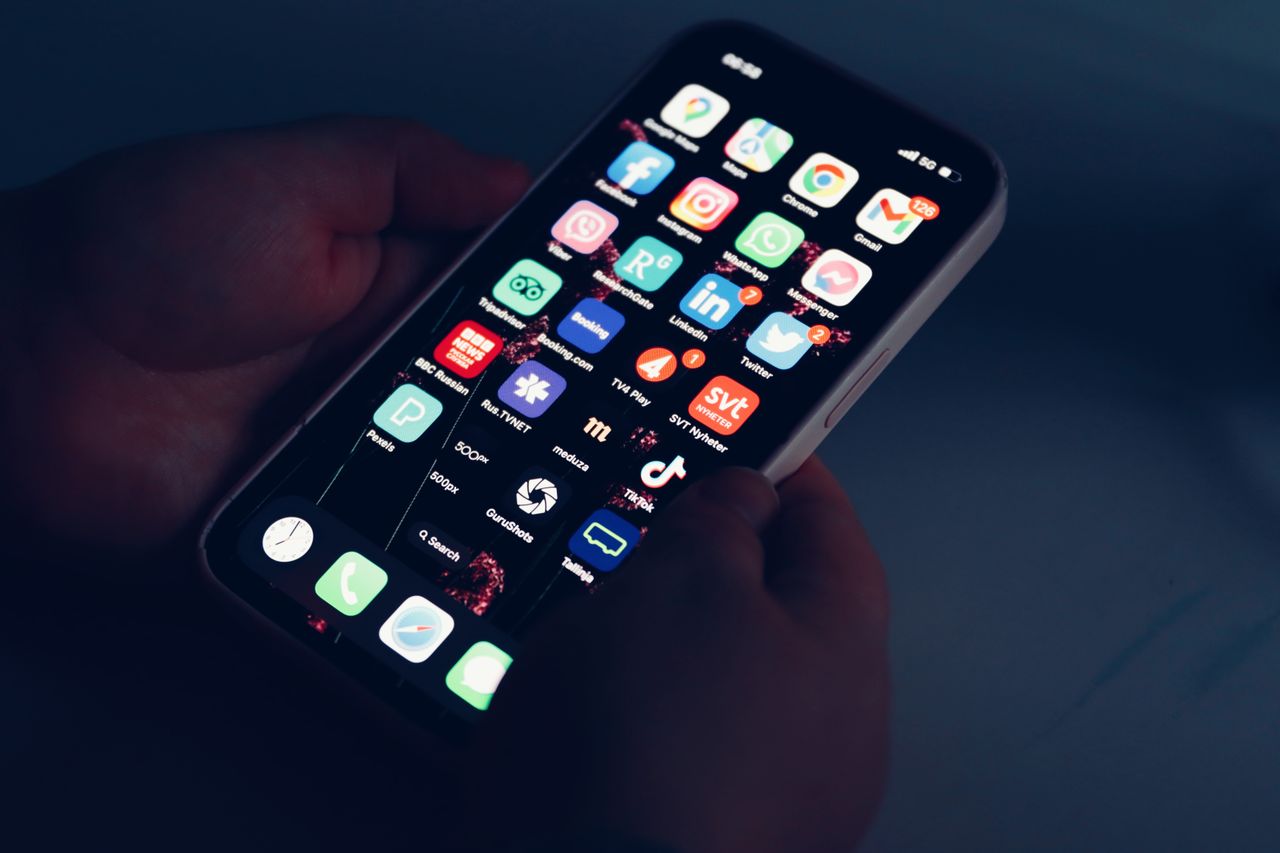
You unlock your phone to check the weather and twenty minutes later you’re deep in a video feed, wondering how you got there. It happens to almost everyone, and it’s not just a lack of willpower. Your home screen is designed, mostly by accident, to pull you in. Bright icons, red notification badges and your most tempting apps placed right under your thumb make distraction the path of least resistance.
The good news is that you can redesign that path. A thoughtfully organized home screen won’t magically fix every habit, but it can make it noticeably easier to use your phone on purpose instead of on autopilot. And it makes your phone faster to use, because the things you actually need are right where you expect them.
In this guide, we’ll walk through a practical approach to organizing your home screen on both Android and iPhone. We’ll cover what to put on your first screen, how to deal with the apps that distract you most, how to use folders, widgets and the app library or app drawer, and a few small changes that make a surprisingly big difference.
📋 Table of Contents
- Why your home screen layout matters
- Step 1: Audit your apps honestly
- Step 2: Make your first screen a tools-only zone
- Step 3: Move distracting apps out of sight
- Step 4: Use folders thoughtfully
- Step 5: Use widgets that save taps
- Step 6: Tame notification badges
- Step 7: Consider a calmer look
- Step 8: Create different home screens for different times
- Give your new layout time
- Frequently asked questions
- Final thoughts
This is not about using your phone less for the sake of it. Your phone is useful, and many apps genuinely add value to your life. The goal is simply to make sure that when you pick it up, you end up doing what you intended, and you put it down feeling like it helped you rather than ate your time.
Why your home screen layout matters
Your home screen is the first thing you see every time you unlock your phone, which for many people is dozens or even more than a hundred times a day. Whatever is on that screen gets a huge amount of your attention.
If the first thing you see is a grid of social media, games and shopping apps, each with a red badge showing unread items, it’s natural to tap them, even if you unlocked your phone for something else. Psychologists call these visual cues triggers. Remove or soften the triggers, and you reduce how often you get pulled off track.
A well-organized home screen also saves time. When your most useful apps are in consistent places, you can open them without searching, and your phone feels calmer and more like a tool than a slot machine.
There is a reason app designers obsess over icon colors and notification badges. These small details are tested carefully because they influence how often people open apps. You do not need to fight that design with willpower alone. You can simply change the environment, which is far easier and far more reliable over the long run.
Step 1: Audit your apps honestly
Before rearranging anything, take five minutes to sort your apps into three groups. You can do this in your head or on a piece of paper.
- Tools: apps you use to get things done. Messages, phone, calendar, maps, camera, notes, banking, email, transit.
- Intentional fun: apps you enjoy and want to use, but on your terms. Music, a reading app, a podcast app, a favorite game.
- Slot machines: apps that you open without thinking and then regret how much time you spent there. For many people, these are social media, short-form video, news feeds and some games.
There’s no right or wrong answer. What matters is being honest about your own habits. One person’s slot machine is another person’s tool.
While you’re at it, delete apps you haven’t used in months. Every unused app is clutter, takes up storage and may send notifications you don’t need.
If deleting feels scary, remember that almost every app can be reinstalled in seconds, and many keep your data in the cloud. If you truly need an app again, it will be there. In practice, most people rarely reinstall the apps they remove during a cleanup, which tells you how much they really needed them.
Step 2: Make your first screen a tools-only zone
Your first home screen should contain only tools, the apps that help you do things quickly. Ideally, it should fit on one screen without scrolling.
A good first screen might include:
- Phone, messages and your main chat app in the dock.
- Camera, calendar, maps and notes.
- Your banking or payment app.
- A useful widget, such as calendar or weather.
Keep it simple. Many people find that eight to twelve apps on the first screen is plenty. Empty space is fine. In fact, it helps your eyes rest and makes the important apps stand out.
Place your most-used apps where your thumb naturally reaches. On large phones, the bottom half of the screen is much easier to reach with one hand than the top corners.
Some people like to go even further and keep their first screen almost empty, with just a single widget and the dock. It sounds extreme, but it creates a surprisingly calm feeling every time you unlock the phone. You can experiment with different amounts and see what feels right. There is no rule that says a home screen has to be full.
Step 3: Move distracting apps out of sight
The single most effective change you can make is to remove your slot machine apps from your home screen entirely.
You don’t have to delete them. Just move them somewhere that requires a deliberate action to open them:
- On iPhone: remove them from the Home Screen and leave them in the App Library. Touch and hold the app, tap Remove App, then Remove from Home Screen. To open it, swipe to the App Library or search for it.
- On Android: remove them from the home screen and leave them in the app drawer. Touch and hold the app and choose Remove or drag it to the remove option. This doesn’t uninstall the app.
When opening an app requires typing its name in search, you have a few seconds to ask yourself whether you really want to open it. That small pause is often enough to break the automatic habit.
If you’re not ready to remove them completely, put them in a folder on your last home screen, where reaching them takes more effort.
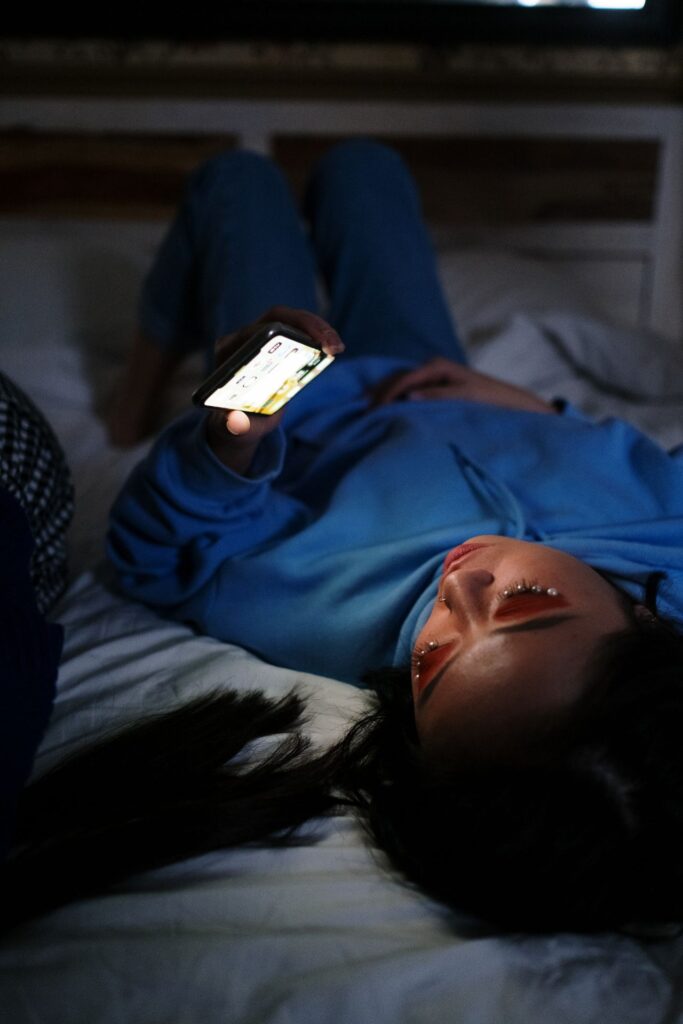
You can also add friction in other ways. Logging out of a social app after each use means you have to log back in next time, which creates a natural pause. Using the website version in a browser instead of the app can make the experience a little less polished and therefore a little less addictive. Small inconveniences like these can be surprisingly effective.
The goal is not to make your favorite apps impossible to use. It is to make using them a choice. When you decide to spend twenty minutes on a video app because you want to relax, that is completely fine. The problem is only when it happens dozens of times a day without you deciding.
Step 4: Use folders thoughtfully
Folders are useful for grouping related apps you use occasionally. Good examples include:
- Travel: airline apps, hotel apps, translation and currency apps.
- Money: banking, budgeting and payment apps.
- Home: smart home controls, utilities and delivery apps.
- Health: fitness, medication reminders and health records.
- Work: apps you need for your job but not every minute.
Name folders by action or purpose rather than by category. A folder called Pay or Book can be faster to scan than Finance or Lifestyle.
Avoid putting your most important daily tools inside folders. Every folder adds an extra tap. Reserve folders for apps you use a few times a week or less.
If you share a phone with a child, or set up a phone for an older relative, folders can also make the phone much simpler to use. A folder called Family with the photo app, video calls and messages, for example, gives them one place to find everything they need without getting lost among dozens of icons.
Step 5: Use widgets that save taps
Widgets show information directly on your home screen, so you don’t need to open an app. Used well, they reduce how often you need to unlock and wander.
Helpful widgets include:
- Calendar: see your next events at a glance.
- Weather: check the forecast without opening an app.
- Reminders or to-do lists: keep your tasks in view.
- Notes: pin a quick note or checklist.
- Battery: see the battery level of your phone, watch and earbuds.
Avoid widgets that feed you endless content, like news feeds or social media widgets, if you’re trying to reduce distraction. They bring the slot machine right back to your home screen.
On iPhone, touch and hold an empty area of the Home Screen, tap Edit or the plus button, and choose a widget. On Android, touch and hold an empty area, choose Widgets and drag one onto your screen.
A widget is most useful when it answers a question you ask often. If you check your calendar ten times a day, a calendar widget saves you ten trips into the app, and ten chances to get distracted on the way. If you rarely look at the weather, a weather widget is just decoration. Choose based on your real habits.
Step 6: Tame notification badges
Those little red numbers on app icons are powerful attention grabbers. They create a sense of something unfinished that needs your attention.
Turn off badges for apps where the number doesn’t matter, such as social media, games, shopping and news. Keep them for apps where a count is genuinely useful, like messages or email if you need to see unread items.
On iPhone, go to Settings, then Notifications, choose an app and turn off Badges.
On Android, go to Settings, then Notifications, and look for App icon badges or Notification dots. You can turn them off for all apps or for individual apps.
After you turn off badges, you might feel a little anxious at first, as if you are missing something. That feeling fades quickly. Important messages still arrive as notifications, and the apps are still there when you choose to open them. Most people find that life without a wall of red numbers is noticeably calmer.
Step 7: Consider a calmer look
A few visual changes can make your home screen feel less busy:
- Use a simple wallpaper. A calm, low-detail image makes icons easier to see and reduces visual noise.
- Try dark mode for a softer look, especially at night.
- Use grayscale for a while. Some people use grayscale mode during certain hours to make apps less visually tempting. It’s available in accessibility settings on both platforms, and Android’s bedtime mode can turn it on automatically.
- Hide app labels on Android if you prefer a cleaner look, though labels can help if you’re still learning your new layout.
It also helps to remember that you are the one in control. You can always rearrange things again, put an app back on the first screen or try a completely different layout. Treat it like rearranging furniture in a room: try something, live with it for a week and adjust until it feels right for you.
For extra motivation, check your screen time report before and after reorganizing. On iPhone it is under Screen Time in Settings, and on Android under Digital Wellbeing. Seeing the numbers change, even modestly, can be encouraging and helps you decide which changes are worth keeping.
Step 8: Create different home screens for different times
Both platforms let you change what you see based on context.
On iPhone, Focus modes can show different Home Screen pages depending on what you’re doing. For example, a Work Focus can show only work apps, while a Personal Focus can hide work apps in the evening. Set this up in Settings, then Focus, choose a Focus, and tap Customize Screens.
On Android, Samsung’s Modes and Routines can change settings and behavior based on time or activity, and Digital Wellbeing offers Focus mode, which pauses distracting apps during set times. Some launchers also support multiple home screen profiles.
This turns your phone into different tools at different times of day, which is a powerful way to protect both your focus and your downtime.
Give your new layout time
The first few days, you’ll probably reach for apps in their old places. That’s normal. Your thumb has memorized the old layout. Give it a week. Most people adapt quickly, and many find that they open distracting apps less often simply because they’re no longer one tap away.
Revisit your layout every few months. Your needs change, new apps arrive and old ones become irrelevant. A quick reorganization keeps your home screen working for you.
Frequently asked questions
Will removing an app from the home screen delete it?
No. On iPhone, Remove from Home Screen keeps the app in the App Library. On Android, removing an app from the home screen keeps it in the app drawer. Only uninstalling deletes the app.
Should I use a third-party launcher on Android?
Launchers can offer more customization, like gestures and hidden apps. Some people love them. But your phone’s default launcher is usually well optimized, and many customizations are possible without installing anything new.
How many apps should be on my home screen?
There’s no perfect number, but many people find one screen with eight to twelve essential apps and a widget or two works well. The goal is quick access to tools without visual clutter.
Does organizing my home screen really reduce screen time?
It can help. Making distracting apps slightly harder to reach adds a moment of friction, which often interrupts automatic habits. Combined with fewer notifications, many people notice a difference.
Can I back up my home screen layout?
On iPhone, your layout is included in your iCloud or computer backup. On Android, Google backup and brand-specific backups like Samsung Cloud can restore layouts on many phones.
What about the dock at the bottom?
The dock stays visible on every home screen page, so use it for the four or five apps you use most, like phone, messages, camera and your browser.
Final thoughts
Your home screen shapes how you use your phone more than you might think. Put your everyday tools front and center, move your most distracting apps out of easy reach, use folders and widgets with purpose and turn off badges that pull at your attention. You don’t need to throw your phone in a drawer to use it more intentionally. Sometimes all it takes is moving a few icons.
Leave a Reply