Category: Troubleshooting

Step-by-step fixes for the phone problems people run into most: charging, Wi-Fi, water damage and overheating.

  • Phone Won’t Charge? A Step-by-Step Troubleshooting Guide

    Phone Won’t Charge? A Step-by-Step Troubleshooting Guide

    You plug in your phone before bed, and in the morning it’s exactly where you left it, or worse, lower. Or maybe the charging icon flickers on and off, charging takes forever or your phone shows a strange warning about moisture or temperature. When a phone won’t charge properly, it’s not just inconvenient. It can feel like the phone is about to stop working entirely.

    Here’s the reassuring part: most charging problems have simple causes. A worn cable, a weak adapter, lint packed into the charging port or a software glitch is responsible far more often than a dead battery or a broken phone. Many of these can be fixed at home in a few minutes without any special tools.

    This guide walks you through a logical, step-by-step process to figure out why your phone isn’t charging and how to fix it. We’ll start with the quickest checks and work toward the more involved ones, so you don’t waste time or money on repairs you don’t need.

    As you go through the steps, keep a mental note of what you have already tried. If you reach the end and still need a repair shop, telling the technician that you tested three cables, two chargers and cleaned the port saves them time, and may save you money on diagnostic fees.

    Before you start: safety first

    Before troubleshooting, check for signs of a serious problem. Stop charging and seek professional help if you notice:

    • The phone, cable or charger is very hot to the touch.
    • A burning smell or visible melting or scorch marks.
    • The phone’s back or screen is bulging or lifting, which can indicate a swollen battery.
    • The phone was recently dropped in water and shows signs of damage.

    A swollen or damaged battery can be dangerous. Don’t try to charge it or fix it yourself. Take it to an authorized repair center.

    If you are ever unsure, err on the side of caution. A charging problem is annoying, but a damaged battery can overheat. It is always better to pay for a professional inspection than to risk using a phone that shows warning signs.

    Step 1: Try a different outlet and restart

    Start with the simplest possibilities.

    Try a different power outlet. Outlets, power strips and USB ports can fail. Plug your charger into a different wall outlet you know works.

    Restart your phone. Sometimes software stops recognizing the charger correctly. A restart can fix it. If your phone is completely dead and won’t turn on, leave it connected to a known working charger for 30 minutes before trying to restart it, because a deeply drained battery may need time before showing signs of life.

    Force restart if needed. If the screen is frozen or black but you suspect the phone is on, a force restart can help. The method depends on your phone. On most iPhones with Face ID, press and release volume up, press and release volume down, then press and hold the side button until the Apple logo appears. On many Android phones, holding the power and volume down buttons for 10 to 20 seconds forces a restart.

    It is worth keeping one cable you know is reliable as a reference. Whenever charging seems off, test with that cable first. If it works, you know the problem is the other cable. If it does not, you can move on to the charger and the port. It is a simple trick that makes troubleshooting much faster.

    Cables used in cars and offices tend to wear out the fastest, because they are bent, stepped on and pulled more often. If your phone charges fine at home but not in the car, the car cable or the car adapter is the most likely culprit.

    Step 2: Check the cable

    Cables are the most common cause of charging problems. They bend, twist and get pulled every day, and the wires inside can break even when the outside looks fine.

    • Try a different cable that you know works with another device.
    • Inspect the cable for frays, bends, exposed wires or damaged connectors.
    • Wiggle test: if charging starts and stops when you move the cable near the connector, the cable is likely damaged.
    • Check that the cable supports charging. Some cheap cables are meant only for data or deliver very little power.

    If a different cable works, you’ve found your problem. Replace the damaged cable with a quality one from a reputable brand.

    Multi-port chargers can also cause confusion. When several devices are connected at once, the charger may split its power, leaving your phone with less than it needs. Try charging the phone alone on the same charger to see if it behaves differently.

    Step 3: Check the charger

    Next, test the power adapter.

    • Try a different charger, ideally one that came with your phone or a known good one.
    • Check the wattage. A low-power charger, like an old 5 watt adapter or a laptop USB port, may charge a modern phone very slowly, or not at all while the phone is in heavy use.
    • Look for damage on the adapter’s plug or USB port.

    If your phone charges with a different adapter, the original charger may be faulty or underpowered.
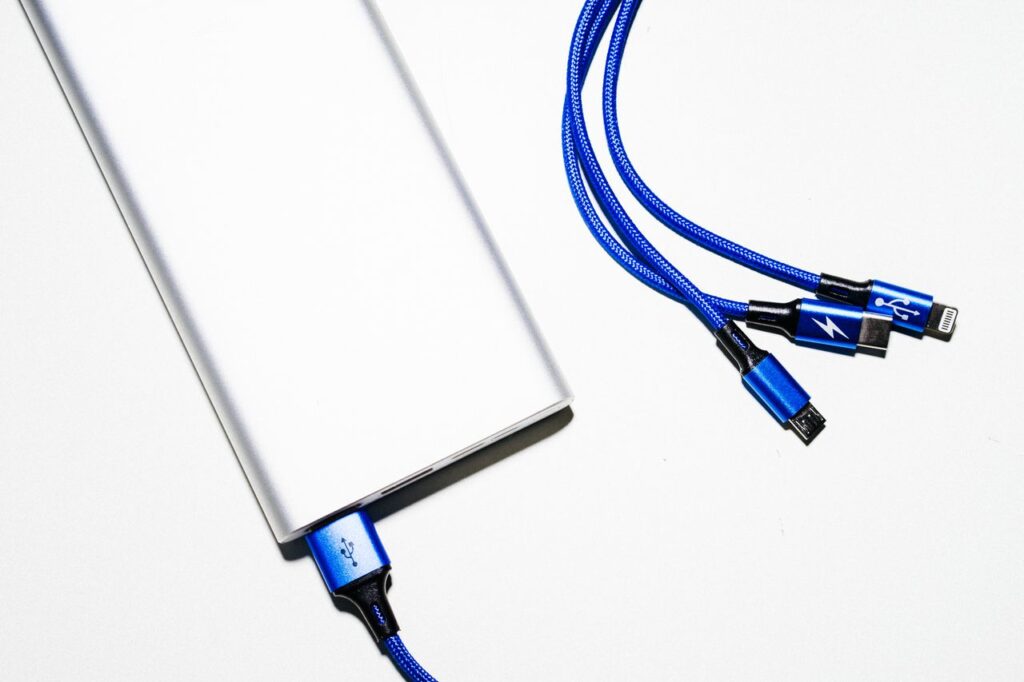
    Power bank with blue USB charging cables

    Once the port is clean, you will often notice that the cable clicks in firmly again, the way it did when the phone was new. That satisfying click is a good sign that the connection is solid. Many people who thought they needed a new phone or a new battery find that ten minutes with a toothpick solves the problem completely.

    Step 4: Clean the charging port

    This fix surprises a lot of people. Pockets and bags are full of lint and dust, and every time you put your phone in a pocket, a little more gets pushed into the charging port. Over months, it builds up into a compacted layer that stops the cable from fully connecting.

    Signs of a dirty port include the cable feeling loose, not clicking in fully, or charging only when held at a certain angle.

    How to clean it safely

    1. Turn off the phone.
    2. Shine a flashlight into the port and look for lint or debris.
    3. Use a wooden or plastic toothpick to gently loosen debris. Scrape lightly along the inside walls and pull debris out toward the opening.
    4. Avoid metal objects like pins, needles or paperclips. They can scratch or short the contacts.
    5. Use gentle air if you have it. A few short blasts from a can of compressed air, held upright and not too close, can help. Don’t blow into the port with your mouth, because moisture can cause problems.
    6. Try charging again.

    Be gentle. The pins inside the port are delicate. If you’re not comfortable doing this yourself, a phone repair shop can clean the port quickly and usually inexpensively.

    Moisture warnings can sometimes appear even when the phone has not been near water, for example in very humid weather, after a shower in a steamy bathroom or after sweating heavily during exercise with the phone in a pocket. In those cases, the same advice applies: unplug, let it dry and try again later.

    If the warning persists for more than a day even though the phone has had plenty of time to dry, restart it and inspect the port with a flashlight for visible corrosion, which looks like green or white residue. Corrosion is a sign that a repair shop should take a look.

    Step 5: Check for moisture warnings

    Many phones detect moisture in the charging port and block wired charging to prevent damage.

    On Samsung and some other Android phones, you may see a Moisture detected message with a water drop icon.

    On iPhone, you may see a Liquid Detected in Lightning Connector or USB-C Connector alert.

    If this happens:

    1. Unplug the cable and leave it disconnected.
    2. Tap the phone gently against your hand with the port facing down to remove excess water.
    3. Leave it to dry in a dry area with some airflow, for at least 30 minutes and often longer.
    4. Don’t use heat like a hair dryer, and don’t insert cotton swabs or paper towels into the port.
    5. Don’t put it in rice. Apple specifically advises against this, because rice particles can get into the phone.

    Wireless charging may still work while the port dries, if your phone supports it. Some phones also offer an emergency override, but it’s safer to wait until the warning clears.

    Summer is the most common time for temperature-related charging problems. A phone used for navigation in a car, then plugged in while sitting in the sun, can easily become too warm to charge. Moving it to a cooler spot near the air conditioning vents usually solves the problem within a few minutes.

    Step 6: Check temperature

    Phones pause or slow charging when they’re too hot or too cold, to protect the battery. You may see a message saying charging is paused, or the phone may simply charge slowly.

    • If the phone is hot, unplug it, remove the case and let it cool in a shaded spot before trying again.
    • If the phone is very cold, let it warm up to room temperature gradually.
    • Avoid charging in direct sunlight, under pillows or in hot cars.

    If you see a notification saying charging is on hold or will finish later, tap it. Most phones let you charge to full immediately when you need it. Knowing this prevents the false alarm of thinking your phone is broken when it is actually protecting the battery as designed.

    Step 7: Check battery and charging settings

    Sometimes the phone is charging exactly as designed, and it’s the settings that surprise you.

    • Optimized or adaptive charging may pause charging at 80 percent and finish later, usually overnight. This is normal. You’ll often see a notification explaining it.
    • Charging limits on newer iPhones, Samsung, Pixel and other phones can stop charging at 80 percent or another level you chose. Check your battery settings if your phone never reaches 100 percent.
    • Battery saver doesn’t stop charging but may affect performance.

    Step 8: Try safe mode or check for problem apps

    Rarely, an app or software issue can interfere with charging, especially if the phone charges when off but not when on.

    On Android, restart in safe mode, which disables third-party apps. If the phone charges normally in safe mode, a recently installed app may be causing the problem. To enter safe mode on many phones, press and hold the power button, then touch and hold Power off until the safe mode option appears.

    On any phone, check for software updates, which may fix charging bugs.

    Try charging while off. If your phone charges normally when powered off, the problem is likely software or heavy background activity.
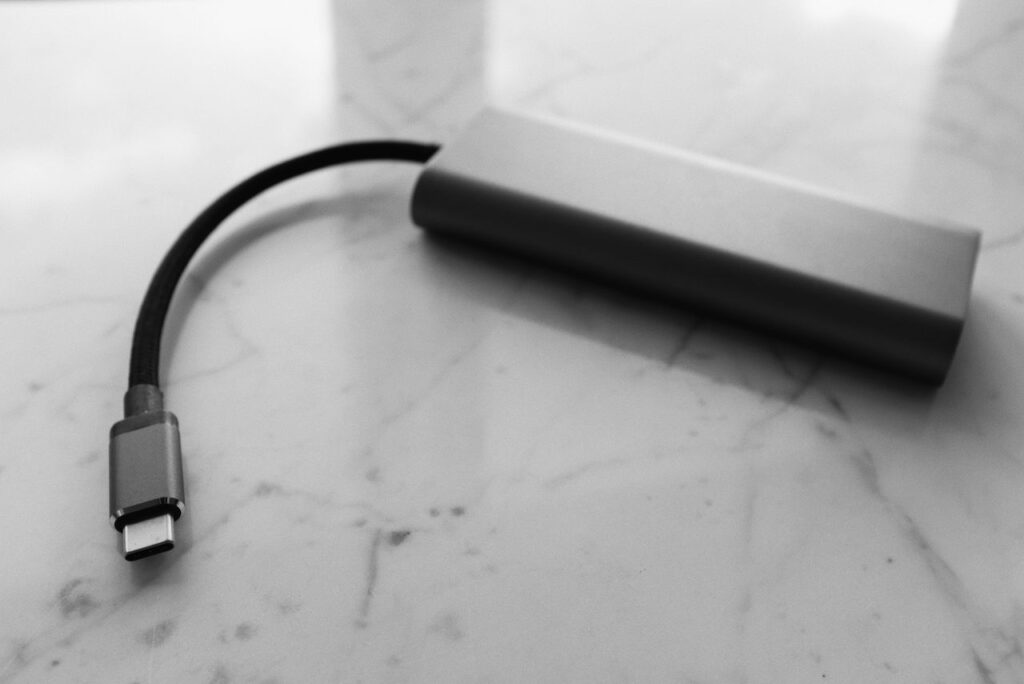
    USB-C power bank and cable on a marble surface

    If you need professional help, ask about the cost of a charging port repair versus a battery replacement before agreeing to anything. Charging ports on many phones are replaceable at a reasonable price, and a good technician can tell you which part is actually at fault after a quick test.

    Step 9: Try wireless charging

    If your phone supports wireless charging and you have a wireless charger, try it. If wireless charging works but wired doesn’t, the problem is likely the charging port, cable or adapter. If neither works, the problem may be the battery or internal charging hardware.

    A quick monthly check of your charging port with a flashlight takes five seconds and can catch lint buildup before it causes problems. It is one of those tiny habits that saves a lot of frustration over the life of a phone.

    Step 10: When it’s time for professional help

    If you’ve tried everything above and your phone still won’t charge, it’s time to get help. Possible causes include:

    • A damaged charging port that needs replacing.
    • A worn or failed battery.
    • Water damage inside the phone.
    • A problem with the phone’s charging circuitry.

    Contact your phone’s manufacturer or an authorized service provider, especially if your phone is under warranty. Back up your data first if the phone still turns on.

    How to prevent charging problems

    • Use quality cables and chargers from reputable brands.
    • Don’t yank cables out by the cord. Pull from the connector.
    • Avoid sharp bends near the connector.
    • Keep your charging port clean by occasionally checking it with a flashlight.
    • Keep your phone in a clean pocket or bag compartment, away from lint and crumbs.
    • Avoid charging in hot places.

    Frequently asked questions

    Why does my phone charge only at certain angles?

    Usually because of a damaged cable or lint in the charging port preventing a full connection. Try a different cable and clean the port.

    Why does my phone stop charging at 80 percent?

    Most likely because of optimized charging or a charging limit setting designed to protect the battery. Check your battery settings.

    Is it safe to charge my phone with a laptop USB port?

    Yes, but it may be slow. USB ports on computers often provide less power than wall chargers.

    Can I charge my phone if it shows a moisture warning?

    It’s safest to wait until the port is completely dry and the warning disappears. Charging a wet port can cause corrosion or damage.

    Why does my phone charge slowly even with a fast charger?

    Possible causes include an incompatible charging standard, a low-quality cable, heat, heavy use while charging or a charging limit setting.

    My phone won’t turn on at all. Is it dead?

    Not necessarily. Leave it on a known working charger for at least 30 minutes, then try a force restart. If nothing happens, contact a repair service.

    Final thoughts

    When your phone won’t charge, work through the problem methodically. Try another outlet and restart, test a different cable and charger, clean the charging port carefully, check for moisture and temperature warnings and review your charging settings. Most problems are solved somewhere in those steps. If not, a professional can diagnose the port, battery or internal hardware. With a little patience, you’ll likely be back to a full battery soon.
  • How to Fix Wi-Fi That Keeps Disconnecting on Your Phone

    How to Fix Wi-Fi That Keeps Disconnecting on Your Phone

    Few things are more annoying than Wi-Fi that won’t stay connected. Your video freezes in the middle of a call, a download stops halfway, messages don’t send and your phone quietly switches to mobile data, eating into your plan. You turn Wi-Fi off and on again, it works for a while, and then the cycle repeats.

    Wi-Fi problems can come from your phone, your router, your internet provider or even the layout of your home. That’s what makes them frustrating: the cause isn’t always obvious. The good news is that most Wi-Fi disconnection problems can be solved with a methodical approach and a few settings changes.

    In this guide, we’ll help you figure out where the problem is, then walk through the most effective fixes on Android and iPhone, as well as on your router. We’ll start with the quickest checks and move toward the more involved solutions.

    You do not need to be a networking expert to follow along. Most of these fixes involve a few taps in your phone settings or a simple change in where your router sits. We will explain the reasons behind each step, so you understand what you are changing and why it might help.

    Step 1: Figure out where the problem is

    Before changing settings, narrow down the cause. Ask yourself these questions:

    • Do other devices disconnect too? If your laptop, TV and other phones also lose connection, the problem is likely the router or your internet service, not your phone.
    • Does it happen everywhere or only in one place? If your phone disconnects at home but not at work or a café, the issue is probably your home network or router placement.
    • Does it happen in certain rooms? Weak signal in distant rooms is a coverage problem.
    • Did it start recently? A recent phone update, router update or new device can trigger problems.
    • Is Wi-Fi actually disconnected, or connected without internet? If your phone shows Wi-Fi connected but nothing loads, the issue is usually the internet connection itself.

    The answers point you toward the right fixes.

    A simple test can help you decide. Stand right next to your router with your phone for ten minutes and use it normally. If the connection is perfectly stable there but drops in other rooms, coverage is the problem. If it still drops even next to the router, the problem is more likely the router itself, your internet service or a setting on the phone.

    Step 2: Quick fixes that solve many problems

    Restart your phone and router

    It’s a cliché because it works. Restart your phone. Then unplug your router, and modem if it’s separate, wait about 30 seconds and plug it back in. Wait a few minutes for it to fully restart before reconnecting.

    Routers run continuously for months and can develop glitches over time. A restart clears them.

    Toggle Airplane Mode

    Turn Airplane Mode on for 10 seconds, then off again. This resets all wireless connections on your phone.

    Forget the network and reconnect

    If your phone has stored outdated settings for your network, forgetting it and reconnecting gives it a fresh start.

    On Android: go to Settings, then Network and internet or Connections, then Wi-Fi. Tap the gear icon or the network name, then Forget. Reconnect by selecting the network and entering the password.

    On iPhone: go to Settings, then Wi-Fi, tap the info icon next to your network and choose Forget This Network. Reconnect and enter the password.

    Make sure you know your Wi-Fi password before forgetting the network.

    If restarting the router fixes the problem but it returns every few days, that is a strong hint the router itself is struggling. Some routers allow you to schedule automatic restarts, for example once a week in the middle of the night. It is a practical workaround while you decide whether a new router is needed.

    Step 3: Update your phone and router

    Software bugs can cause Wi-Fi drops, and updates often fix them.

    • Update your phone through Settings, then System or General, then Software update.
    • Update your router’s firmware. Many modern routers update automatically. Others need you to log into their app or admin page. Check your router’s app or the label on the router for instructions. If your router was provided by your internet company, they may update it remotely.

    Phone updates in particular often include fixes for Wi-Fi and Bluetooth bugs, even when the release notes do not mention them in detail. If your problem started right after an update, check again a week or two later, because manufacturers frequently release smaller follow-up updates that fix issues introduced by the bigger one.

    Step 4: Check settings that switch you off Wi-Fi

    Some phone features are designed to help you stay connected, but they can make it look like Wi-Fi is dropping.

    On Android: look for settings like Switch to mobile data automatically, Adaptive Wi-Fi, Intelligent Wi-Fi or Wi-Fi assistant. These switch to mobile data when Wi-Fi is weak. If you’d rather stay on Wi-Fi, try turning them off and see if the problem improves.

    On iPhone: Wi-Fi Assist, found at the bottom of Settings, then Cellular or Mobile Data, uses cellular data when Wi-Fi is poor. Turning it off keeps you on Wi-Fi, though pages may load slowly when the signal is weak.

    Also check Auto-Join on iPhone and Auto-connect on Android for your home network. If it’s off, your phone may not reconnect automatically.

    Silver internet router on a white background

    These features are not bad. In fact, they are useful when you walk out of range of your home network, because they keep you connected without interruption. The problem is only when they kick in too eagerly at home, where you would prefer to stay on Wi-Fi. Turning them off temporarily is a good way to test whether they are part of the problem.

    Step 5: Private Wi-Fi address and MAC randomization

    Modern phones use a private or randomized address for each Wi-Fi network to protect your privacy. It’s a good feature, but some routers, especially ones with device filtering, parental controls or older firmware, don’t handle it well and may disconnect your phone.

    On Android: tap your network’s settings, then Privacy or MAC address type, and choose Use device MAC instead of Use randomized MAC for your home network.

    On iPhone: tap the info icon next to your network and turn off Private Wi-Fi Address, or set it to Fixed if your iOS version offers that option, for your home network only.

    Only change this for networks you trust, like your home network. Keep private addresses on for public Wi-Fi.

    If you are not sure whether your router uses device filtering, think about whether you or your internet provider ever set up parental controls, device blocking or a guest network with restrictions. Those features often identify devices by their address, and a phone that changes its address can confuse them.

    Step 6: Improve signal strength

    Weak signal is one of the most common causes of dropped connections. Wi-Fi signals weaken with distance and are blocked by walls, floors, metal and water, including fish tanks and even people.

    • Place the router centrally in your home, ideally on a shelf rather than on the floor or inside a cabinet.
    • Keep it away from microwaves, cordless phones, baby monitors, thick walls and large metal objects.
    • Point antennas in different directions if your router has adjustable antennas, for example one vertical and one horizontal.
    • Consider a mesh Wi-Fi system for larger homes or homes with several floors. Mesh systems use multiple units to spread a strong signal throughout the house.
    • Wi-Fi extenders can help in specific dead zones, though mesh systems usually perform better.

    Router placement is one of the most overlooked fixes. Many routers end up hidden behind the TV, inside a cupboard or on the floor in a corner, simply because that is where the cable comes into the home. Moving the router just a few meters to a more open, central spot can make a dramatic difference, sometimes more than buying new equipment.

    If moving the router is not possible because of where the cable enters the house, a longer network cable or a mesh system with a satellite unit in the middle of the home can achieve the same effect without rewiring.

    Step 7: Choose the right band: 2.4 GHz vs 5 GHz

    Most routers broadcast on two or more frequency bands.

    • 2.4 GHz reaches farther and passes through walls better, but it’s slower and more crowded because many devices and neighboring networks use it.
    • 5 GHz is faster and less crowded, but has shorter range and is more easily blocked by walls.
    • 6 GHz, used by Wi-Fi 6E and Wi-Fi 7, is even faster with less interference, but has shorter range and needs compatible devices.

    If your phone keeps switching between bands, some routers let you split them into separate network names, like Home-2.4 and Home-5. Connecting to the band that works best for your location can improve stability. Many modern routers handle band steering well automatically, so try this only if you’re having problems.

    A good practical approach is to use 5 GHz in rooms close to the router and 2.4 GHz in rooms farther away. If your phone keeps switching back and forth in the middle of the house, that is where a mesh system or a better router position can really help.

    Step 8: Reduce interference and congestion

    In apartment buildings, dozens of networks may compete for the same channels. If your router is on a crowded channel, your connection can become unstable.

    Most modern routers choose channels automatically. If yours doesn’t, or if problems persist, log into your router’s app or admin page and try a different channel. On 2.4 GHz, channels 1, 6 and 11 are the standard non-overlapping choices.

    Too many devices on one router can also cause problems. Smart TVs, cameras, speakers, phones, tablets and laptops all compete for bandwidth. If your router is older, it may struggle with many connected devices.

    A useful exercise is to look at your router app, if it has one, and see how many devices are connected. Many people are surprised to see thirty or forty devices, including old phones, smart plugs and gadgets they forgot about. Removing devices you no longer use can free up resources and improve stability for everything else.

    Step 9: Check battery saving and sleep settings

    Some phones reduce Wi-Fi activity to save battery when the screen is off or when battery saver is active. This can delay notifications or make it look like Wi-Fi drops when you wake the phone.

    On Android, check battery saver settings and any Wi-Fi sleep or power saving options in Wi-Fi settings. Some manufacturers include extra options in advanced Wi-Fi settings.

    On iPhone, Low Power Mode reduces background activity, which can delay some updates but shouldn’t disconnect Wi-Fi completely.

    Two smartphones side by side showing their screens

    Step 10: Reset network settings

    If nothing else has worked, resetting your phone’s network settings clears all saved Wi-Fi networks, Bluetooth pairings and network configurations, returning them to defaults. It doesn’t delete your photos, apps or personal data.

    On Android: go to Settings, then System, then Reset options, then Reset Wi-Fi, mobile and Bluetooth. On Samsung phones, it’s General management, then Reset, then Reset network settings.

    On iPhone: go to Settings, then General, then Transfer or Reset iPhone, then Reset, then Reset Network Settings.

    After resetting, reconnect to your Wi-Fi and re-pair Bluetooth devices.

    Before resetting, take a screenshot of your Wi-Fi list or note down the passwords for networks you use regularly, such as home, work and family members homes. It is easy to forget a password you have not typed in years, and the reset will make you enter them all again.

    Step 11: Contact your internet provider or replace your router

    If other devices also disconnect, or if the problem continues after all these steps, the issue may be your internet service or router.

    • Check for outages with your internet provider’s app or website.
    • Ask your provider to test your line. They can often detect problems remotely.
    • Consider replacing an old router. Routers older than about five years may not handle modern devices and traffic well. A newer router supporting Wi-Fi 6 or later can improve speed, range and stability.

    Frequently asked questions

    Why does my phone say connected, no internet?

    Your phone is connected to the router, but the router can’t reach the internet. Restart the router and modem, check for provider outages and test other devices.

    Why does Wi-Fi disconnect when my phone is locked?

    Battery saving features may limit Wi-Fi activity when the screen is off. Check battery saver and Wi-Fi power settings, and make sure your phone and router are updated.

    Will resetting network settings delete my data?

    No. It only removes saved Wi-Fi networks, Bluetooth pairings and network settings. Your apps, photos and files remain.

    Is a mesh system better than a Wi-Fi extender?

    Usually yes. Mesh systems are designed to work together as one network and generally provide more consistent coverage than single extenders.

    Does a phone case affect Wi-Fi signal?

    Most cases don’t. Cases with metal parts or thick metal plates may reduce signal slightly.

    Why does only my phone disconnect while other devices work fine?

    The problem is probably your phone’s settings. Forget and reconnect the network, check private address settings, update the phone and reset network settings if needed.

    If your work depends on a stable connection, such as remote work or online classes, consider keeping a backup option ready, like a mobile hotspot plan on your phone. It will not replace a good home network, but it can save an important meeting while you sort out the problem.

    Final thoughts

    Wi-Fi that keeps disconnecting is frustrating, but it’s usually fixable. Start by working out whether the problem is your phone or your network. Restart everything, forget and rejoin the network and update your software. Then check settings like Wi-Fi assist and private addresses, improve router placement and consider your frequency bands. If all else fails, reset network settings or talk to your internet provider. A stable connection is usually just a few steps away.

  • What to Do When Your Phone Gets Wet: Steps That Actually Help

    What to Do When Your Phone Gets Wet: Steps That Actually Help

    It happens in a split second. The phone slips off the edge of the sink, tumbles into the pool, gets caught in a sudden downpour or meets a full glass of juice. Your heart drops, you grab it as fast as you can and then you wonder: what now?

    The actions you take in the first few minutes and hours can make a real difference to whether your phone survives without problems. Unfortunately, some of the most popular advice, like putting the phone in a bag of rice or drying it with a hair dryer, can do more harm than good.

    In this guide, we’ll walk through exactly what to do when your phone gets wet, step by step, what to avoid, how to deal with moisture warnings, what water resistance ratings really mean and when to get professional help. Stay calm, and let’s get your phone dry.

    Before we start, take a breath. Many phones survive water accidents, especially modern ones with water resistance. Panicking leads to rushed decisions, like turning the phone on repeatedly or plugging it in to see if it still works. Slow and steady is the right approach here.

    Step 1: Get it out of the liquid immediately

    Every second counts. Remove the phone from water as quickly as possible. The longer it stays submerged, the more likely water is to find its way inside, especially past seals that have aged or been damaged.

    If the phone fell into something other than plain water, like salt water, a sugary drink, soap or chlorinated pool water, take note. These liquids can be more damaging than fresh water, and you’ll handle them slightly differently, as explained below.

    Speed matters even for water-resistant phones. Water resistance is tested in controlled conditions for limited times. In real life, a phone that has been dropped before, that has a cracked back or that has been repaired may not resist water as well as it did when new.

    Step 2: Turn it off, and don’t charge it

    If the phone is still on, it’s usually best to turn it off, especially if it’s not water resistant or if it was submerged for a while. Water and electricity don’t mix, and shutting down reduces the risk of a short circuit while liquid is inside.

    Most importantly:

    • Don’t plug it in to charge. A wet charging port combined with electricity can cause corrosion or short circuits.
    • Don’t press buttons repeatedly to check if it works. Pressing buttons can push water further inside.
    • Don’t connect headphones or accessories to the ports.

    If your phone is water resistant and only got a light splash, it may be fine to leave it on. But if you’re unsure, turning it off is the safer choice.

    If the phone is not responding at all, do not keep trying to turn it on or off. Simply move on to the next steps and let it dry. A phone that is off, dry and patient has the best chance of recovering.

    Step 3: Remove the case and accessories

    Take the phone out of its case. Cases trap water against the phone and slow down drying. Remove any screen protector edges that seem to be holding water, any pop sockets or magnetic accessories, and the SIM tray if your phone has one, using the SIM tool or a paperclip. Leave the SIM tray out while the phone dries so air can circulate.

    Keep the SIM tray and card somewhere safe while the phone dries, ideally on a dry cloth next to the phone so you do not lose them. Wipe the SIM card gently with a dry cloth if it looks wet. SIM cards are quite resilient and usually survive water exposure without any problems.

    Step 4: Dry the outside gently

    Use a soft, lint-free cloth, like a microfiber cloth or a cotton towel, to wipe the outside of the phone. Pat the screen, back and edges dry.

    To help water drain from the ports:

    1. Hold the phone with the charging port facing down.
    2. Tap it gently against the palm of your hand to let water drip out.
    3. Do the same for speaker grilles and any other openings.

    Don’t shake it violently, which can spread water around inside.

    If water has gotten under a screen protector, you may see bubbles or a cloudy layer. In that case, carefully peel the protector off and replace it later with a new one. Trapped water under a protector dries very slowly and can leave marks if left in place.

    Step 5: Let it air dry

    Now comes the part that requires patience. Place the phone in a dry area with good airflow. A spot near a fan set to cool, or simply on a dry towel in a well-ventilated room, works well. Prop it up so the ports face down, allowing gravity to help.

    Let it dry for at least 24 hours, and ideally 48 hours if it was fully submerged. It’s tempting to check every hour, but turning it on too early risks damage if moisture remains inside.

    Smartphone resting on smooth beach stones

    A dry, warm room, not hot, is ideal. If you live in a humid climate, a room with air conditioning or a dehumidifier can speed up drying. Some people place the phone in a sealed container with silica gel packets, the small packets often found in shoe boxes and vitamin bottles, which absorb moisture more effectively than rice and do not leave dust behind.

    What not to do

    Some common advice can actually make things worse.

    Don’t put it in rice

    The rice trick is one of the most widespread pieces of phone advice, but it’s not recommended. Apple specifically advises against it. Rice isn’t particularly effective at drawing moisture out of a sealed phone, and small grains and starch dust can get into the ports and cause new problems. Open air with good circulation is generally better.

    Don’t use heat

    Avoid hair dryers, ovens, microwaves, radiators and direct sunlight. Heat can damage the battery, warp components, weaken adhesives and seals, and push moisture deeper inside rather than removing it.

    Don’t insert anything into the ports

    Don’t use cotton swabs, tissues or paper towels inside the charging port or speaker openings. Fibers can get stuck and you can damage delicate pins.

    Don’t blow compressed air directly into it

    Strong blasts of compressed air can push water deeper into the phone. If you use air, keep it gentle and at a distance, or simply rely on a fan.

    Don’t charge it until it’s dry

    This is worth repeating. Charging a wet phone is one of the most common ways to turn minor water exposure into permanent damage.

    It is completely understandable to want to do something active in this moment. Doing nothing and waiting feels wrong when your phone is in trouble. But in this case, patience genuinely is the best action. Most damage from water accidents comes from what people do in the first hour, not from the water itself.

    If it was salt water, a sugary drink or something else

    Salt water, soft drinks, juice, coffee and other liquids leave residue that can corrode the inside of your phone or make buttons sticky.

    If your phone is water resistant, many manufacturers recommend rinsing it gently with clean fresh water after exposure to these liquids, then drying it as described above. Check your phone manufacturer’s guidance for your specific model, because recommendations vary.

    If your phone is not water resistant, don’t rinse it. Dry it as best you can and consider taking it to a professional, since residue inside may need cleaning.

    Understanding moisture warnings

    Many phones detect moisture in the charging port and block wired charging until it’s dry.

    • Samsung and some other Android phones may display a Moisture detected warning with a water drop icon.
    • iPhones may show a Liquid Detected alert for the charging connector.

    These warnings are protective. Unplug the cable and wait for the port to dry, which can take from 30 minutes to several hours. Wireless charging may still be possible if your phone supports it, but it’s safest to wait until the phone is fully dry if it was submerged.

    Avoid using emergency override options unless absolutely necessary, as charging with moisture present can cause corrosion.

    Phones exposed to pool water deserve a little extra attention as well. Chlorine and other pool chemicals can affect seals and leave residue. If your phone is water resistant and your manufacturer recommends it, a gentle rinse with fresh tap water followed by careful drying is usually the best course of action.

    What water resistance ratings really mean

    Many modern phones have an IP rating, such as IP67 or IP68. The second number refers to water resistance:

    • IP67: tested to withstand immersion in up to 1 meter of fresh water for up to 30 minutes.
    • IP68: tested for deeper or longer immersion, with the exact depth and time specified by the manufacturer.

    It’s important to understand the limits:

    • Ratings are based on laboratory tests with fresh water, not salt water, pool water, soap or hot water.
    • Water resistance decreases over time as seals wear, especially after drops or repairs.
    • Water resistance is not waterproofing. Swimming, diving, showering and water sports can exceed the tested conditions.
    • Liquid damage is often not covered by warranty, even on water-resistant phones.

    So a high rating improves your chances, but it’s not a guarantee.

    Smartphone with a blank screen on a sandy log at the beach

    After drying: check that everything works

    Once you’ve waited at least 24 to 48 hours, turn your phone on and check:

    • The screen: look for spots, lines, discoloration or flickering.
    • Touch response: make sure the touchscreen works across the whole display.
    • Speakers and microphone: play audio and make a test call or record a voice note.
    • Cameras: check for fog or water spots inside the lens.
    • Buttons: make sure they click and respond normally.
    • Charging: once you’re confident the port is dry, try charging with a known good cable.
    • Face ID or fingerprint sensor.

    If sound seems muffled, water may still be in the speaker. Some phones and apps can play tones designed to push water out of the speaker grille, and Apple Watch has a built-in water lock feature. Otherwise, more drying time usually helps.

    Pay attention over the following weeks, too. Corrosion inside a phone can develop slowly, so problems sometimes appear days or even weeks after the accident. If your phone starts behaving strangely, such as random restarts, battery issues or flickering, mention the water exposure to the repair technician.

    When to get professional help

    Take your phone to an authorized service provider or a reputable repair shop if:

    • It won’t turn on after drying.
    • The screen shows damage, lines or spots.
    • The phone gets hot, especially while charging.
    • Sound, cameras or buttons don’t work properly.
    • It was exposed to salt water or sugary liquids and isn’t water resistant.
    • There’s fog inside the camera lens that doesn’t clear.

    Professionals can open the phone, clean corrosion and replace damaged parts. The sooner you get help, the better the chances, because corrosion continues over time.

    If your phone is insured, contact your insurer early, as some policies require you to report incidents promptly.

    A practical tip for the future: if you often use your phone near water, at the beach, by the pool or on boats, consider a waterproof pouch or a rugged case designed for water activities. They cost far less than a repair and let you take photos and answer messages without worrying about splashes or drops.

    Protect your data

    If your phone survives, use this as a reminder to make sure your backups are up to date. If it doesn’t survive, your backups are what let you recover your photos, messages and contacts on a new phone. Turn on automatic backups through Google or iCloud if you haven’t already.

    Frequently asked questions

    Does putting a wet phone in rice work?

    It’s not recommended. Apple advises against it, and rice can leave dust and particles in the ports. Air drying with good airflow is a better approach.

    How long should I wait before turning my phone back on?

    At least 24 hours, ideally 48 hours if the phone was fully submerged. If it’s water resistant and only got splashed, it may be fine sooner, but caution is wise.

    My phone is IP68. Can I use it underwater?

    IP68 means it passed specific lab tests in fresh water. It’s designed to survive accidents, not regular underwater use. Water damage may not be covered by warranty.

    Why is my phone’s sound muffled after getting wet?

    Water may be trapped in the speaker or microphone openings. Let it dry longer with the openings facing down. Sound usually returns once the water evaporates.

    Can I charge my phone wirelessly if the port is wet?

    Some manufacturers say wireless charging may be used when moisture is detected in the port, but if the phone was submerged, it’s safest to wait until it’s completely dry.

    Will my warranty cover water damage?

    Often not. Most standard warranties exclude liquid damage, even for water-resistant phones. Check your warranty and any insurance or extended protection plans.

    This is also a good moment to think about insurance or extended protection. If water accidents seem to happen often in your household, especially with children, a protection plan that covers accidental damage may save money in the long run. Read the terms carefully, since coverage and deductibles vary a lot.

    Final thoughts

    If your phone gets wet, act quickly but calmly. Get it out of the liquid, turn it off, don’t charge it, remove the case and SIM tray, dry the outside and let it air dry for at least a day in a well-ventilated spot. Skip the rice and the hair dryer. Check everything carefully before charging, and get professional help if anything seems wrong. With a bit of patience and the right steps, many phones recover from water accidents just fine.

  • Phone Overheating? Common Causes and How to Cool It Down Safely

    Phone Overheating? Common Causes and How to Cool It Down Safely

    Phones get warm. That’s normal. They pack powerful processors, bright screens and big batteries into a thin, sealed body with no fans. During gaming, video calls, navigation or fast charging, a bit of warmth is expected.

    But there’s a difference between warm and hot. When your phone becomes uncomfortable to hold, shows a temperature warning, dims the screen on its own, stops charging or starts lagging badly, it’s overheating. And overheating isn’t just uncomfortable. It can slow your phone down, drain the battery faster and, over time, shorten the battery’s lifespan.

    In this guide, we’ll explain why phones overheat, how to cool yours down safely right now, the mistakes to avoid and the habits that keep your phone from overheating in the first place. We’ll also cover the warning signs that mean you should get professional help.

    The good news is that most overheating has simple, everyday causes, and your phone is designed to protect itself. With a few small changes in how and where you use and charge it, you can keep it cooler, faster and healthier for longer.

    How phones manage heat

    Unlike laptops, phones don’t have fans. They rely on their metal frames, internal heat spreaders and the surrounding air to dissipate heat. When temperatures rise, the phone protects itself in several ways:

    • Throttling: reducing processor speed to generate less heat, which makes the phone feel slower.
    • Dimming the screen automatically.
    • Pausing or slowing charging to protect the battery.
    • Limiting features like the camera flash or 5G.
    • Showing a temperature warning and, in extreme cases, shutting down until it cools.

    These protections are good. They prevent damage. But they’re also signs that your phone is working too hard or is in too hot an environment.

    You may notice these protections without realizing what they are. If your game suddenly runs less smoothly after twenty minutes, or your screen gets dimmer during a sunny walk even though you did not touch the brightness, the phone is likely managing heat. It is a sign to give it a break rather than a sign of a fault.

    Common causes of overheating

    Heavy use

    Demanding tasks generate a lot of heat: mobile games with advanced graphics, long video calls, recording 4K video, augmented reality apps and navigation with the screen at full brightness. Doing several of these at once, or for a long time, adds up quickly.

    Charging

    Charging generates heat, especially fast charging and wireless charging. Using the phone heavily while it charges, such as gaming while plugged in, combines two sources of heat at once.

    Hot environments

    Direct sunlight, hot cars, beaches and summer heat can push a phone over its limits even when you’re barely using it. A phone left on a car dashboard in summer can reach dangerous temperatures.

    Thick or insulating cases

    Some cases, especially thick, rugged or leather cases, trap heat against the phone and slow down cooling.

    Weak signal

    When cellular signal is poor, the phone’s radio works harder to stay connected, which generates heat and drains the battery. This often happens in buildings with poor reception, rural areas or while traveling.

    Background apps and software bugs

    An app stuck in a loop, a misbehaving background process or a bug after an update can keep the processor busy even when the screen is off. If your phone gets hot while sitting idle, software is a likely suspect.

    Aging or damaged battery

    As batteries age, they can become less efficient and generate more heat. A damaged or swollen battery can overheat and is a safety concern.

    Often, several causes combine. A typical example is using navigation on a sunny summer afternoon, with the phone in a dashboard mount, charging from the car, with the screen at full brightness and a weak signal on a rural road. Each factor alone might be fine, but together they can push almost any phone into overheating territory.

    A quick way to find your personal cause is to notice when the overheating happens. If it is always while charging, look at your charger, cable and charging habits. If it is during games, adjust the games. If it is in the car, change the mount position. If it happens when the phone is sitting untouched, investigate apps and software. Matching the timing to the cause saves a lot of guesswork.

    How to cool down your phone right now

    If your phone is overheating, here’s what to do:

    1. Stop what you’re doing. Close games, video apps, camera and navigation.
    2. Unplug it if it’s charging.
    3. Remove the case to let heat escape.
    4. Move it to a cooler place, out of direct sunlight, into the shade or an air-conditioned room.
    5. Turn down screen brightness or lock the screen.
    6. Turn on Airplane Mode temporarily if you don’t need connectivity, to reduce radio activity.
    7. Let it rest on a hard, cool surface like a table, not on a bed or couch, which trap heat.
    8. Turn it off if it’s very hot, and let it cool for several minutes.

    Give it time. Most phones return to normal temperature within 10 to 30 minutes.

    Two smartphones charging side by side on a desk

    If the phone has cooled down but feels warm again as soon as you start using it, give it more time before returning to heavy tasks. Starting a game or video call immediately after a heat warning can quickly bring it back to the same temperature.

    What not to do

    • Don’t put it in the fridge or freezer. Rapid temperature changes can cause condensation inside the phone, which can damage components.
    • Don’t use ice packs directly on the phone, for the same reason.
    • Don’t run it under cold water, even if it’s water resistant. Water resistance doesn’t protect against sudden temperature shocks, and hot water or temperature extremes can affect seals.
    • Don’t cover it with blankets, pillows or put it in a closed bag while it’s hot.
    • Don’t keep charging it while it’s very hot.

    Gentle, gradual cooling is the safest approach.

    Temperature shock is a real risk for electronics. When a hot phone is suddenly cooled, moisture in the air can condense inside it, just as water droplets form on a cold glass on a summer day. That moisture can reach circuits and cause corrosion or short circuits later, which is exactly what you are trying to avoid.

    If you are outdoors on a hot day and the phone overheats, the best you can do is put it in a shaded bag or pocket away from your body heat, switch it off and wait. Once you are back indoors, it will cool down much faster on its own.

    Understanding temperature warnings

    On iPhone, if the phone gets too hot, you may see a Temperature screen saying the iPhone needs to cool down before you can use it. Only emergency calls are available. Leave it alone in a cooler place until the warning disappears.

    On Android, warnings vary by manufacturer. You might see messages like Phone is overheating, Charging paused or notifications that certain features are limited. Samsung phones may show a warning and automatically close apps.

    When you see a warning, follow the cooling steps above and give the phone time. Don’t try to force it to keep working.

    If these warnings appear often, treat them as a message from your phone that something in your routine needs to change. Look at when and where they happen. Is it always during a certain game? Always in the car? Always while charging on the bed? The pattern usually points to the solution.

    Some phones also record when they get too hot. On many Android phones, the battery or device care section shows recent heat events or explains why charging was paused. Checking it after a warning can help you understand what triggered the problem, especially if it happened while you were not looking at the phone.

    How to prevent overheating

    Manage your environment

    • Keep your phone out of direct sunlight, especially at the beach, by the pool or on a car dashboard.
    • Don’t leave it in a parked car on hot days.
    • Use air vent mounts in the car instead of windshield or dashboard mounts when navigating in summer, so the phone gets airflow.

    Be smart about charging

    • Avoid heavy use while fast charging, especially gaming and video calls.
    • Charge on a hard surface, not on beds or sofas.
    • Remove thick cases while charging if the phone gets warm.
    • Use quality chargers and cables from reputable brands.
    • Turn on battery protection features like optimized charging and charging limits.

    Manage demanding apps

    • Take breaks during long gaming sessions.
    • Lower graphics settings in games if they offer them.
    • Reduce screen brightness when possible.
    • Close apps you’re not using, especially games, camera and navigation.

    Keep software updated

    Updates often include fixes for bugs that cause excessive battery drain and heat. Keep both your phone’s operating system and your apps updated.

    Check for misbehaving apps

    If your phone gets hot while idle, check battery usage in Settings, then Battery. An app using lots of battery in the background may be the culprit. Update it, restrict its background activity or uninstall it.

    Watch your signal

    In areas with weak signal, use Wi-Fi when available, turn on Wi-Fi calling and consider Airplane Mode in places with no useful signal at all.

    Hand holding a smartphone with triple cameras

    For gamers specifically, many Android phones include a game mode or game booster that lets you limit frame rates, reduce resolution or prioritize stable performance over maximum speed. These settings often reduce heat significantly with only a small difference in how the game looks. On iPhone, lowering in-game graphics settings achieves a similar effect.

    Video calls deserve a mention too. A long video call uses the camera, screen, processor and network all at once. If you know a call will last a long time, consider propping the phone up on a stand away from direct light, connecting to Wi-Fi rather than mobile data and lowering screen brightness.

    Finally, consider the case you use day to day. A slim case made of a material that lets heat pass through is often a good compromise between protection and cooling. If you love a thick rugged case for its protection, simply get into the habit of taking it off for long charging sessions or gaming.

    Why heat matters for your battery

    Heat is one of the biggest factors in battery aging. Repeated exposure to high temperatures speeds up the chemical processes that reduce a lithium-ion battery’s capacity. A phone that frequently overheats may see its battery health decline faster than one kept cool.

    This is why manufacturers build so many heat protections into their phones and why keeping your phone cool is one of the best things you can do for its long-term health.

    Think of it like a car engine. Running it hot once in a while will not ruin it, but running it hot every day wears it out faster. Keeping your phone cool most of the time is the simplest way to make sure the battery still holds a good charge in two or three years.

    When to get professional help

    Some signs indicate a more serious problem:

    • The phone overheats frequently while idle, even after updates and app checks.
    • It gets very hot during normal charging with a quality charger.
    • The battery is swollen, causing the screen or back to bulge or lift.
    • There’s a burning smell or visible damage.
    • The phone shuts down repeatedly due to heat in normal conditions.

    If you notice any of these, stop using and charging the phone, and contact the manufacturer or an authorized service provider. A swollen battery is a safety risk and should be replaced professionally.

    Even if you do not see obvious signs, consider having the battery checked if your phone is several years old and overheats more than it used to. An aging battery that runs hot is not just less efficient. It can also make the whole phone feel slower, since the phone throttles performance to protect itself.

    Frequently asked questions

    Is it normal for my phone to get warm while charging?

    Yes, some warmth is normal, especially with fast or wireless charging. It shouldn’t become too hot to hold comfortably.

    Can overheating damage my phone permanently?

    Occasional heat is managed by the phone’s protections. Repeated or extreme heat can shorten battery life and, in rare cases, damage components.

    Why does my phone get hot while gaming?

    Games use the processor and graphics chip intensively, generating a lot of heat. Taking breaks, lowering graphics settings and removing thick cases helps.

    Should I buy a phone cooler?

    Clip-on phone coolers with fans can help during long gaming sessions. For everyday use, they’re usually unnecessary.

    Why does my phone get hot in my pocket?

    It may be running background tasks, searching for signal or experiencing a software issue. Check battery usage for apps active in the background.

    Can a case cause overheating?

    Thick or insulating cases can trap heat. Removing the case during heavy use or charging can help the phone cool down.

    When you take the phone in for service, mention how often it overheats, under which conditions and whether it has been dropped or exposed to water. These details help the technician diagnose the problem faster and decide whether the battery, the charging port or another component is responsible.

    Final thoughts

    A warm phone is normal, but an overheating phone needs attention. Cool it down gradually by stopping heavy use, unplugging it, removing the case and moving it to a cooler place, never the fridge. Prevent overheating by avoiding direct sun and hot cars, charging smartly, managing demanding apps and keeping software updated. If your phone overheats frequently or shows signs of a damaged battery, get it checked by a professional. Your phone, and its battery, will thank you.

    If you take one thing away from this guide, let it be this: heat is the hidden enemy of phones. Most of the time you will not notice it doing damage, but small daily choices about where you leave your phone and how you charge it add up over months and years. Treat your phone a little like you would treat yourself on a hot day, with shade, fresh air and a break when needed.