Category: Privacy & Security

Simple, realistic steps to protect your accounts, your data and your phone.

  • How to Set Up Two-Factor Authentication on Your Most Important Accounts

    How to Set Up Two-Factor Authentication on Your Most Important Accounts

    Passwords alone aren’t enough anymore. Data breaches leak millions of passwords every year, and many people reuse the same password across several accounts. Once a criminal has your password from one leaked site, they can try it on your email, your bank, your social media and your shopping accounts. It’s called credential stuffing, and it works far too often.

    Two-factor authentication, often shortened to 2FA, is one of the most effective ways to stop this. With 2FA turned on, knowing your password isn’t enough. A criminal would also need a second proof that it’s really you, usually something on your phone. Even if your password leaks, your account stays locked.

    In this guide, we’ll explain how two-factor authentication works, the different types and which are safest, how to set it up on your most important accounts, how to avoid locking yourself out and what to do if you change or lose your phone.

    If the idea of 2FA sounds technical or annoying, you are not alone. Many people put it off for years. But setting it up is usually a matter of a few minutes per account, and after the initial setup, it rarely gets in your way. Most of the time, your phone quietly confirms that it is you, and you barely notice.

    How two-factor authentication works

    Authentication is how a service checks that you are who you say you are. Traditionally, that means a password, something you know. Two-factor authentication adds a second, different type of proof:

    • Something you know: a password or PIN.
    • Something you have: your phone, a security key or an authenticator app.
    • Something you are: your fingerprint or face.

    When you log in with 2FA, you enter your password and then confirm with your second factor, such as a code from an app or a tap on your phone. Many services remember trusted devices, so you don’t need the second step every single time on your own phone or computer.

    You’ll also see the terms two-step verification and multi-factor authentication. For everyday purposes, they mean essentially the same thing.

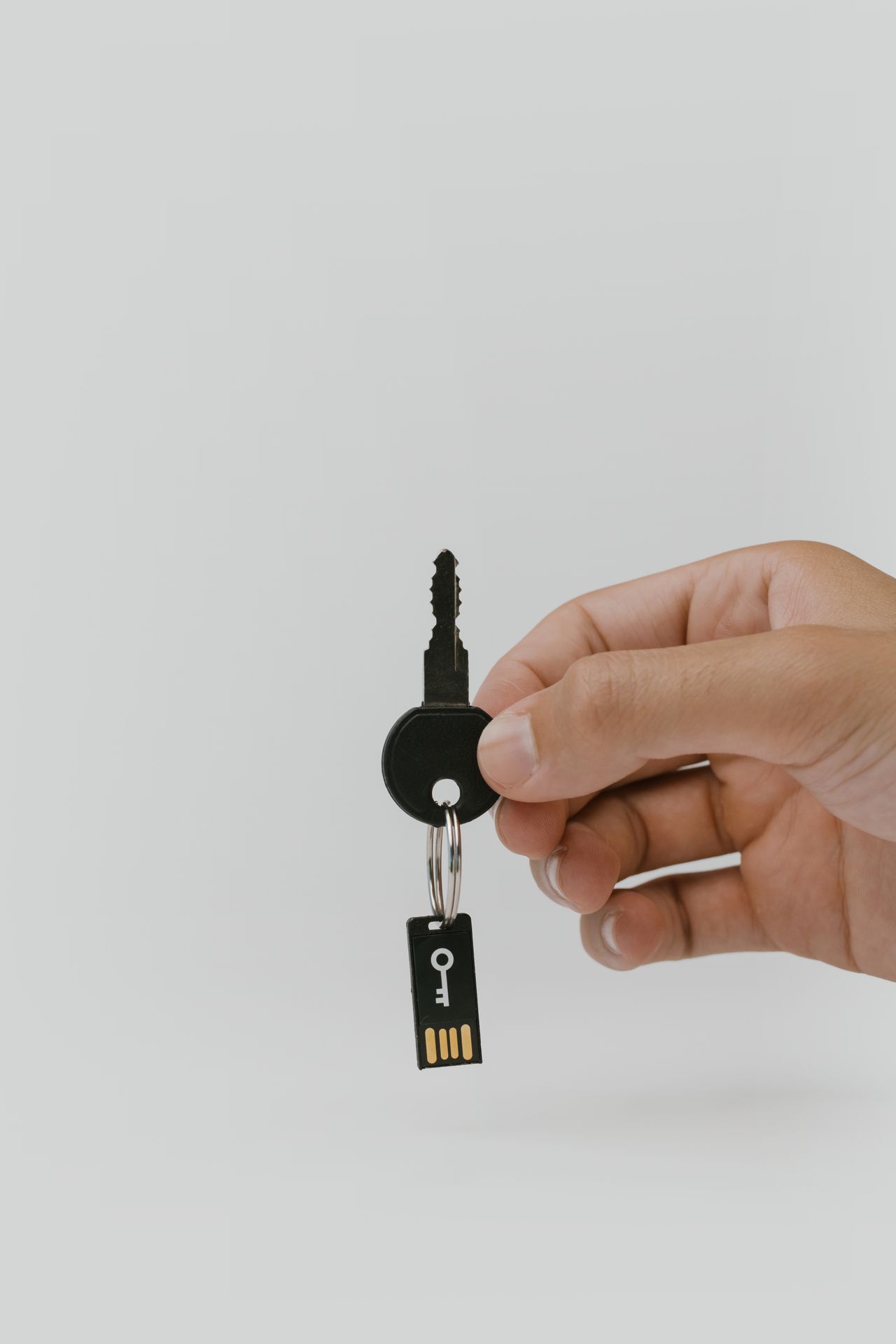
    Think of it like the door of your home. A password is the lock. Two-factor authentication is a second lock that needs a different key, one that you carry with you. Even if someone manages to copy your first key, they still cannot get in without the second one, which never leaves your pocket.

    The different types of 2FA, from good to best

    Not all second factors are equally secure. Here’s a quick overview, roughly from weakest to strongest.

    SMS text message codes

    The service sends a code to your phone number by text message. It’s easy and widely available, and it’s much better than no 2FA at all. However, text messages can be intercepted in some situations, and criminals sometimes use SIM swapping, convincing a mobile carrier to transfer your number to their SIM card, to receive your codes. Use SMS if it’s the only option, but choose something stronger when you can.

    Email codes

    Some services send codes to your email. This is only as secure as your email account, which is why protecting your email with strong 2FA is so important.

    Authenticator apps

    Apps like Google Authenticator, Microsoft Authenticator and others generate a new six-digit code every 30 seconds. The codes are created on your phone, so they can’t be intercepted in transit like a text message. This is a big step up from SMS and is supported by most major services.

    Push notifications

    Some services, including Google, Microsoft and many banks, send a prompt to your phone asking if you’re trying to sign in. You tap Yes to approve. It’s convenient and secure, as long as you never approve a request you didn’t start. Some services show a number on the screen that you must match on your phone, which helps prevent accidental approvals.

    Passkeys

    Passkeys are a newer way to sign in without a password at all. Your phone or computer creates a unique cryptographic key for each account and you unlock it with your fingerprint, face or device PIN. Passkeys are resistant to phishing because they only work on the real website or app. Many major services, including Google, Apple, Microsoft, Amazon and others, now support them.

    Hardware security keys

    Physical keys that plug into your device or tap via NFC offer the highest level of protection, especially against phishing. They’re popular with journalists, activists, executives and anyone at higher risk.

    Bottom line: use passkeys or an authenticator app where you can. Use SMS only when nothing better is available. Any 2FA is far better than none.

    If you are unsure which option to choose on a particular site, pick the strongest one you are comfortable using. A method you actually set up and keep using is better than a theoretically perfect method you never get around to configuring. You can always upgrade later, for example by adding a passkey to an account that currently uses text messages.

    Which accounts to protect first

    You don’t have to secure everything in one afternoon. Start with the accounts that would cause the most damage if someone took them over.

    1. Your main email account. This is the master key to your digital life. Password resets for almost every other service go to your email. Protect it first.
    2. Your Apple account or Google account. These control your phone, backups, photos, passwords and app purchases.
    3. Banking and payment apps. Most banks offer strong verification options. Turn them on.
    4. Your password manager, if you use one.
    5. Social media accounts. Hijacked social accounts are used to scam your friends and family.
    6. Shopping accounts with saved payment methods.
    7. Work accounts, following your employer’s guidance.

    Hand unlocking a smartphone with a passcode next to a cup of tea

    A practical approach is to spend fifteen minutes a day for a week. Day one, your email. Day two, your Google or Apple account. Day three, your bank. And so on. Breaking it into small sessions makes the task feel manageable, and by the end of the week, your most important accounts are far better protected than most people.

    How to set up 2FA on your Google account

    1. Go to your Google Account settings, either in the Google app, in Android Settings under Google, or at myaccount.google.com.
    2. Open the Security section.
    3. Under signing in to Google, choose 2-Step Verification and follow the steps.
    4. Add a second step, such as Google prompts on your phone, an authenticator app or a passkey.
    5. Save your backup codes somewhere safe.

    Google also lets you create passkeys for your account, which let you sign in with your phone’s screen lock instead of a password.

    If Google prompts appear on your phone, read them carefully before tapping. They usually show the device type and approximate location of the sign-in attempt. If you are not signing in at that moment, or the details look unfamiliar, tap No. Google will then help you secure your account.

    How to set up 2FA on your Apple account

    Most Apple accounts created in recent years already use two-factor authentication. To check:

    1. On your iPhone, go to Settings and tap your name.
    2. Tap Sign-In and Security or Password and Security.
    3. Check that Two-Factor Authentication is on. If not, turn it on and follow the steps.

    Make sure you have at least one trusted phone number that you can access, and consider adding a recovery contact or recovery key for extra protection, which we’ll explain below.

    How to set up 2FA on other services

    The process is similar for most websites and apps:

    1. Log in and look for Security, Privacy and security, Login settings or Account settings.
    2. Find Two-factor authentication, Two-step verification or Login approvals.
    3. Choose your method. If you’re using an authenticator app, the service shows a QR code.
    4. Open your authenticator app, tap the plus button and scan the QR code.
    5. Enter the six-digit code shown in the app to confirm.
    6. Save the backup codes.

    Repeat for each important account. It gets faster after the first few.

    Some services also offer to remember your browser or device so you do not need a code every time. On your personal phone and computer, that is fine and makes daily use smoother. On shared or public computers, never tick that box, and always sign out completely when you are done.

    Backup codes: your emergency key

    When you set up 2FA, most services give you a list of backup codes or recovery codes. Each code can be used once to log in if you lose access to your phone.

    These codes are extremely important. Without them, losing your phone could mean losing access to your accounts for days or even permanently.

    Store them safely:

    • In a reputable password manager.
    • Printed and kept somewhere secure at home, like with important documents.
    • Never in an unprotected note on the same phone you use for 2FA.

    Write down, somewhere safe, which accounts use 2FA and which method each one uses. It sounds tedious, but when you change phones or lose one, that list becomes incredibly valuable. You will know exactly which accounts need attention and which codes or keys you need to find.

    Recovery options to set up now

    Beyond backup codes, set up recovery options before you need them:

    • Recovery email and phone number: make sure they’re current on your Google, Apple and other important accounts.
    • Recovery contacts: Apple lets you choose a trusted person who can help you regain access to your account.
    • Recovery key: Apple also offers a recovery key option for advanced users. It increases security but means you’re fully responsible for not losing it.
    • Multiple second factors: where possible, add more than one option, such as an authenticator app and a passkey, or a security key and backup codes.

    Recovery options are a little like a spare house key left with a trusted neighbor. You hope you will never need it, but on the day you do, it saves you from an enormous headache. Spending five minutes setting them up now is one of the best investments you can make in your online life.

    Protect yourself from SIM swapping

    If you still use SMS codes for some accounts, protect your phone number:

    • Ask your mobile carrier about adding a PIN or passcode to your account for changes and SIM transfers.
    • Be cautious about sharing your phone number publicly.
    • Switch important accounts from SMS to an authenticator app or passkey when possible.
    • If your phone suddenly loses all signal for no reason, contact your carrier quickly. It can be a sign of a SIM swap.

    Woman looking stressed in front of a laptop

    If you live in a country where SIM swap fraud is common, consider asking your carrier what additional protections they offer. Some carriers can flag your account so that SIM changes require an in-person visit with identification. It adds a small inconvenience for you but a big obstacle for a criminal.

    What to do when you change phones

    This is where people most often get locked out. Before you reset or give away your old phone:

    • Transfer your authenticator app. Google Authenticator can sync codes to your Google account or export them via QR code to your new phone. Microsoft Authenticator offers cloud backup. Other apps have their own transfer options.
    • Check your passkeys. Passkeys stored in Google Password Manager or iCloud Keychain sync to your new phone when you sign in with the same account.
    • Test before wiping. Log into an important account on the new phone using 2FA before resetting the old one.
    • Update trusted devices. Remove the old phone from your account’s device list once you no longer use it.

    Scammers are creative. They may pretend to be your bank fraud department, a delivery company, a tech support agent or even a friend who accidentally sent their code to your number. The story changes, but the request is always the same: read me the code. Whenever you hear that request, hang up or stop replying, and contact the organization directly using a number or app you trust.

    Never share your codes

    One final, critical rule: never share a 2FA code with anyone, no matter who they claim to be. Banks, tech companies, delivery services and government agencies will not call you and ask for a code sent to your phone. If someone asks, it’s a scam. The code is the key to your account, and sharing it hands that key to a stranger.

    The same applies to push notifications. If you get a login approval request you didn’t start, tap No or Deny and change your password immediately.

    Frequently asked questions

    Is two-factor authentication really necessary?

    Yes, especially for email, banking and your main phone account. It dramatically reduces the risk of account takeover, even if your password is leaked.

    Is SMS 2FA safe?

    It’s much better than nothing, but it’s the weakest form of 2FA because text messages can be intercepted or redirected through SIM swapping. Use authenticator apps or passkeys when available.

    What happens if I lose my phone?

    Use your backup codes, a second registered factor or your account’s recovery options to sign in, then set up 2FA on your new phone. This is why saving backup codes is essential.

    Are passkeys better than passwords with 2FA?

    Passkeys are generally more secure because they’re resistant to phishing and can’t be reused across sites. Many services let you use passkeys alongside traditional 2FA.

    Can I use one authenticator app for all my accounts?

    Yes. One authenticator app can store codes for many accounts. Just make sure it’s backed up or that you have backup codes for each account.

    Will 2FA make logging in annoying?

    A little extra effort occasionally, yes. But most services remember trusted devices, and passkeys can actually make signing in faster than typing passwords.

    Final thoughts

    Two-factor authentication is one of the simplest and most powerful steps you can take to protect your digital life. Start with your email and your Google or Apple account, then move on to banking, social media and shopping. Choose passkeys or an authenticator app over SMS when you can, save your backup codes somewhere safe and never share a code with anyone. A few minutes of setup today can save you from a very bad day later.
  • How to Check Which Apps Can Access Your Camera, Microphone and Location

    How to Check Which Apps Can Access Your Camera, Microphone and Location

    When you install a new app, it often asks for permission to use your camera, microphone, location, contacts or photos. Most of us tap Allow without thinking, just to get past the pop-up and start using the app. Months later, dozens of apps may have access to some of the most personal information on your phone, and many of them don’t need it.

    The good news is that both Android and iPhone give you clear, simple ways to review and control app permissions. You can see which apps can access your camera, microphone and location, limit them to only when you’re using the app, or turn access off completely. Modern phones even show indicators when the camera or microphone is in use, so you can spot unexpected activity.

    In this guide, we’ll show you how to check app permissions on Android and iPhone, which permissions matter most, how to decide what to allow and how to spot apps that are asking for more than they need.

    Reviewing permissions does not require any technical knowledge. It is mostly a matter of knowing where to look and asking a simple question about each app: does it really need this? You might be surprised by how many answers turn out to be no.

    Why app permissions matter

    Your phone holds a remarkable amount of personal information. Your location history can reveal where you live, work, shop and spend your weekends. Your microphone and camera can capture private moments. Your contacts include other people’s information, not just yours. Your photos may contain documents, faces and location data.

    Most apps that ask for permissions use them for legitimate reasons. A maps app needs your location. A video calling app needs your camera and microphone. But some apps request more than they need, sometimes to collect data for advertising or analytics. And occasionally, a malicious app may try to misuse permissions.

    The goal isn’t to be paranoid. It’s to follow a simple principle security experts call least privilege: give each app only the access it needs to do its job, and nothing more.

    There is also a practical benefit beyond privacy. Apps that constantly use your location, microphone or Bluetooth in the background also use battery and data. Tightening permissions can make your phone last longer between charges, which is a nice bonus on top of keeping your information more private.

    Understanding the key permissions

    Here are the permissions worth paying the most attention to:

    • Location: where your phone is. Useful for maps, weather, ride-sharing and finding nearby places. Sensitive because it can reveal patterns about your life.
    • Camera: taking photos and video, scanning QR codes, video calls.
    • Microphone: voice messages, calls, voice search and recording.
    • Contacts: names, numbers and emails of people you know. Used by messaging apps to find friends.
    • Photos and media: access to your photo library and files.
    • Bluetooth and nearby devices: connecting to accessories, but can also be used to estimate your location.
    • Notifications: not a privacy permission exactly, but controls whether apps can interrupt you.
    • Physical activity, health and fitness data: step counts and other health information.

    You do not need to memorize this list. The important thing is to recognize that location, camera, microphone and contacts are the most sensitive, and to give them a little extra thought whenever an app asks for them. Other permissions matter too, but these four reveal the most about you and the people around you.

    How to check permissions on Android

    Android offers two ways to review permissions: by app or by permission type.

    The Permission manager

    1. Open Settings.
    2. Go to Security and privacy or Privacy, then Permission manager. On some phones, search for Permission manager.
    3. Tap a permission type, such as Camera, Microphone or Location.
    4. You’ll see apps grouped by Allowed all the time, Allowed only while in use, Ask every time and Not allowed.
    5. Tap any app to change its access.

    This view is excellent for spotting surprises, like a flashlight app with microphone access.

    The Privacy dashboard

    Many Android phones include a Privacy dashboard under privacy settings. It shows which apps used your location, camera and microphone in the last 24 hours or the last week, along with a timeline. If an app accessed your microphone at a time when you weren’t using it, the dashboard reveals it.

    Per-app permissions

    You can also go to Settings, then Apps, choose an app and tap Permissions to see everything that app can access.

    Unused app permissions

    Android can automatically remove permissions from apps you haven’t used in a while. Look for Pause app activity if unused or Remove permissions if app isn’t used in each app’s settings. It’s usually on by default.

    Start with the Microphone and Camera categories, because the lists are usually short and easy to check. Then move to Location, which tends to have the most apps. You can usually finish a full review in ten to fifteen minutes, and you will come away with a much clearer picture of what your apps can do.

    How to check permissions on iPhone

    1. Open Settings.
    2. Tap Privacy and Security.
    3. Tap a category, such as Location Services, Camera, Microphone, Contacts or Photos.
    4. You’ll see every app that has requested that permission. Turn access on or off, or change the level of access.

    App Privacy Report

    The App Privacy Report, found at the bottom of Privacy and Security, shows how often apps accessed your location, camera, microphone, contacts and photos over the last seven days, as well as which web domains they contacted. Turn it on and check it after a few days to see what your apps are doing.

    Safety Check

    On recent iPhones, Safety Check in Privacy and Security helps you review and quickly reset who and what has access to your information. It’s especially useful if you’re worried that someone may be monitoring you.

    Hand holding a smartphone with a fingerprint lock screen

    If you share a family iPad or iPhone with children, Screen Time also lets you prevent changes to privacy settings, so kids cannot quietly grant permissions to new apps. It is a useful layer of protection for younger users who are more likely to tap Allow without reading.

    Location: the permission to manage carefully

    Location permissions have several levels, and choosing the right one matters.

    On Android:

    • Allow all the time: the app can access your location even in the background. Only use this for apps that genuinely need it, like a family location sharing app.
    • Allow only while using the app: the app can access location only when it’s open. This is the right choice for most apps.
    • Ask every time: the app must ask each time it wants location.
    • Don’t allow: no access.
    • Use precise location: toggle this off for apps that only need your approximate area, like weather or local news.

    On iPhone:

    • Always: background access, for apps that truly need it.
    • While Using the App: the right choice for most apps.
    • Ask Next Time Or When I Share: asks each time.
    • Never: no access.
    • Precise Location: turn this off for apps that don’t need your exact position.

    Also check System Services at the bottom of the Location Services screen on iPhone. It includes features like Significant Locations, which keeps a history of places you visit. You can review or clear it there.

    Location history deserves special attention because it builds up quietly over time. A single location check tells an app where you are right now. Months of background location tell a detailed story about your routines, including when you leave home and when you come back. Limiting background access keeps that story much shorter.

    Camera and microphone indicators

    Both platforms show a visual indicator when the camera or microphone is in use.

    On Android, a green icon or dot appears in the top corner of the screen. Swipe down to see which app is using it.

    On iPhone, a green dot means the camera is in use and an orange dot means the microphone is in use. Open Control Center to see which app recently used them.

    If you see an indicator when you’re not using an app that needs it, investigate. It may be a harmless background feature, but it’s worth checking.

    Android also offers quick toggles to block camera and microphone access for all apps at once. Look for Camera access and Microphone access in Quick Settings or privacy settings. It’s useful in sensitive meetings.

    Indicators are a great early warning system, but they only help if you pay attention to them. For the next few days, glance at the corner of the screen when you are using different apps. You will quickly learn when the indicators normally appear, which makes it much easier to notice when something looks unusual.

    Photos: limit what apps can see

    Modern versions of both platforms let you share only selected photos with an app instead of your entire library.

    On iPhone, when an app asks for photo access, you can choose Limit Access and select specific photos. You can change this later in Settings, then Privacy and Security, then Photos.

    On Android, newer versions offer a photo picker that lets you share specific photos without granting full library access. When an app asks, choose Select photos if available.

    This is especially useful for apps where you only want to upload a single profile picture or document.

    It is also worth checking which apps have access to all your files on Android, sometimes listed as Files and media or All files access. File managers and backup apps may genuinely need it, but most other apps do not. Limiting this access protects documents, downloads and other personal files stored on your phone.

    How to decide what to allow

    When an app asks for a permission, ask yourself three questions:

    1. Does this app need it to do what I want? A photo editor needs photo access. A calculator doesn’t need your location.
    2. Does it need it all the time, or only while I’m using it? Most apps only need access while open.
    3. Do I trust this developer? Well-known apps from established companies are generally lower risk than unknown apps with few reviews.

    If you’re unsure, deny the permission. Most apps will ask again when they need it for a specific feature, and you can allow it then.

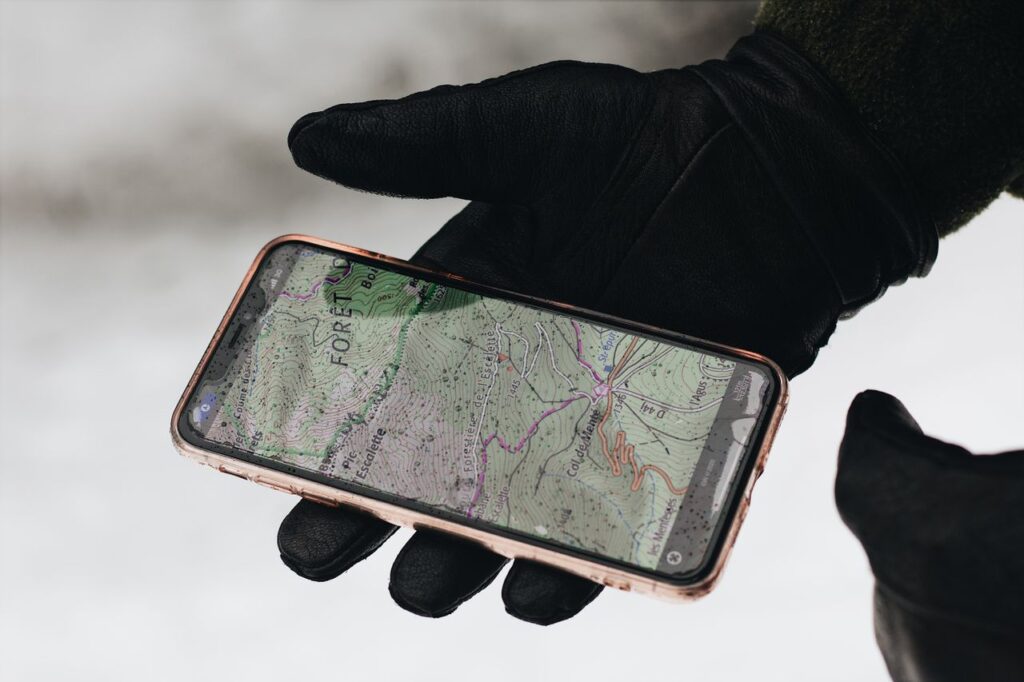
    Gloved hand holding a smartphone with a map app

    A useful mental shortcut is to imagine the app as a stranger asking for the same thing in person. Would you let a stranger who offers a free calculator look through your contacts? Would you let someone selling wallpapers listen through your microphone? Framing it that way makes many decisions obvious.

    If an app insists on a permission you are not comfortable with, look for an alternative. For almost every type of app, there are several options, and some are noticeably more respectful of your privacy than others. Reviews and privacy labels in the app stores can help you compare before you install.

    Red flags to watch for

    Some permission requests should make you pause:

    • A simple app asking for many permissions. A flashlight, wallpaper or calculator app asking for contacts, location and microphone is suspicious.
    • Accessibility permission requests from unknown apps on Android. Accessibility access can let apps read your screen and control your phone. Only grant it to apps you trust and that clearly need it.
    • Requests to install apps from unknown sources. Be very cautious about allowing apps outside the official store.
    • Device admin requests. Apps asking to become device administrators can make themselves harder to remove.
    • Pressure to allow everything. Apps that refuse to work unless you grant unnecessary permissions may not be worth using.

    If you find an app that you think is malicious, uninstall it, check your accounts for unusual activity and consider changing passwords for important services. On Android, Google Play Protect can scan your apps for known threats, and you can run a scan from the Play Store under Play Protect.

    Make permission reviews a habit

    Set a reminder to review permissions every few months. It only takes a few minutes, and you’ll often find apps that no longer need access or that you forgot you installed.

    Also review permissions after installing a batch of new apps, after traveling, when you’ve used apps temporarily for events or trips, and whenever something feels off.

    A good moment to review permissions is right after a major system update. New versions of Android and iOS often add new privacy controls or change how existing ones work. A quick look after updating ensures you are taking advantage of the latest protections your phone offers.

    Frequently asked questions

    Will denying permissions break my apps?

    Some features may not work without certain permissions. For example, a maps app can’t navigate without location. But most apps continue to work with fewer permissions, and they’ll ask again if they need access for a specific feature.

    Can apps listen to me through the microphone without me knowing?

    Apps need microphone permission, and modern phones show an indicator when the microphone is in use. Reviewing microphone permissions and watching for indicators helps you stay in control.

    What does Precise Location mean?

    Precise Location gives an app your exact position. Turning it off gives only an approximate area, which is enough for weather, local news and many shopping apps.

    Should I allow apps to access my contacts?

    Only if the app genuinely needs them, such as messaging apps that help you find friends. Remember that your contacts include other people’s information.

    How do I know if an app is misusing permissions?

    Check the Privacy dashboard on Android or the App Privacy Report on iPhone. Unexpected access at times you weren’t using the app is a warning sign.

    Do permissions reset when I update an app?

    Usually not. Permissions you’ve set generally stay in place after updates, though apps may request new permissions for new features.

    Final thoughts

    App permissions are one of the easiest ways to protect your privacy, and you can review them in a few minutes. Check which apps can access your location, camera, microphone, contacts and photos, switch most apps to while using the app, turn off precise location where it’s not needed and watch for red flags. Give each app only what it needs, and your phone will keep working just as well while sharing far less about you.

  • How to Spot a Phishing Text Message Before You Tap

    How to Spot a Phishing Text Message Before You Tap

    Your package couldn’t be delivered. Your bank account has been locked. You have an unpaid toll. Your streaming subscription failed to renew. Someone has logged into your account from another country. Just tap this link to fix it.

    Text messages like these arrive on millions of phones every day, and they work far more often than anyone would like. They’re called phishing texts, or smishing, a mix of SMS and phishing. The goal is always the same: get you to tap a link, enter your passwords or card details on a fake website, share a verification code or call a fake support number.

    The good news is that phishing texts follow recognizable patterns. Once you know what to look for, most of them become surprisingly easy to spot. In this guide, we’ll walk through the warning signs, real-world examples of common scams, what to do if you receive one and what to do if you’ve already tapped a link or shared information.

    Nobody is too smart to be fooled. Scam messages are designed by people who do this full time and test which wording works best. The goal of this guide is not to make you suspicious of every message, but to give you a few simple habits that catch the vast majority of scams before they can do any harm.

    Why phishing texts are so effective

    Phishing by text message works because of how we use our phones. We read texts quickly, often while doing something else. Phone screens show less information than a computer, so it’s harder to inspect links. And text messages feel personal and urgent in a way that email often doesn’t.

    Scammers also take advantage of real life. Everyone is waiting for a package at some point. Most people have a bank account, a streaming subscription and a mobile carrier. By sending messages about these everyday things to huge numbers of people, scammers know that some recipients will be expecting exactly that kind of message on exactly that day.

    Finally, these messages are designed to make you act before you think. They create urgency, fear or excitement, because emotions make people less careful.

    Another reason these scams succeed is volume. A scammer can send hundreds of thousands of messages for very little money. Even if only a tiny fraction of people respond, it is profitable. That is also why you should never feel embarrassed for receiving these messages. Your number is not special. It is simply on a list.

    The most common types of phishing texts

    Recognizing the common scenarios makes it easier to spot new variations.

    Delivery problems

    Your package is on hold, the address is incomplete or a delivery fee is due. These messages often include a link to a fake delivery website that asks for your card details to pay a small fee. Real delivery companies rarely ask for payment by text link.

    Bank and payment alerts

    Your account is suspended, a suspicious payment was made or you need to verify your identity. The link leads to a convincing copy of your bank’s login page. Sometimes the message asks you to call a number, where a fake fraud team asks for your codes.

    Unpaid tolls, fines and taxes

    These messages claim you owe money for a toll road, a parking ticket, a traffic fine or a tax refund, and they threaten penalties if you don’t pay quickly.

    Account security warnings

    Someone tried to log into your account, your password expires today or your account will be deleted. These often imitate big tech companies, email providers and social networks.

    Prizes, refunds and too-good-to-be-true offers

    You’ve won a gift card, you’re owed a refund or you’ve been selected for a special offer. All you need to do is enter your details or pay a small processing fee.

    Hi Mum, Hi Dad and wrong-number texts

    A message from an unknown number claims to be your child who lost their phone and needs money urgently. Or a friendly wrong-number text starts a conversation that slowly leads to an investment scam or a request for money.

    Job offers

    Unsolicited messages offering easy, well-paid remote work often lead to scams where victims are asked to pay upfront or move money on behalf of others.

    Stressed man holding a smartphone and a credit card

    New variations appear all the time, often tied to current events, holidays or seasonal activities like tax season, holiday shopping or travel periods. The details change, but the structure stays the same: an unexpected problem, a reason to act fast and a link or number to fix it.

    Ten warning signs of a phishing text

    No single sign proves a message is a scam, but the more signs you see, the more suspicious you should be.

    1. Urgency or threats. Act now, final notice, your account will be closed today.
    2. Unexpected messages. You weren’t expecting a refund, a prize or a fine.
    3. Requests for personal information. Passwords, PINs, card numbers or verification codes.
    4. Strange links. The web address doesn’t match the company’s real website, uses odd spellings, extra words or unusual domain endings.
    5. Shortened links that hide the real destination.
    6. Generic greetings. Dear customer instead of your name, although some scams do use names.
    7. Spelling and grammar mistakes, though many scams are now well written.
    8. Unknown or strange sender numbers, including international numbers or email addresses sending texts.
    9. Requests to pay in unusual ways, like gift cards, cryptocurrency or wire transfers.
    10. Pressure to keep it secret or not to contact anyone else.

    A good rule: legitimate organizations rarely ask you to click a link in a text to fix a problem with your account or payment. When in doubt, assume it’s a scam until you’ve verified it yourself.

    A helpful habit is the pause and verify rule. Whenever a text asks you to do something involving money, passwords or personal details, pause for a minute. Then verify it through a channel you trust, like the official app, the website you type in yourself or a phone number from your card. That single minute defeats most scams.

    The safest approach is simple: don’t tap links in unexpected texts. Instead, go directly to the company’s website or app the way you normally would.

    If you’re curious about a link:

    • On some phones, long-pressing a link shows a preview of the address without opening it. Look closely at the domain, the part right before the first single slash.
    • Watch for lookalikes: extra letters, swapped characters, extra words or unusual endings. A real company domain may be cleverly imitated.
    • Remember that a padlock icon only means the connection is encrypted. Scam sites can have padlocks too.

    Even if a link looks legitimate, it’s still safer to open the official app or type the website address yourself.

    When in doubt, a quick search can also help. Type a short phrase from the message into a search engine along with the word scam. Popular scam campaigns are often reported widely, and you may find warnings from the real company or from consumer protection agencies describing exactly the message you received.

    Be especially careful with links that arrive through messaging apps other than SMS, such as WhatsApp, Telegram or social media direct messages. The same tricks apply there, and scammers increasingly use these apps because they feel even more personal and informal than text messages.

    What to do when you receive a phishing text

    1. Don’t tap the link and don’t reply, not even to say stop. Replying confirms your number is active.
    2. Don’t call numbers in the message. If you’re worried, call the number on the back of your card or on the company’s official website.
    3. Verify independently. Open the official app or website to check for any real issues with your account or delivery.
    4. Report it. In the United States, the United Kingdom and several other countries, you can forward spam texts to 7726, which spells SPAM on a keypad, to report them to your carrier. Check what your carrier supports in your country.
    5. Use your phone’s reporting tools. Both Android and iPhone let you report and block senders from the message thread.
    6. Delete the message.

    Built-in protections

    On Android, Google Messages includes spam protection that can automatically flag suspected spam. Make sure it’s turned on in Messages settings under Spam protection.

    On iPhone, go to Settings, then Apps, then Messages, and turn on Filter Unknown Senders. Messages from people not in your contacts go to a separate list, making suspicious texts easier to ignore. You can also report junk directly from the message.

    Worried man sitting with a smartphone in a park

    It also helps to keep your real contacts saved properly. When your bank, your carrier and your delivery companies are saved with their official numbers, a message from a random number pretending to be them stands out more clearly. Some genuine organizations also send messages from short codes, which you can verify on their official websites.

    It happens to smart, careful people. Scammers are skilled. If you’ve tapped a link or entered information, act quickly and calmly.

    If you only opened the link

    If you tapped the link but didn’t enter anything, the risk is usually low. Close the page, don’t enter any information and clear your browser history and website data. Keep your phone updated.

    If you entered a password

    Change that password immediately on the real website or app, and anywhere else you use the same password. Turn on two-factor authentication if you haven’t already. Check your account for unfamiliar activity, such as changed settings, new devices or forwarding rules in your email.

    If you entered card or banking details

    Contact your bank immediately using the number on your card or in the official app. Ask them to block the card and monitor for fraud. Review recent transactions and report anything you don’t recognize.

    If you shared a verification code

    Contact the service right away. A shared code may have given someone access to your account. Change your password, sign out other sessions and review security settings.

    If you installed an app

    If a message led you to install an app, uninstall it, run a security scan with Google Play Protect on Android and consider contacting your bank if the app had access to financial information.

    Report it officially

    Depending on your country, report fraud to your bank, your mobile carrier and the relevant consumer protection or police reporting service. Reporting helps authorities track and stop scam campaigns.

    Above all, do not let embarrassment stop you from acting. Banks and service providers deal with these situations every day and would much rather hear from you quickly. The sooner you report a problem, the more they can do to stop fraudulent transactions and protect your account.

    Protect your family

    Scams often target older relatives and young people who are new to managing accounts. Share what you’ve learned:

    • Agree on a family rule: no one ever shares verification codes or sends money based on a text alone.
    • Set up a family code word for real emergencies, so a Hi Mum scam can be quickly identified.
    • Help relatives turn on spam filtering and unknown sender filtering.
    • Encourage everyone to ask before acting on any message that feels urgent.

    Older relatives often worry about being a burden when they are unsure about a message. Let them know that you would much rather get a quick call asking is this real than deal with the aftermath of a scam. Making it easy and normal to ask is one of the most effective protections a family can have.

    Young people are targeted too, especially with fake job offers, online shopping deals and social media giveaways. Talk with teenagers about the same warning signs. They are often confident with technology but less experienced with how scammers use pressure and too-good-to-be-true promises.

    Frequently asked questions

    Can I get hacked just by opening a text message?

    For most people, simply receiving or opening a text is not dangerous. The risk comes from tapping links, entering information, calling numbers or installing apps. Keep your phone updated for the best protection.

    Why do I get so many scam texts?

    Scammers send messages to huge lists of numbers, some generated automatically and some from data leaks. Receiving scam texts doesn’t necessarily mean you did anything wrong.

    How do scammers know which bank or delivery company I use?

    Often, they don’t. They send messages about popular companies to many people, knowing some recipients will be customers.

    Should I reply STOP to scam texts?

    No. Replying confirms your number is active. Report and block instead. Only reply STOP to legitimate marketing messages from companies you know.

    Is it safe to tap a link if it starts with https?

    No. HTTPS only means the connection is encrypted. Scam websites can use HTTPS too. Check the domain and, better yet, go directly to the official app or website.

    What if the message includes my real name?

    Scammers sometimes have names from data leaks. A message using your name isn’t proof that it’s legitimate.

    Final thoughts

    Phishing texts rely on surprise, urgency and quick reactions. The best defense is a calm habit: don’t tap links in unexpected messages, verify problems through official apps or websites, never share codes and report scam texts. If you do slip up, act quickly by changing passwords and contacting your bank. A few seconds of skepticism can save you a lot of money and stress.

    The more you practice spotting these messages, the faster and more automatic it becomes. After a while, you will recognize a phishing text within a couple of seconds, often from the first sentence. That instinct is one of the most valuable digital safety skills you can build.

  • What to Do If Your Phone Is Lost or Stolen: A Step-by-Step Plan

    What to Do If Your Phone Is Lost or Stolen: A Step-by-Step Plan

    That sinking feeling when you reach for your phone and it isn’t there is one of the worst small panics of modern life. Maybe it slipped out of your pocket in a taxi. Maybe you left it on a café table. Or maybe someone took it. Either way, your phone holds your photos, messages, email, banking apps and access to almost every account you have.

    The most important thing to know is this: the first hour matters, and staying calm helps you use it well. Both Android and iPhone include powerful tools to locate, lock and, if necessary, erase a lost phone. Your carrier can block your SIM, and your accounts can be secured from another device.

    In this guide, we’ll walk through exactly what to do, step by step, if your phone is lost or stolen. We’ll also cover how to prepare now, before anything happens, so that if the worst does occur, you’ll be ready.

    Keep this page bookmarked on another device, or share it with your family. When you are in a panic, it is much easier to follow a checklist than to remember everything on your own, and the steps are the same whether you use an Android phone or an iPhone.

    First: lost or stolen?

    Your response depends a bit on the situation.

    If you think you simply misplaced it, at home, at work or nearby, start by calling it from another phone, checking the last place you used it and using location tools to see where it is.

    If you think it was stolen, act faster to protect your accounts, and avoid trying to recover it yourself if it appears to be at an unknown location. Contact the police instead.

    In both cases, the following steps help. Work through them in order.

    It can help to retrace your steps out loud or write them down quickly. Where did you last use the phone? Did you take a taxi or ride-share? Did you stop at a shop or restaurant? Many lost phones are recovered simply by calling the last place you visited or contacting the ride-share company through its website or another device.

    Step 1: Locate your phone

    For Android phones

    Google’s location service, called Find Hub and previously known as Find My Device, lets you see your phone on a map from another device.

    1. On a computer or another phone, go to Google’s Find Hub website or open the Find Hub app on another Android device.
    2. Sign in with the Google account used on the lost phone.
    3. Select your phone. If it’s on and connected, you’ll see its location on a map.

    Newer Android phones can also be located through Google’s network of nearby Android devices, even when offline, if this feature is enabled.

    Samsung Galaxy phones also work with Samsung’s SmartThings Find, which can locate phones even when they’re offline, if it was set up in advance.

    For iPhones

    Apple’s Find My network can locate your iPhone even when it’s offline in many cases.

    1. On another Apple device, open the Find My app, or on a computer, go to iCloud.com and choose Find Devices.
    2. Sign in with your Apple account.
    3. Select your iPhone to see its location.

    If a family member uses Family Sharing, they can also help locate your device from their own Find My app.

    Play a sound

    If the map shows your phone nearby, use the Play sound option. It rings at full volume even if your phone is on silent. This is often how people discover their phone fell between couch cushions.

    If the map shows your phone at a business like a restaurant, store or hotel, call them directly. Staff often collect lost phones and keep them safe at the front desk. If it shows a public place, consider going there with a friend if it is safe, but never go alone to a private address or a place where you feel unsafe.

    Step 2: Lock your phone remotely

    If you can’t find it quickly, lock it. This protects your data and can display a message to whoever finds it.

    On Android: in Find Hub, choose Secure device or Lock. You can display a message and a contact phone number on the lock screen. This also signs you out of your Google account on the device in many cases.

    Some Android phones also support remote lock using only your phone number, through a Google page, which is useful if you can’t remember your Google password in the moment.

    On iPhone: in Find My, choose Mark As Lost. This locks your iPhone with your passcode, displays a custom message and phone number, disables Apple Pay on the device and continues to track its location.

    Don’t wait too long to lock it. Locking doesn’t erase anything, so there’s little downside.

    The message you show on the lock screen matters. Keep it simple and friendly, such as This phone is lost, please call this number, along with a number you can actually answer, like a partner or friend phone. Honest finders are far more likely to help when the instructions are clear.

    Step 3: Secure your most important accounts

    Even a locked phone is a reason to protect your accounts, especially if it might be stolen.

    • Change your Google or Apple account password from another device.
    • Change your email password if your email is not the same account.
    • Sign out of the lost device. Google and Apple let you see your signed-in devices and remove them from your account security settings.
    • Check for unusual activity in your email, such as new forwarding rules, changed recovery options or password reset emails you didn’t request.
    • Review two-factor authentication. If your 2FA codes were on the lost phone, use backup codes to get into important accounts if needed.
    Smartphone and sunglasses left on beach sand

    If you use a password manager, change the master password too, and check that the lost phone is removed from its list of trusted devices. Password managers often allow you to see and revoke access from specific devices, which is a quick way to make sure nobody can use the lost phone to reach your saved passwords.

    Step 4: Protect your money

    Phones often provide access to banking and payment apps.

    • Contact your bank through its official phone number if you think the phone was stolen. Ask them to monitor for fraud and, if necessary, temporarily block cards linked to mobile wallets.
    • Remove your cards from Google Wallet or Apple Pay remotely. On Android, you can manage this through your Google account or Google Wallet website. On iPhone, Mark As Lost suspends Apple Pay, and you can remove cards through iCloud.com or by calling your bank.
    • Watch your accounts for unfamiliar transactions over the next few weeks.

    Stay alert for follow-up scams. People who lose a phone sometimes receive fake messages claiming the phone has been found, with a link to see its location. These are phishing attempts designed to steal your Apple or Google password. Only check your phone location through the official Find My or Find Hub apps and websites you open yourself.

    Step 5: Contact your carrier

    Call your mobile carrier from another phone or visit a store. Ask them to:

    • Suspend your line or block your SIM so no one can make calls, send texts or receive verification codes using your number.
    • Block the phone’s IMEI number if it was stolen. Many carriers can blacklist stolen devices so they can’t be used on their networks.
    • Arrange a replacement SIM or eSIM with your existing number for your new or recovered phone.

    Blocking your SIM is especially important if you use SMS codes for two-factor authentication.

    When you call your carrier, have your account details ready, such as your account number, the account holder name and any security PIN you set up. The faster they can verify your identity, the faster they can block the SIM and protect your number from misuse.

    Step 6: Report a theft to the police

    If your phone was stolen, report it to the police. You may need a police report for insurance claims, and some carriers require one to block a device. Provide the phone’s IMEI number, which you can find in your Google or Apple account device details, on the original box or on your carrier bill.

    Don’t try to recover a stolen phone yourself from an unknown location. Share the location information with the police instead. Your safety matters more than the phone.

    Before you erase, take a moment to note the phone last known location and any other details, such as the time it was last seen. Share this information with the police if the phone was stolen. Once it is erased, some of this information may no longer be available in the same way.

    Step 7: Decide whether to erase it

    Erasing your phone remotely deletes all data on it. It’s the strongest protection for your information, but it has a trade-off.

    On Android, after erasing, you may no longer be able to locate the phone through Find Hub. On iPhone, after erasing, Activation Lock keeps the device tied to your Apple account, and in many cases you can still see its location.

    Consider erasing if:

    • You’re confident the phone won’t be recovered.
    • It contains highly sensitive information and you’re worried it could be unlocked.
    • You’ve already secured your accounts and backed up your data.

    If you have a recent backup, erasing won’t mean losing your data. You’ll be able to restore it to a new phone.

    This is also a good opportunity to improve your setup. If losing your phone revealed gaps, such as missing backups, no record of your IMEI or two-factor codes stored only on the phone, fix them now on your new device. The stress you just went through is the best possible motivation to make sure it never feels this bad again.

    Step 8: Restore to a new phone

    Once you have a replacement phone:

    1. Get a replacement SIM or activate your eSIM with your carrier.
    2. Sign in with your Google or Apple account during setup.
    3. Restore from your most recent backup.
    4. Set up two-factor authentication again, using your backup codes if needed.
    5. Re-register banking apps and payment cards.
    6. Remove the lost phone from your account device lists if you haven’t already.
    Person holding two smartphones

    It is also worth doing a practice run. Open Find My or Find Hub on a computer, find your phone on the map and play a sound. It takes two minutes, confirms that everything is set up correctly, and means you will already know exactly where to click if you ever need it for real.

    Finally, think about physical habits. Many phones are lost in the same few places: taxis, restaurant tables, airport security trays and the back pocket of jeans. Choosing one pocket or bag compartment where your phone always goes, and checking it whenever you stand up to leave, prevents a surprising number of losses.

    Prepare now: what to do before you ever lose your phone

    The steps above work far better if you’ve prepared in advance. Spend ten minutes today on these:

    • Use a strong screen lock. A six-digit PIN or longer passcode is better than a short one. Avoid simple patterns.
    • Turn on location services for lost devices. Check that Find Hub or Find My is on, and on Samsung, SmartThings Find too.
    • Turn on offline finding if your phone supports it.
    • Turn on theft protections. Recent Android versions offer Theft protection features like theft detection lock and offline device lock. iPhones offer Stolen Device Protection, which requires Face ID or Touch ID for sensitive actions when you’re away from familiar locations.
    • Back up regularly. Make sure your photos, contacts and app data are backed up.
    • Save your backup codes for two-factor authentication somewhere safe, not only on your phone.
    • Write down your IMEI and keep it with important documents.
    • Know your account passwords or store them in a password manager you can access from another device.
    • Add an emergency contact to your lock screen, so an honest finder can reach someone.
    • Ask your carrier about a SIM PIN or account security PIN to prevent unauthorized SIM swaps.

    Frequently asked questions

    Can I track my phone if it’s turned off?

    Sometimes. iPhones can often be located through the Find My network even when powered off or offline. Many newer Android phones can be located offline through Google’s network if the feature is enabled. Otherwise, you’ll see the last known location.

    What is an IMEI number and why does it matter?

    The IMEI is a unique identifier for your phone. Carriers and police use it to identify and block stolen devices. Keep a record of it in a safe place.

    Should I erase my phone immediately?

    Not necessarily. Lock it first and try to locate it. Erase it if you believe it won’t be recovered or if you’re worried about your data, especially after securing your accounts.

    Can a thief use my phone after I lock it?

    A properly locked phone with a strong passcode is very difficult to access. Activation Lock on iPhone and Factory Reset Protection on Android also make it hard for thieves to reset and resell stolen phones.

    Does insurance cover a lost or stolen phone?

    It depends on your policy. Some home insurance, credit cards and carrier plans include phone coverage. You may need a police report and your IMEI number.

    What if I find my phone after erasing it?

    You can set it up again and restore from your backup. On iPhone, sign in with your Apple account to remove Activation Lock.

    None of this has to be done perfectly. Even completing a few of the preparation steps today puts you far ahead of most people and makes a lost phone a manageable inconvenience rather than a disaster.

    Final thoughts

    Losing a phone is stressful, but having a plan makes it manageable. Locate it, lock it, secure your accounts and money, contact your carrier and report theft to the police. Decide carefully whether to erase it, then restore your data to a new phone. Most importantly, prepare now: turn on location tracking and theft protections, use a strong passcode and keep your backups and backup codes up to date. If the day ever comes, you’ll be glad you did.