Category: Apps & Tools

Useful built-in tools and free apps that save time, explained step by step.

  • How to Scan Documents With Your Phone, No Scanner Needed

    How to Scan Documents With Your Phone, No Scanner Needed

    Not long ago, sending a signed form or a copy of a receipt meant finding a scanner, figuring out how to connect it to a computer and fighting with software that hadn’t been updated in years. Today, the phone in your pocket can do the same job in seconds, often with better results.

    Modern phones can scan documents and turn them into clean, flat, easy-to-read PDFs. They automatically detect the edges of the page, straighten it, remove shadows and even recognize the text so you can search for it later. And you don’t need to buy anything. Both iPhone and Android include excellent free scanning tools.

    In this guide, we’ll show you how to scan documents with your iPhone using the Notes and Files apps, how to scan on Android with Google Drive and the camera, how to get the best results every time, how to sign documents and how to keep your scans organized and private.

    Whether you need to send a signed lease, keep a digital copy of an important receipt for a warranty claim, or submit a form for school, the process is the same: a few taps, a steady hand and good light. Once you learn it, you will find yourself scanning things you never would have bothered with before, like children drawings, handwritten recipes and old letters.

    Why scan instead of taking a photo?

    You might wonder why you shouldn’t just take a regular photo of the document. You can, and sometimes that’s fine. But a proper scan offers real advantages:

    • Flat and straight. Scanning tools correct perspective, so a page photographed at an angle looks like it was placed on a flatbed scanner.
    • Cropped automatically. The table, your fingers and the background disappear.
    • Cleaner contrast. Shadows and uneven lighting are reduced, and text becomes easier to read.
    • Multiple pages in one file. You can combine several pages into a single PDF.
    • Searchable text. Many scanning tools recognize the text, so you can search your scans later.
    • Smaller and more professional. A PDF is easier to email, upload and print than a large photo.

    If you’re sending documents to a bank, a school, an employer or a government office, a proper scan looks far more professional than a crooked photo.

    There is also a practical benefit for whoever receives your document. A clean PDF prints well, opens on any device and does not need to be rotated, cropped or enlarged to be readable. If you have ever received a dark, sideways photo of a form, you know how much friction that creates. A proper scan is a small courtesy that makes life easier for everyone involved.

    How to scan documents on iPhone

    iPhones have a powerful document scanner built into the Notes and Files apps.

    Using the Notes app

    1. Open Notes and create a new note.
    2. Tap the paperclip or camera icon and choose Scan Documents.
    3. Hold your iPhone over the document. In automatic mode, the iPhone detects the page and captures it when it’s steady. In manual mode, tap the shutter button.
    4. Adjust the corners if needed, then tap Keep Scan.
    5. Continue scanning more pages, or tap Save when you’re done.

    The scan is saved inside your note as a document. Tap it to view, crop, rotate or apply filters like Color, Grayscale, Black and White or Photo. To share it as a PDF, tap the share button.

    Using the Files app

    If you want to save scans directly as PDFs in a folder, use the Files app:

    1. Open Files and go to the folder where you want to save the scan, such as iCloud Drive or On My iPhone.
    2. Tap the three dots menu at the top and choose Scan Documents.
    3. Scan your pages the same way as in Notes.
    4. Tap Save. The scan is saved as a PDF in that folder.

    This is ideal for organizing scans like receipts, contracts and forms in specific folders.

    Using the Camera and Live Text

    If you just need to copy text from a document rather than create a scan, point your iPhone camera at it. When the Live Text icon appears, tap it to select and copy the text. It’s handy for copying an address, a phone number or a paragraph from a printed page.

    A tip that many iPhone users miss: you can rename a scan inside Notes by tapping its title, and the name carries over when you share it as a PDF. Instead of sending a file called Scanned Document, you can send one called Signed Rental Agreement, which looks far more professional and is easier for the recipient to find later.

    How to scan documents on Android

    Android offers several built-in scanning options, depending on your phone.

    Using Google Drive

    Google Drive includes a reliable scanner that works on almost every Android phone.

    1. Open Google Drive.
    2. Tap the plus button or the camera icon, then choose Scan.
    3. Point your camera at the document. Drive detects the edges and captures the page, either automatically or when you tap the shutter.
    4. Adjust the crop, apply a filter and add more pages if needed.
    5. Tap Save, choose a file name and a folder in Drive.

    The scan is saved as a PDF in your Google Drive, where it’s backed up and accessible from any device. Drive can also recognize the text in scanned documents, so you can search for words inside them later.

    Using your phone’s camera

    Many Android phones include document scanning directly in the camera app. On Samsung Galaxy phones, the Scene optimizer detects documents and offers a Scan button. Google Pixel phones and others can detect documents through Google Lens in the camera. The exact feature names vary by brand.

    Using Google Lens

    Google Lens can copy text from paper documents, translate text and, depending on your phone, help create a scan. Open Lens from the Google app, the camera app or the search bar, point it at the document and choose the text option to select and copy text.
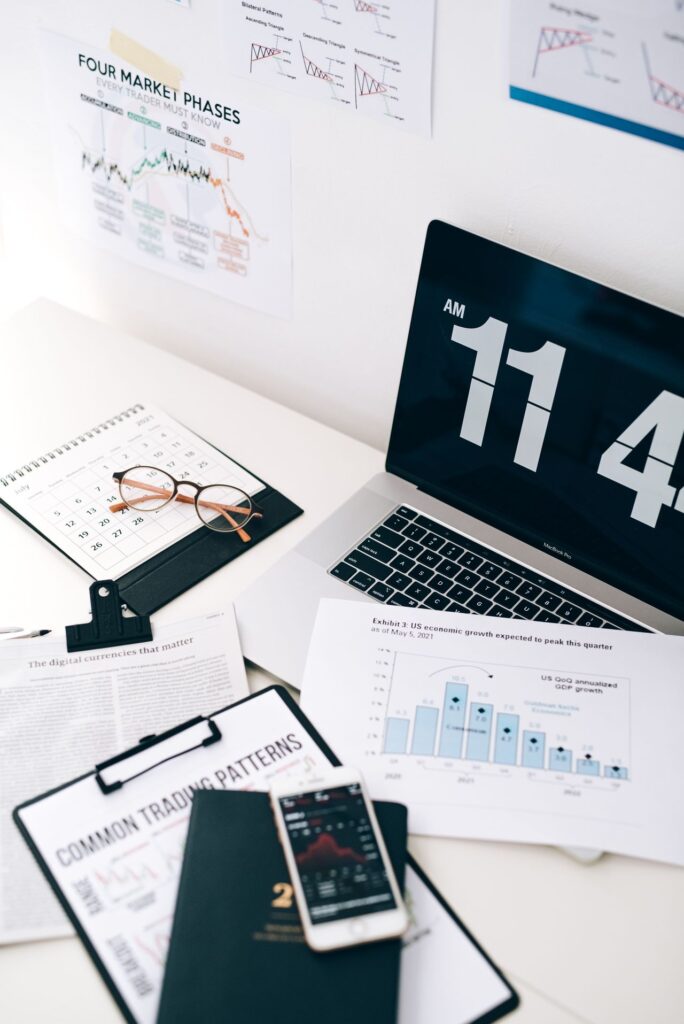
    Desk with a laptop, phone and paper documents

    If you scan often for work or school, it is worth creating a dedicated folder in Google Drive for scans, such as Scans 2026, and always saving there. It keeps your Drive tidy and gives you one place to look whenever you need to find something you scanned weeks or months ago.

    Third-party scanning apps

    Built-in tools are enough for most people, but dedicated scanning apps can offer extra features like advanced text recognition, automatic cloud upload, business card scanning or batch processing. Adobe Scan is a popular free option on both iPhone and Android.

    Before installing any scanning app, check its privacy policy. Scanned documents often contain sensitive information like addresses, ID numbers and financial details. Prefer apps from well-known developers and be cautious about apps that require subscriptions for basic features or upload everything to their own servers.

    Keep in mind that free versions of scanning apps often add watermarks, limit the number of scans or push you toward a subscription. If the built-in scanner on your phone already does what you need, there is no reason to install another app. Fewer apps also means fewer places where your sensitive documents are stored, which is good for both privacy and storage space.

    Tips for getting perfect scans

    The app does a lot of the work, but a few simple habits make a big difference.

    Light it well

    Scan in a bright room, ideally with natural daylight or even overhead light. Avoid using the flash if possible, because it can create glare on glossy paper.

    Avoid shadows

    Your own hand and phone can cast shadows on the page. Hold the phone slightly to the side of the light source, or move the document so the light falls evenly.

    Use a contrasting background

    Scanning a white page on a white table makes edge detection harder. Place the document on a dark surface, like a dark table or a book cover, so the app can easily find the edges.

    Keep the page flat

    Curled or folded pages produce distorted scans. Press the document flat or put a book on the edges outside the area being scanned.

    Hold steady and parallel

    Hold the phone directly above the page, parallel to it. The app corrects small angles, but straighter is better.

    Check the result

    After each scan, zoom in to make sure the text is sharp and readable, especially small print like signatures, dates and numbers.

    Receipts deserve a special mention. Thermal paper receipts fade over time, sometimes within months. If you need a receipt for a warranty, an expense report or a tax deduction, scan it soon after you get it. A scan made the same week will still be perfectly readable years later, long after the original has turned into a blank strip of paper.

    If you scan the same kind of document regularly, such as weekly invoices or monthly bills, set up a small scanning spot at home. A dark desk mat or a piece of dark cardboard near a window or under a good lamp makes every scan look consistent with almost no effort. It sounds like overkill, but it takes thirty seconds to set up and saves you from rescanning blurry pages.

    When scanning photos or colorful documents, choose the color or photo filter instead of black and white. The black and white filter is excellent for text, making it crisp and easy to read, but it can turn photos and colored charts into a muddy mess. Most scanners let you change the filter after scanning, so you can try a few and keep the one that looks best.

    How to sign documents on your phone

    Often you need to scan a form, sign it and send it back. You can do all of this on your phone.

    On iPhone: open the PDF in the Files app or from Mail, tap the Markup icon, tap the plus button and choose Signature. Draw your signature with your finger, then place and resize it on the document. Save and share.

    On Android: Google Drive and many PDF viewers include markup tools. Adobe Acrobat Reader, which is free, lets you fill in forms and add signatures. Samsung phones also include markup and signing features in their built-in apps.

    For official documents, check whether the recipient accepts electronic signatures. Many organizations do, but some still require a handwritten signature on paper.

    It is also worth keeping a copy of your signature saved in the markup tools. Both iPhone and many Android apps let you store your signature, so you only need to draw it once. Next time, you can add it to a document with a single tap, which makes signing paperwork on the go almost effortless.

    Organize your scans so you can find them later

    Scanning is easy. Finding the right scan six months later is where people struggle. A little organization goes a long way.

    • Name files clearly. Use names like 2026 Car Insurance Policy or Receipt Laptop Store March instead of Scan 1.
    • Use folders. Create folders for categories like Receipts, Medical, Home, Work and Taxes.
    • Use searchable storage. Google Drive and iCloud can search text inside many scanned PDFs.
    • Back up important scans. Keep important documents in cloud storage so they’re safe if your phone is lost.
    Office workspace with a laptop and smartphone

    Every few months, take ten minutes to sort through recent scans. Move them into the right folders, rename anything with a vague name and delete duplicates. It is the digital equivalent of tidying a desk drawer, and it means that when you urgently need a document, such as for an insurance claim or a visa application, you can find it in seconds instead of minutes.

    Some people also keep a simple index note listing important documents and where they are stored, like passport copy in Drive folder Personal or car title in iCloud folder Home. It is especially helpful for families, because another trusted person can find important documents in an emergency.

    Keep your scanned documents private

    Scanned documents can contain some of your most sensitive information. Treat them accordingly.

    • Lock sensitive notes. On iPhone, you can lock notes containing scans with Face ID, Touch ID or a password.
    • Be careful with sharing. Double-check the recipient before sending scans of ID documents or financial records.
    • Delete scans you no longer need. Old copies of IDs and statements sitting in your gallery or chats are a risk if your phone or account is compromised.
    • Avoid scanning sensitive documents with unknown apps. Stick with built-in tools or trusted developers.
    • Protect your accounts. Use a strong passcode on your phone and two-step verification on your cloud accounts.

    When you need to send a sensitive scan, consider sharing a link to a file in cloud storage with restricted access instead of attaching it to an email. That way, you can remove access later, and the document does not sit forever in multiple inboxes. For particularly sensitive documents, many organizations offer secure upload portals, which are a better choice than email or messaging apps.

    Frequently asked questions

    Is a phone scan as good as a real scanner?

    For most everyday documents, yes. A good phone scan in decent light is perfectly readable and acceptable for emails, forms and records. For archival quality or very detailed images, a dedicated scanner may still be better.

    How do I scan multiple pages into one PDF?

    In Notes, Files and Google Drive, keep scanning pages before tapping Save. All pages are combined into one document.

    Can I edit the text in a scanned document?

    Scans are images of text, but many tools recognize the text so you can copy or search it. To fully edit the content, you’d need to convert it to an editable document with a text recognition tool.

    Why is my scan blurry?

    Common causes are low light, movement while capturing, a dirty camera lens or holding the phone too close. Clean the lens, improve the lighting and hold steady.

    Can I scan documents without an internet connection?

    Yes. Notes, Files and many Android camera scanners work offline. Google Drive needs a connection to upload the scan, though it may save it and upload later.

    Is it safe to scan my ID with my phone?

    It’s generally safe with built-in tools, but be careful where you store and send the scan. Delete copies you no longer need, and only share ID scans with trusted organizations through secure channels.

    Final thoughts

    Your phone is a capable document scanner that’s always with you. On iPhone, use the Notes or Files app. On Android, use Google Drive or your camera’s document mode. Scan in good light on a contrasting background, sign documents with built-in markup tools, name and organize your files clearly, and treat sensitive scans with care. Once you get used to it, you may never miss a traditional scanner again.
  • How to Use Google Lens and Live Text to Copy Text From Anything

    How to Use Google Lens and Live Text to Copy Text From Anything

    How many times have you typed something you could already see? A Wi-Fi password printed on a router. A phone number on a shop sign. A paragraph from a book you wanted to send to a friend. A serial number on the back of an appliance. Typing all that by hand is slow, and one wrong character means starting over.

    Your phone can do this for you. Android’s Google Lens and the iPhone’s Live Text can recognize text in photos, screenshots and even through the live camera view, then let you copy, search, translate or act on it in seconds. They can also identify plants, products, landmarks and more.

    In this guide, we’ll explain what these tools are, how to use them on Android and iPhone, and share a long list of practical, everyday uses. We’ll also cover tips for better accuracy and a few privacy considerations to keep in mind.

    If you have never tried these features, you are in for a pleasant surprise. They are already on your phone, they require no setup in most cases, and they work remarkably well. The hardest part is simply remembering that they exist the next time you reach for your keyboard to type something you can already see.

    What are Google Lens and Live Text?

    Google Lens is Google’s visual search and recognition tool. It’s available on Android phones, inside the Google app on iPhone and in Google Photos. Lens can read text, translate it, identify objects, find similar products online, solve homework problems and recognize landmarks, plants and animals.

    Live Text is Apple’s built-in text recognition on iPhone, iPad and Mac. It works in the Camera app, the Photos app, screenshots, Safari and many other places. Live Text focuses on text, letting you select, copy, look up, translate and act on it. Apple’s related feature, Visual Look Up, identifies things like plants, pets, landmarks and artwork in photos.

    Both tools do most of their text recognition directly on your phone, and both are free.

    You might be wondering which one to use if you have an iPhone, since Google Lens is available there too. The answer is both. Live Text is faster for simple copying because it is built into the camera and Photos. Google Lens is better for searching products, identifying objects and translating more complex scenes. Having both on your phone gives you the best of each.

    How to use Google Lens on Android

    There are several ways to open Google Lens, depending on your phone.

    From the camera app

    On many Android phones, including Google Pixel and Samsung Galaxy models, Lens is built into the camera app. Look for a Lens icon or a More menu option. On some phones, pointing the camera at text shows a small text icon you can tap.

    From the Google app or search bar

    Open the Google app or tap the search bar on your home screen, then tap the Lens icon, which looks like a small camera. Point it at the text or object, or choose an image from your gallery.

    From Google Photos

    Open a photo in Google Photos and tap the Lens button. This is great for screenshots and photos you’ve already taken.

    Using text in Lens

    Once Lens is open, tap the Text option or simply tap the highlighted text. You can then:

    • Copy selected text to paste anywhere.
    • Listen to the text read aloud.
    • Translate it into another language.
    • Search for it on Google.
    • Copy to computer, if you’re signed into Chrome with the same Google account.

    If the text contains a phone number, email address, website or address, Lens often shows quick actions to call, email, open the link or get directions.

    Circle to Search

    Many newer Android phones support Circle to Search. Long-press the home button or navigation bar, then circle, highlight or tap anything on your screen to search for it or select its text, without leaving the app you’re in. It’s a quick way to use Lens on anything you see on screen.

    A small trick that saves time: add the Lens shortcut to your home screen or Quick Settings if your phone offers it. The fewer taps between seeing text and copying it, the more often you will actually use the feature instead of falling back to typing.

    How to use Live Text on iPhone

    Live Text is enabled by default on supported iPhones. If it doesn’t seem to work, check Settings, then General, then Language and Region, and make sure Live Text is turned on.

    In the Camera app

    1. Open the Camera app and point it at text.
    2. When a yellow frame appears around the text, tap the Live Text icon in the corner.
    3. Select the text you want, or use the quick actions shown at the bottom, such as Copy, Translate, Call or Open link.

    In Photos and screenshots

    Open any photo or screenshot that contains text. Touch and hold a word, then drag the selection handles to select more. You’ll see options to copy, look up, translate, search the web or share. You can also tap the Live Text icon to highlight all detected text.

    Everywhere else

    Live Text works in many places, including Safari images, Quick Look and some third-party apps. When typing in a text field, you can tap the cursor and choose the Scan Text option, if available, to insert text directly from your camera into the field.

    Visual Look Up

    In the Photos app, if you see a small star or leaf icon on the information button, Visual Look Up has recognized something in the image. Tap it to learn about a plant, a dog breed, a landmark or a piece of art.

    Smartphone with dual camera lenses on a white background

    Live Text is also fantastic for screenshots of messages, receipts and confirmation emails. Instead of switching apps to copy a booking reference or a tracking number, take a screenshot, open it and copy the code directly. It feels like a small thing, but once you get used to it, you will use it several times a week.

    15 practical everyday uses

    Here’s where these tools really shine. Some of these may change the way you use your phone.

    1. Copy a Wi-Fi password from the sticker on a router.
    2. Save a phone number from a business card, flyer or shop window and call it with one tap.
    3. Copy a serial number or model number from the back of an appliance when you need support or warranty service.
    4. Translate a menu in a restaurant abroad.
    5. Translate signs and instructions when traveling or using imported products.
    6. Copy a quote from a book to share or save in your notes.
    7. Grab text from a screenshot, such as an address someone sent as an image.
    8. Search for a product by pointing your camera at it to find reviews and prices.
    9. Identify a plant in your garden or on a hike.
    10. Look up a landmark or building while exploring a new city.
    11. Copy an email address from a poster or document and start a new email.
    12. Save recipe ingredients from a cookbook into your shopping list.
    13. Read small print aloud with Lens’s listen feature, helpful for tired eyes.
    14. Check homework or get step-by-step explanations with Lens’s homework features.
    15. Copy text from a video frame by pausing a video, taking a screenshot and using text recognition.

    If you only try a few of these, start with the Wi-Fi password, the serial number and the translation examples. They solve frustrating moments that almost everyone runs into, and they show just how much time these tools can save. After that, you will naturally start spotting other situations where text recognition can help.

    Parents and students will appreciate the homework features in Google Lens, which can explain math problems and science concepts step by step. Used thoughtfully, it is a helpful way to understand where you went wrong, rather than just copying an answer. The explanation is often more valuable than the solution itself.

    Tips for better accuracy

    Text recognition is impressively accurate, but a few habits help.

    • Good light. Dim light reduces accuracy. Turn on more lights or move closer to a window.
    • Steady hands. Rest your elbows on a table or hold the phone with both hands.
    • Get closer. Fill more of the screen with the text, especially small print.
    • Straight angle. Hold the phone parallel to the text when possible.
    • Clean your lens. A smudged camera lens makes everything blurry.
    • Double-check important details. Always verify numbers, passwords and codes after copying. A zero can become the letter O, and a one can become a lowercase L.

    Handwriting recognition works too, but accuracy depends on how neat the writing is.

    When copying something critical like a bank account number or a long Wi-Fi password, a good habit is to paste it somewhere you can see the full text, like a note, before using it. Read it once against the original. It takes a few seconds and prevents the frustration of a failed connection or, worse, a payment sent to the wrong account.

    Text in unusual fonts, on curved surfaces like bottles, or on reflective packaging can be harder to read. In those cases, try taking a regular photo first, then use Lens or Live Text on the saved photo. A still image often gives better results than the live camera view, because you can zoom in and select precisely what you need.

    Translation: a travel superpower

    Both tools can translate text in real time through the camera, which is incredibly useful when traveling.

    With Google Lens: open Lens, choose Translate and point your camera at the text. Lens overlays the translation on top of the original text in the image. You can download languages in the Google Translate app for offline translation.

    On iPhone: with Live Text, select text and tap Translate. The Apple Translate app also offers a camera mode, and you can download languages for offline use.

    Before you travel, download the languages you need so translation works without a data connection.

    Black and white close-up of a smartphone camera

    Translation is not perfect, especially for idioms, slang and handwritten text, but it is usually good enough to understand menus, signs, instructions and product labels. For important documents, such as contracts or medical information, use the camera translation to get the gist and then ask a professional translator or a native speaker to confirm the details.

    Privacy considerations

    These tools are designed with privacy in mind, but it’s still worth understanding what happens to your images.

    • On-device processing. Live Text processes text on your iPhone. Google Lens also performs some recognition on the device, but searches and some features send images or data to Google’s servers to return results.
    • Search history. Lens searches may be saved to your Google account activity, depending on your settings. You can review and delete this in your Google account’s activity controls.
    • Sensitive information. Be thoughtful about pointing visual search tools at documents containing sensitive information, like ID cards or bank statements. Copying text locally is one thing. Running a web search on it is another.
    • Screenshots of private conversations. Remember that screenshots you take for text recognition stay in your gallery and may be backed up to the cloud. Delete them when you’re done.

    If you use these tools on a work phone, check whether your employer has rules about sending images of work documents to cloud services. Copying text locally with Live Text is usually fine, but using a search or translation service may send that content outside your company systems. When in doubt, ask your IT team.

    Troubleshooting

    • Live Text icon doesn’t appear: make sure Live Text is enabled in Language and Region settings, and that your iPhone model and language are supported.
    • Lens doesn’t detect text: improve lighting, move closer and tap the Text option manually.
    • Wrong characters copied: try again with a straighter angle and better light, then correct small errors manually.
    • Translation not working offline: download the language in Google Translate or Apple Translate first.

    If text recognition suddenly stops working after an update, restart your phone and check for app updates, especially for the Google app and Google Photos on Android. These tools are updated frequently, and a quick update usually fixes temporary glitches.

    Frequently asked questions

    Is Google Lens free?

    Yes. Google Lens is free on Android and available through the Google app on iPhone.

    Does Live Text work on older iPhones?

    Live Text requires an iPhone with a relatively recent processor and a supported iOS version. Most iPhones from the last several years support it.

    Can these tools read handwriting?

    Yes, to a degree. Neat handwriting is usually recognized well. Messy handwriting may produce errors, so always check the result.

    Can I use Google Lens on iPhone?

    Yes. Install the Google app and tap the Lens icon in the search bar.

    Do these tools work without internet?

    Basic text recognition and copying often work offline. Searches, product identification and some translations need an internet connection unless you’ve downloaded offline language packs.

    Is Circle to Search available on all Android phones?

    No. It’s available on many recent Android phones, including newer Samsung Galaxy and Google Pixel models, but not on all devices.

    Final thoughts

    Google Lens and Live Text turn your camera into a tool that reads, translates and understands the world around you. Start with simple things, like copying a Wi-Fi password or a phone number, and you’ll quickly find yourself using them every day. Just remember to double-check important details and be thoughtful with sensitive information. Once it becomes a habit, typing what you can already see will start to feel like a thing of the past.

    Try this as a small challenge: for the next week, every time you are about to type something you can see printed somewhere, use Lens or Live Text instead. By the end of the week, you will know exactly which situations it handles best, and it will become second nature.

  • How to Organize Your Phone Home Screen for Less Distraction

    How to Organize Your Phone Home Screen for Less Distraction

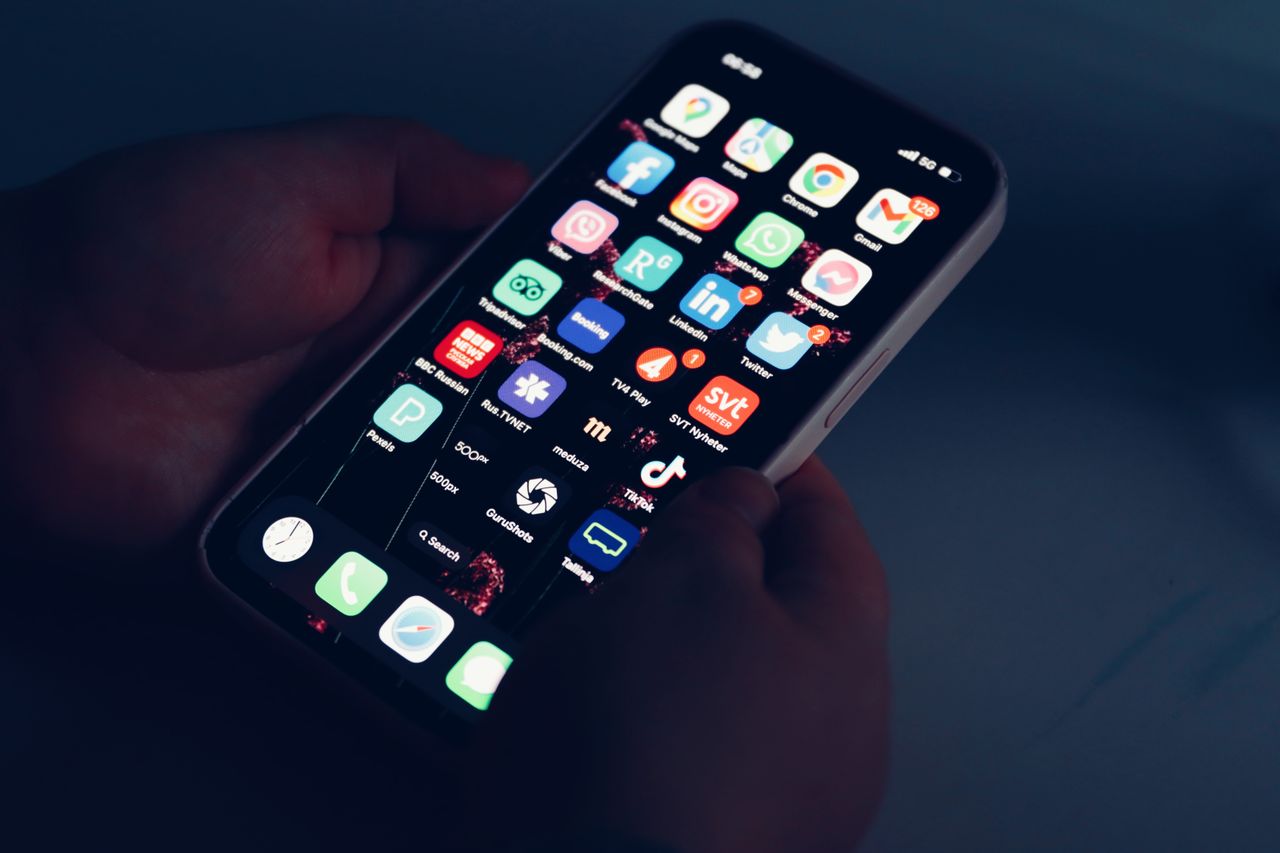
    You unlock your phone to check the weather and twenty minutes later you’re deep in a video feed, wondering how you got there. It happens to almost everyone, and it’s not just a lack of willpower. Your home screen is designed, mostly by accident, to pull you in. Bright icons, red notification badges and your most tempting apps placed right under your thumb make distraction the path of least resistance.

    The good news is that you can redesign that path. A thoughtfully organized home screen won’t magically fix every habit, but it can make it noticeably easier to use your phone on purpose instead of on autopilot. And it makes your phone faster to use, because the things you actually need are right where you expect them.

    In this guide, we’ll walk through a practical approach to organizing your home screen on both Android and iPhone. We’ll cover what to put on your first screen, how to deal with the apps that distract you most, how to use folders, widgets and the app library or app drawer, and a few small changes that make a surprisingly big difference.

    This is not about using your phone less for the sake of it. Your phone is useful, and many apps genuinely add value to your life. The goal is simply to make sure that when you pick it up, you end up doing what you intended, and you put it down feeling like it helped you rather than ate your time.

    Why your home screen layout matters

    Your home screen is the first thing you see every time you unlock your phone, which for many people is dozens or even more than a hundred times a day. Whatever is on that screen gets a huge amount of your attention.

    If the first thing you see is a grid of social media, games and shopping apps, each with a red badge showing unread items, it’s natural to tap them, even if you unlocked your phone for something else. Psychologists call these visual cues triggers. Remove or soften the triggers, and you reduce how often you get pulled off track.

    A well-organized home screen also saves time. When your most useful apps are in consistent places, you can open them without searching, and your phone feels calmer and more like a tool than a slot machine.

    There is a reason app designers obsess over icon colors and notification badges. These small details are tested carefully because they influence how often people open apps. You do not need to fight that design with willpower alone. You can simply change the environment, which is far easier and far more reliable over the long run.

    Step 1: Audit your apps honestly

    Before rearranging anything, take five minutes to sort your apps into three groups. You can do this in your head or on a piece of paper.

    • Tools: apps you use to get things done. Messages, phone, calendar, maps, camera, notes, banking, email, transit.
    • Intentional fun: apps you enjoy and want to use, but on your terms. Music, a reading app, a podcast app, a favorite game.
    • Slot machines: apps that you open without thinking and then regret how much time you spent there. For many people, these are social media, short-form video, news feeds and some games.

    There’s no right or wrong answer. What matters is being honest about your own habits. One person’s slot machine is another person’s tool.

    While you’re at it, delete apps you haven’t used in months. Every unused app is clutter, takes up storage and may send notifications you don’t need.

    If deleting feels scary, remember that almost every app can be reinstalled in seconds, and many keep your data in the cloud. If you truly need an app again, it will be there. In practice, most people rarely reinstall the apps they remove during a cleanup, which tells you how much they really needed them.

    Step 2: Make your first screen a tools-only zone

    Your first home screen should contain only tools, the apps that help you do things quickly. Ideally, it should fit on one screen without scrolling.

    A good first screen might include:

    • Phone, messages and your main chat app in the dock.
    • Camera, calendar, maps and notes.
    • Your banking or payment app.
    • A useful widget, such as calendar or weather.

    Keep it simple. Many people find that eight to twelve apps on the first screen is plenty. Empty space is fine. In fact, it helps your eyes rest and makes the important apps stand out.

    Place your most-used apps where your thumb naturally reaches. On large phones, the bottom half of the screen is much easier to reach with one hand than the top corners.

    Some people like to go even further and keep their first screen almost empty, with just a single widget and the dock. It sounds extreme, but it creates a surprisingly calm feeling every time you unlock the phone. You can experiment with different amounts and see what feels right. There is no rule that says a home screen has to be full.

    Step 3: Move distracting apps out of sight

    The single most effective change you can make is to remove your slot machine apps from your home screen entirely.

    You don’t have to delete them. Just move them somewhere that requires a deliberate action to open them:

    • On iPhone: remove them from the Home Screen and leave them in the App Library. Touch and hold the app, tap Remove App, then Remove from Home Screen. To open it, swipe to the App Library or search for it.
    • On Android: remove them from the home screen and leave them in the app drawer. Touch and hold the app and choose Remove or drag it to the remove option. This doesn’t uninstall the app.

    When opening an app requires typing its name in search, you have a few seconds to ask yourself whether you really want to open it. That small pause is often enough to break the automatic habit.

    If you’re not ready to remove them completely, put them in a folder on your last home screen, where reaching them takes more effort.

    Young woman lying on a bed looking at her phone in a dim room

    You can also add friction in other ways. Logging out of a social app after each use means you have to log back in next time, which creates a natural pause. Using the website version in a browser instead of the app can make the experience a little less polished and therefore a little less addictive. Small inconveniences like these can be surprisingly effective.

    The goal is not to make your favorite apps impossible to use. It is to make using them a choice. When you decide to spend twenty minutes on a video app because you want to relax, that is completely fine. The problem is only when it happens dozens of times a day without you deciding.

    Step 4: Use folders thoughtfully

    Folders are useful for grouping related apps you use occasionally. Good examples include:

    • Travel: airline apps, hotel apps, translation and currency apps.
    • Money: banking, budgeting and payment apps.
    • Home: smart home controls, utilities and delivery apps.
    • Health: fitness, medication reminders and health records.
    • Work: apps you need for your job but not every minute.

    Name folders by action or purpose rather than by category. A folder called Pay or Book can be faster to scan than Finance or Lifestyle.

    Avoid putting your most important daily tools inside folders. Every folder adds an extra tap. Reserve folders for apps you use a few times a week or less.

    If you share a phone with a child, or set up a phone for an older relative, folders can also make the phone much simpler to use. A folder called Family with the photo app, video calls and messages, for example, gives them one place to find everything they need without getting lost among dozens of icons.

    Step 5: Use widgets that save taps

    Widgets show information directly on your home screen, so you don’t need to open an app. Used well, they reduce how often you need to unlock and wander.

    Helpful widgets include:

    • Calendar: see your next events at a glance.
    • Weather: check the forecast without opening an app.
    • Reminders or to-do lists: keep your tasks in view.
    • Notes: pin a quick note or checklist.
    • Battery: see the battery level of your phone, watch and earbuds.

    Avoid widgets that feed you endless content, like news feeds or social media widgets, if you’re trying to reduce distraction. They bring the slot machine right back to your home screen.

    On iPhone, touch and hold an empty area of the Home Screen, tap Edit or the plus button, and choose a widget. On Android, touch and hold an empty area, choose Widgets and drag one onto your screen.

    A widget is most useful when it answers a question you ask often. If you check your calendar ten times a day, a calendar widget saves you ten trips into the app, and ten chances to get distracted on the way. If you rarely look at the weather, a weather widget is just decoration. Choose based on your real habits.

    Step 6: Tame notification badges

    Those little red numbers on app icons are powerful attention grabbers. They create a sense of something unfinished that needs your attention.

    Turn off badges for apps where the number doesn’t matter, such as social media, games, shopping and news. Keep them for apps where a count is genuinely useful, like messages or email if you need to see unread items.

    On iPhone, go to Settings, then Notifications, choose an app and turn off Badges.

    On Android, go to Settings, then Notifications, and look for App icon badges or Notification dots. You can turn them off for all apps or for individual apps.

    After you turn off badges, you might feel a little anxious at first, as if you are missing something. That feeling fades quickly. Important messages still arrive as notifications, and the apps are still there when you choose to open them. Most people find that life without a wall of red numbers is noticeably calmer.

    Step 7: Consider a calmer look

    A few visual changes can make your home screen feel less busy:

    • Use a simple wallpaper. A calm, low-detail image makes icons easier to see and reduces visual noise.
    • Try dark mode for a softer look, especially at night.
    • Use grayscale for a while. Some people use grayscale mode during certain hours to make apps less visually tempting. It’s available in accessibility settings on both platforms, and Android’s bedtime mode can turn it on automatically.
    • Hide app labels on Android if you prefer a cleaner look, though labels can help if you’re still learning your new layout.
    Minimal desk with laptop, smartphone, notebook and earbuds

    It also helps to remember that you are the one in control. You can always rearrange things again, put an app back on the first screen or try a completely different layout. Treat it like rearranging furniture in a room: try something, live with it for a week and adjust until it feels right for you.

    For extra motivation, check your screen time report before and after reorganizing. On iPhone it is under Screen Time in Settings, and on Android under Digital Wellbeing. Seeing the numbers change, even modestly, can be encouraging and helps you decide which changes are worth keeping.

    Step 8: Create different home screens for different times

    Both platforms let you change what you see based on context.

    On iPhone, Focus modes can show different Home Screen pages depending on what you’re doing. For example, a Work Focus can show only work apps, while a Personal Focus can hide work apps in the evening. Set this up in Settings, then Focus, choose a Focus, and tap Customize Screens.

    On Android, Samsung’s Modes and Routines can change settings and behavior based on time or activity, and Digital Wellbeing offers Focus mode, which pauses distracting apps during set times. Some launchers also support multiple home screen profiles.

    This turns your phone into different tools at different times of day, which is a powerful way to protect both your focus and your downtime.

    Give your new layout time

    The first few days, you’ll probably reach for apps in their old places. That’s normal. Your thumb has memorized the old layout. Give it a week. Most people adapt quickly, and many find that they open distracting apps less often simply because they’re no longer one tap away.

    Revisit your layout every few months. Your needs change, new apps arrive and old ones become irrelevant. A quick reorganization keeps your home screen working for you.

    Frequently asked questions

    Will removing an app from the home screen delete it?

    No. On iPhone, Remove from Home Screen keeps the app in the App Library. On Android, removing an app from the home screen keeps it in the app drawer. Only uninstalling deletes the app.

    Should I use a third-party launcher on Android?

    Launchers can offer more customization, like gestures and hidden apps. Some people love them. But your phone’s default launcher is usually well optimized, and many customizations are possible without installing anything new.

    How many apps should be on my home screen?

    There’s no perfect number, but many people find one screen with eight to twelve essential apps and a widget or two works well. The goal is quick access to tools without visual clutter.

    Does organizing my home screen really reduce screen time?

    It can help. Making distracting apps slightly harder to reach adds a moment of friction, which often interrupts automatic habits. Combined with fewer notifications, many people notice a difference.

    Can I back up my home screen layout?

    On iPhone, your layout is included in your iCloud or computer backup. On Android, Google backup and brand-specific backups like Samsung Cloud can restore layouts on many phones.

    What about the dock at the bottom?

    The dock stays visible on every home screen page, so use it for the four or five apps you use most, like phone, messages, camera and your browser.

    Final thoughts

    Your home screen shapes how you use your phone more than you might think. Put your everyday tools front and center, move your most distracting apps out of easy reach, use folders and widgets with purpose and turn off badges that pull at your attention. You don’t need to throw your phone in a drawer to use it more intentionally. Sometimes all it takes is moving a few icons.

  • How to Manage App Notifications So Your Phone Stops Interrupting You

    How to Manage App Notifications So Your Phone Stops Interrupting You

    Buzz. A delivery update. Buzz. Someone liked a photo. Buzz. A game wants you back. Buzz. A news alert about something that doesn’t affect you. Buzz. A group chat you muted months ago found a new way to reach you. By the end of the day, your phone may have interrupted you a hundred times, and only a handful of those interruptions actually mattered.

    Notifications were supposed to make life easier by telling us what’s important. Instead, for many people, they’ve become a constant stream of noise that breaks concentration, drains the battery and makes it harder to notice the messages that truly matter.

    You don’t have to accept that. Both Android and iPhone give you detailed control over which apps can notify you, how and when. In this guide, we’ll show you a simple system for taking back control: how to audit your notifications, what to turn off, what to keep, how to use notification categories, summaries and Do Not Disturb, and how to make sure you never miss something important.

    This is not about going off the grid. It is about making notifications useful again. When only meaningful alerts reach you, you can actually trust your phone. A buzz once again means something worth your attention, and that makes your phone more helpful, not less.

    The real cost of constant notifications

    Every notification is a small interruption. Even if you don’t pick up your phone, the sound or vibration pulls your attention away from what you were doing. Research on attention suggests that getting back into deep focus after an interruption can take a while, which means a stream of small interruptions can quietly eat a big chunk of your day.

    Notifications also have practical costs. Each one wakes your screen, may play a sound or vibration and often triggers background data activity. Dozens of them throughout the day add up to a noticeable amount of battery.

    And there’s the problem of signal versus noise. When your phone buzzes constantly, you start ignoring it. That’s when you miss the message from your kid’s school, the call from your doctor or the delivery driver trying to reach you.

    There is also an emotional side. Many people describe a low level of background stress from constant pings, a feeling that something always needs their attention. Reducing notifications often brings a surprising sense of calm, even if you still check the same apps the same number of times. The difference is that you choose when to check, rather than being summoned.

    Step 1: Find out who’s interrupting you

    Before changing settings, see which apps send the most notifications.

    On Android: go to Settings, then Notifications. Many phones show App notifications or App settings with options to sort by Most recent or Most frequent. Choose Most frequent to see the biggest offenders. Turning on Notification history also lets you review everything you received over the last 24 hours.

    On iPhone: go to Settings, then Screen Time, and tap See All App and Website Activity. Scroll down to Notifications to see which apps sent the most. You can also review Notification Center at the end of the day.

    You’ll probably find that a few apps are responsible for most of the noise. Those are your first targets.

    Do not be surprised if the results are a little embarrassing. Many people discover that a single game, a shopping app or one particularly chatty social network sends more notifications than all of their friends and family combined. That discovery alone is often enough motivation to make changes.

    Step 2: Sort your apps into three groups

    Think about every app that sends notifications and put it into one of three groups:

    • Always notify: messages and calls from real people, calendar reminders, security alerts, banking alerts, ride and delivery updates when you’re waiting for them. These deserve to reach you.
    • Notify quietly or later: email, news you actually care about, app updates, social media from close friends. Useful, but not urgent.
    • Don’t notify: games, shopping promotions, most social media activity, apps you rarely use, news alerts that aren’t relevant to you.

    The goal is to make the first group small and meaningful, the second group quiet and the third group silent.

    If you find it hard to decide which group an app belongs to, ask a simple question: if this notification arrived three hours late, would it matter? If the answer is no, it does not belong in the always notify group. Most notifications pass this test easily, which shows how few truly need to interrupt you in real time.

    Step 3: Turn off the noise completely

    For apps in the Don’t notify group, turn notifications off.

    On Android: go to Settings, then Notifications, then App notifications, and switch off the apps you don’t want to hear from. You can also long-press any notification when it arrives and tap Turn off notifications.

    On iPhone: go to Settings, then Notifications, choose an app and turn off Allow Notifications. You can also swipe left on a notification in Notification Center, tap Options and choose Turn Off.

    Don’t worry about missing out. The app still works normally when you open it. You just won’t be interrupted by it.

    When you turn off notifications for an app, also look at whether you still need the app at all. If you only kept it because it reminded you to open it, and you never open it otherwise, it may be time to uninstall it. Fewer apps means fewer notifications, fewer updates and more free storage.

    Step 4: Use notification categories on Android

    Android lets apps split notifications into categories, sometimes called notification channels. This is incredibly useful. Instead of turning off all notifications from an app, you can turn off just the annoying ones.

    For example, a shopping app might have categories for Order updates, Promotions and Recommendations. You can keep order updates and turn off the rest. A social app might have separate categories for Direct messages, Likes, Comments and Suggested content.

    Go to Settings, then Notifications, then App notifications, tap an app and look at its categories. Turn off what you don’t need. For categories you keep, you can often choose whether they make a sound or arrive silently.

    Smartphone lying face down on a desk

    Categories are especially useful for apps you cannot live without but that also love to send marketing. Banking apps, airline apps and delivery services often mix essential alerts with promotional messages. With categories, you can keep the fraud alerts and boarding notifications while silencing the special offers and app tips.

    Step 5: Make some notifications silent

    Not every notification needs a sound or vibration. Silent notifications still appear in your notification list, but they don’t interrupt you.

    On Android, long-press a notification and choose Silent instead of Default or Alerting. Silent notifications appear in a separate section of the notification shade.

    On iPhone, in an app’s notification settings, you can turn off Sounds and choose where alerts appear. You can also use Deliver Quietly from Notification Center, which sends notifications straight to Notification Center without sounds, banners or lock screen alerts.

    This is perfect for the Notify quietly or later group. Email and news can arrive silently, and you’ll see them the next time you check your phone.

    To get the most from Scheduled Summary, choose times that fit naturally into your day, such as after breakfast and after work. Many people add a third summary at lunchtime. Treat the summary like checking your mailbox: a quick scan, a few actions and then back to your day.

    You can also use summaries as a gentle test. Move an app into the summary for a week. If you never feel the need to see its notifications sooner, it belongs there permanently. If you find yourself constantly opening the app to check, it may deserve to notify you immediately after all.

    Step 6: Batch notifications with summaries

    On iPhone, Scheduled Summary collects non-urgent notifications and delivers them in a tidy bundle at times you choose, such as 8 a.m. and 6 p.m. Go to Settings, then Notifications, then Scheduled Summary, turn it on, choose your times and select which apps to include. Time Sensitive notifications and messages from people can still arrive immediately.

    On Android, there isn’t a direct equivalent on every phone, but you can achieve a similar effect by making less important notifications silent and checking them at set times. Some phones and Digital Wellbeing features offer notification scheduling or batching, and Samsung’s Modes and Routines can change notification behavior based on the time of day.

    Batching is powerful because it turns dozens of interruptions into two or three planned check-ins.

    Try setting a Do Not Disturb schedule that starts an hour before bed and ends after breakfast. That window protects your sleep and gives you a calm start to the morning, before the day messages start arriving. Alarms still ring normally, so there is no risk of oversleeping because of it.

    Step 7: Use Do Not Disturb and Focus modes

    Do Not Disturb silences notifications during certain times, like overnight or during meetings, while letting important people through.

    On Android, go to Settings, then Notifications, then Do Not Disturb, or Modes on newer versions. Set a schedule, then choose exceptions under People and Apps. Allow calls from starred contacts and repeated callers so emergencies can reach you.

    On iPhone, use Focus modes in Settings, then Focus. You can create modes for sleep, work and personal time, each with its own allowed people and apps, and schedule them to turn on automatically.

    The key setting in both cases is allowing repeated calls. If someone calls twice within a few minutes, the second call rings through. People with real emergencies usually try again.

    Lock screen privacy matters more than most people think. Verification codes, private messages and bank alerts can all appear on a lock screen that anyone can glance at. Hiding sensitive content is a simple step that protects you in shared offices, on public transport and at home with curious family members.

    Step 8: Control lock screen notifications for privacy

    Notifications on your lock screen can reveal private messages to anyone nearby. You can hide their content while still seeing that something arrived.

    On Android, go to Settings, then Notifications, then Notifications on lock screen or Lock screen, and choose to hide sensitive content or show only the app name.

    On iPhone, go to Settings, then Notifications, then Show Previews, and choose When Unlocked. With Face ID, previews appear as soon as the phone recognizes you.

    If you are in many group chats for work, school or family, consider setting aside one or two times a day to catch up on them all at once. Muted chats do not disappear. They simply wait for you. Catching up in one go is often faster and less stressful than reacting to every message as it arrives throughout the day.

    Step 9: Manage notifications from group chats

    Group chats are one of the biggest sources of notification overload. Most messaging apps let you mute individual chats.

    In WhatsApp, Telegram, Signal and Messages, open the group, tap its name and choose Mute or Hide Alerts. Many apps let you mute for a set time or forever. Some also let you receive notifications only when someone mentions you directly, which is a great middle ground.

    You’ll still see the messages when you open the app, but your phone won’t buzz every time someone sends a sticker.

    Couple using their phones in bed in the dark

    Step 10: Review regularly

    New apps arrive with notifications turned on by default, and apps sometimes add new notification types after updates. Every month or two, check which apps are sending the most notifications and adjust.

    A good habit: when an app asks for permission to send notifications, pause before tapping Allow. Ask yourself whether you’ll actually want to hear from it. You can always turn notifications on later if you change your mind.

    Remember that the perfect setup is different for everyone. A small business owner may need customer messages to come through instantly, while a student may want everything silent during class. Use the steps here as a toolkit and build the version that fits your own life.

    Frequently asked questions

    Will turning off notifications make me miss important messages?

    Not if you keep notifications on for people and essential apps. The goal is to turn off the noise, not the signal. Use exceptions for important contacts and allow repeated calls in Do Not Disturb.

    What are Time Sensitive notifications on iPhone?

    They are notifications that apps mark as needing immediate attention, like a delivery arriving or an appointment reminder. You can choose whether each app is allowed to send them during Focus modes.

    Why do some apps keep asking me to turn notifications back on?

    Many apps rely on notifications to bring you back. They may show reminders inside the app. You can simply decline. Your phone settings are what actually control notifications.

    Do notifications really drain the battery?

    Each one uses a small amount of power to wake the screen, play sounds and fetch data. Many notifications throughout the day can add up to a noticeable difference.

    Can I see notifications I accidentally dismissed?

    On Android, turn on Notification history in notification settings. On iPhone, dismissed notifications are gone, but most apps keep the content inside the app itself.

    What’s the quickest way to stop a noisy app?

    Long-press its notification when it arrives on Android, or swipe left and tap Options on iPhone, then turn off or silence that app’s notifications.

    Final thoughts

    Notifications should serve you, not the other way around. Spend twenty minutes auditing which apps interrupt you, turn off the noise, silence what can wait, batch the rest and protect your sleep and focus with Do Not Disturb or Focus modes. Keep the people and alerts that truly matter. You’ll likely notice the difference within a day: a calmer phone, a longer battery life and a lot more attention left for the things you actually care about.