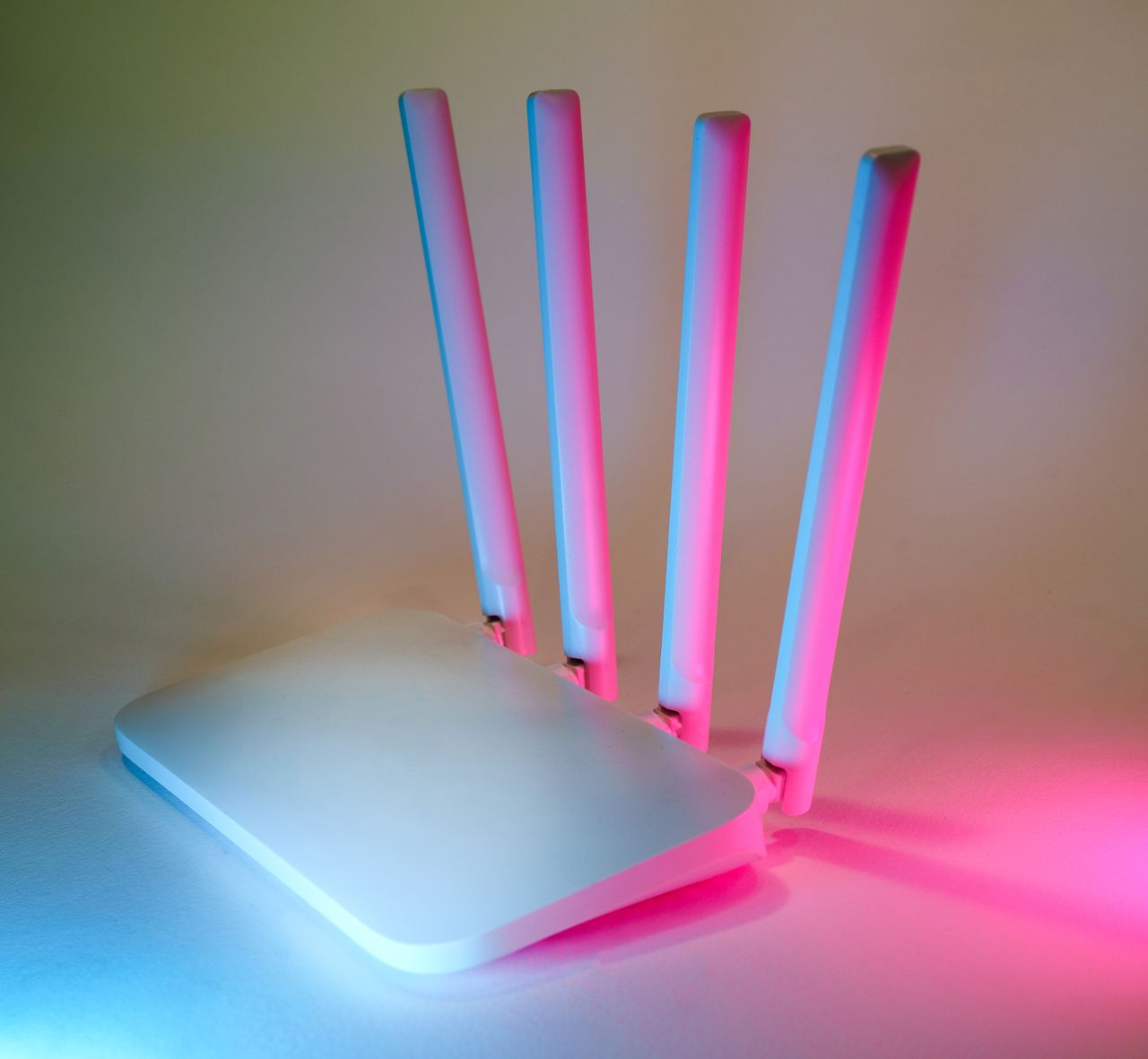
Few things are more annoying than Wi-Fi that won’t stay connected. Your video freezes in the middle of a call, a download stops halfway, messages don’t send and your phone quietly switches to mobile data, eating into your plan. You turn Wi-Fi off and on again, it works for a while, and then the cycle repeats.
Wi-Fi problems can come from your phone, your router, your internet provider or even the layout of your home. That’s what makes them frustrating: the cause isn’t always obvious. The good news is that most Wi-Fi disconnection problems can be solved with a methodical approach and a few settings changes.
In this guide, we’ll help you figure out where the problem is, then walk through the most effective fixes on Android and iPhone, as well as on your router. We’ll start with the quickest checks and move toward the more involved solutions.
📋 Table of Contents
- Step 1: Figure out where the problem is
- Step 2: Quick fixes that solve many problems
- Step 3: Update your phone and router
- Step 4: Check settings that switch you off Wi-Fi
- Step 5: Private Wi-Fi address and MAC randomization
- Step 6: Improve signal strength
- Step 7: Choose the right band: 2.4 GHz vs 5 GHz
- Step 8: Reduce interference and congestion
- Step 9: Check battery saving and sleep settings
- Step 10: Reset network settings
- Step 11: Contact your internet provider or replace your router
- Frequently asked questions
- Final thoughts
You do not need to be a networking expert to follow along. Most of these fixes involve a few taps in your phone settings or a simple change in where your router sits. We will explain the reasons behind each step, so you understand what you are changing and why it might help.
Step 1: Figure out where the problem is
Before changing settings, narrow down the cause. Ask yourself these questions:
- Do other devices disconnect too? If your laptop, TV and other phones also lose connection, the problem is likely the router or your internet service, not your phone.
- Does it happen everywhere or only in one place? If your phone disconnects at home but not at work or a café, the issue is probably your home network or router placement.
- Does it happen in certain rooms? Weak signal in distant rooms is a coverage problem.
- Did it start recently? A recent phone update, router update or new device can trigger problems.
- Is Wi-Fi actually disconnected, or connected without internet? If your phone shows Wi-Fi connected but nothing loads, the issue is usually the internet connection itself.
The answers point you toward the right fixes.
A simple test can help you decide. Stand right next to your router with your phone for ten minutes and use it normally. If the connection is perfectly stable there but drops in other rooms, coverage is the problem. If it still drops even next to the router, the problem is more likely the router itself, your internet service or a setting on the phone.
Step 2: Quick fixes that solve many problems
Restart your phone and router
It’s a cliché because it works. Restart your phone. Then unplug your router, and modem if it’s separate, wait about 30 seconds and plug it back in. Wait a few minutes for it to fully restart before reconnecting.
Routers run continuously for months and can develop glitches over time. A restart clears them.
Toggle Airplane Mode
Turn Airplane Mode on for 10 seconds, then off again. This resets all wireless connections on your phone.
Forget the network and reconnect
If your phone has stored outdated settings for your network, forgetting it and reconnecting gives it a fresh start.
On Android: go to Settings, then Network and internet or Connections, then Wi-Fi. Tap the gear icon or the network name, then Forget. Reconnect by selecting the network and entering the password.
On iPhone: go to Settings, then Wi-Fi, tap the info icon next to your network and choose Forget This Network. Reconnect and enter the password.
Make sure you know your Wi-Fi password before forgetting the network.
If restarting the router fixes the problem but it returns every few days, that is a strong hint the router itself is struggling. Some routers allow you to schedule automatic restarts, for example once a week in the middle of the night. It is a practical workaround while you decide whether a new router is needed.
Step 3: Update your phone and router
Software bugs can cause Wi-Fi drops, and updates often fix them.
- Update your phone through Settings, then System or General, then Software update.
- Update your router’s firmware. Many modern routers update automatically. Others need you to log into their app or admin page. Check your router’s app or the label on the router for instructions. If your router was provided by your internet company, they may update it remotely.
Phone updates in particular often include fixes for Wi-Fi and Bluetooth bugs, even when the release notes do not mention them in detail. If your problem started right after an update, check again a week or two later, because manufacturers frequently release smaller follow-up updates that fix issues introduced by the bigger one.
Step 4: Check settings that switch you off Wi-Fi
Some phone features are designed to help you stay connected, but they can make it look like Wi-Fi is dropping.
On Android: look for settings like Switch to mobile data automatically, Adaptive Wi-Fi, Intelligent Wi-Fi or Wi-Fi assistant. These switch to mobile data when Wi-Fi is weak. If you’d rather stay on Wi-Fi, try turning them off and see if the problem improves.
On iPhone: Wi-Fi Assist, found at the bottom of Settings, then Cellular or Mobile Data, uses cellular data when Wi-Fi is poor. Turning it off keeps you on Wi-Fi, though pages may load slowly when the signal is weak.
Also check Auto-Join on iPhone and Auto-connect on Android for your home network. If it’s off, your phone may not reconnect automatically.
These features are not bad. In fact, they are useful when you walk out of range of your home network, because they keep you connected without interruption. The problem is only when they kick in too eagerly at home, where you would prefer to stay on Wi-Fi. Turning them off temporarily is a good way to test whether they are part of the problem.
Step 5: Private Wi-Fi address and MAC randomization
Modern phones use a private or randomized address for each Wi-Fi network to protect your privacy. It’s a good feature, but some routers, especially ones with device filtering, parental controls or older firmware, don’t handle it well and may disconnect your phone.
On Android: tap your network’s settings, then Privacy or MAC address type, and choose Use device MAC instead of Use randomized MAC for your home network.
On iPhone: tap the info icon next to your network and turn off Private Wi-Fi Address, or set it to Fixed if your iOS version offers that option, for your home network only.
Only change this for networks you trust, like your home network. Keep private addresses on for public Wi-Fi.
If you are not sure whether your router uses device filtering, think about whether you or your internet provider ever set up parental controls, device blocking or a guest network with restrictions. Those features often identify devices by their address, and a phone that changes its address can confuse them.
Step 6: Improve signal strength
Weak signal is one of the most common causes of dropped connections. Wi-Fi signals weaken with distance and are blocked by walls, floors, metal and water, including fish tanks and even people.
- Place the router centrally in your home, ideally on a shelf rather than on the floor or inside a cabinet.
- Keep it away from microwaves, cordless phones, baby monitors, thick walls and large metal objects.
- Point antennas in different directions if your router has adjustable antennas, for example one vertical and one horizontal.
- Consider a mesh Wi-Fi system for larger homes or homes with several floors. Mesh systems use multiple units to spread a strong signal throughout the house.
- Wi-Fi extenders can help in specific dead zones, though mesh systems usually perform better.
Router placement is one of the most overlooked fixes. Many routers end up hidden behind the TV, inside a cupboard or on the floor in a corner, simply because that is where the cable comes into the home. Moving the router just a few meters to a more open, central spot can make a dramatic difference, sometimes more than buying new equipment.
If moving the router is not possible because of where the cable enters the house, a longer network cable or a mesh system with a satellite unit in the middle of the home can achieve the same effect without rewiring.
Step 7: Choose the right band: 2.4 GHz vs 5 GHz
Most routers broadcast on two or more frequency bands.
- 2.4 GHz reaches farther and passes through walls better, but it’s slower and more crowded because many devices and neighboring networks use it.
- 5 GHz is faster and less crowded, but has shorter range and is more easily blocked by walls.
- 6 GHz, used by Wi-Fi 6E and Wi-Fi 7, is even faster with less interference, but has shorter range and needs compatible devices.
If your phone keeps switching between bands, some routers let you split them into separate network names, like Home-2.4 and Home-5. Connecting to the band that works best for your location can improve stability. Many modern routers handle band steering well automatically, so try this only if you’re having problems.
A good practical approach is to use 5 GHz in rooms close to the router and 2.4 GHz in rooms farther away. If your phone keeps switching back and forth in the middle of the house, that is where a mesh system or a better router position can really help.
Step 8: Reduce interference and congestion
In apartment buildings, dozens of networks may compete for the same channels. If your router is on a crowded channel, your connection can become unstable.
Most modern routers choose channels automatically. If yours doesn’t, or if problems persist, log into your router’s app or admin page and try a different channel. On 2.4 GHz, channels 1, 6 and 11 are the standard non-overlapping choices.
Too many devices on one router can also cause problems. Smart TVs, cameras, speakers, phones, tablets and laptops all compete for bandwidth. If your router is older, it may struggle with many connected devices.
A useful exercise is to look at your router app, if it has one, and see how many devices are connected. Many people are surprised to see thirty or forty devices, including old phones, smart plugs and gadgets they forgot about. Removing devices you no longer use can free up resources and improve stability for everything else.
Step 9: Check battery saving and sleep settings
Some phones reduce Wi-Fi activity to save battery when the screen is off or when battery saver is active. This can delay notifications or make it look like Wi-Fi drops when you wake the phone.
On Android, check battery saver settings and any Wi-Fi sleep or power saving options in Wi-Fi settings. Some manufacturers include extra options in advanced Wi-Fi settings.
On iPhone, Low Power Mode reduces background activity, which can delay some updates but shouldn’t disconnect Wi-Fi completely.
Step 10: Reset network settings
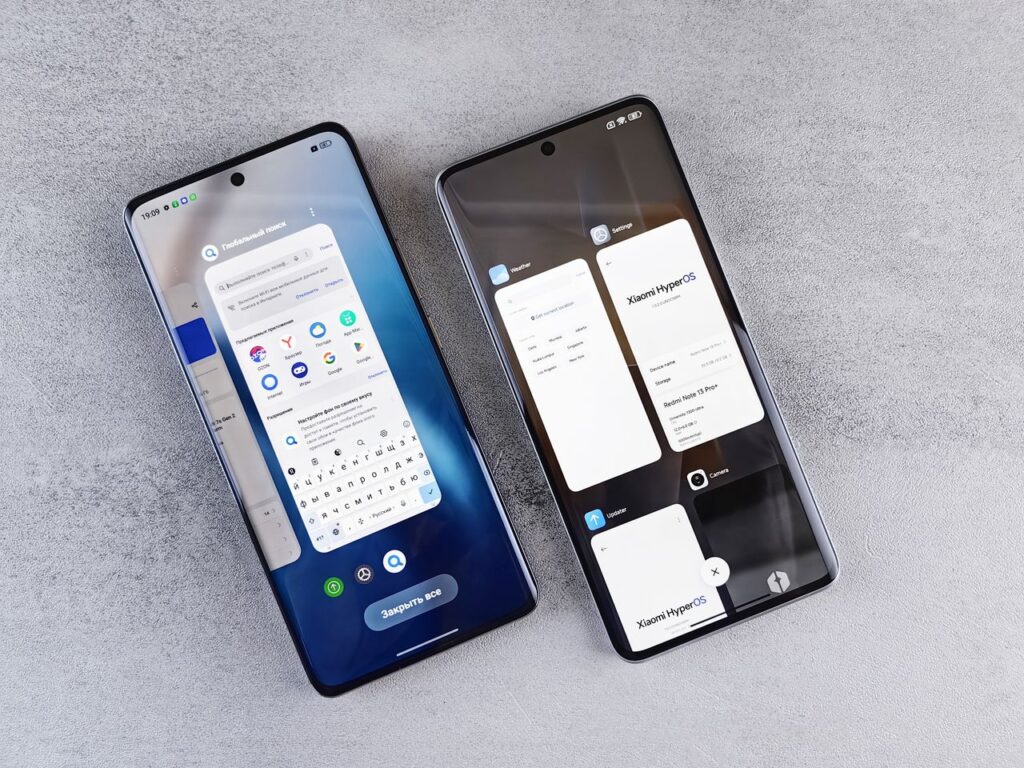
If nothing else has worked, resetting your phone’s network settings clears all saved Wi-Fi networks, Bluetooth pairings and network configurations, returning them to defaults. It doesn’t delete your photos, apps or personal data.
On Android: go to Settings, then System, then Reset options, then Reset Wi-Fi, mobile and Bluetooth. On Samsung phones, it’s General management, then Reset, then Reset network settings.
On iPhone: go to Settings, then General, then Transfer or Reset iPhone, then Reset, then Reset Network Settings.
After resetting, reconnect to your Wi-Fi and re-pair Bluetooth devices.
Before resetting, take a screenshot of your Wi-Fi list or note down the passwords for networks you use regularly, such as home, work and family members homes. It is easy to forget a password you have not typed in years, and the reset will make you enter them all again.
Step 11: Contact your internet provider or replace your router
If other devices also disconnect, or if the problem continues after all these steps, the issue may be your internet service or router.
- Check for outages with your internet provider’s app or website.
- Ask your provider to test your line. They can often detect problems remotely.
- Consider replacing an old router. Routers older than about five years may not handle modern devices and traffic well. A newer router supporting Wi-Fi 6 or later can improve speed, range and stability.
Frequently asked questions
Why does my phone say connected, no internet?
Your phone is connected to the router, but the router can’t reach the internet. Restart the router and modem, check for provider outages and test other devices.
Why does Wi-Fi disconnect when my phone is locked?
Battery saving features may limit Wi-Fi activity when the screen is off. Check battery saver and Wi-Fi power settings, and make sure your phone and router are updated.
Will resetting network settings delete my data?
No. It only removes saved Wi-Fi networks, Bluetooth pairings and network settings. Your apps, photos and files remain.
Is a mesh system better than a Wi-Fi extender?
Usually yes. Mesh systems are designed to work together as one network and generally provide more consistent coverage than single extenders.
Does a phone case affect Wi-Fi signal?
Most cases don’t. Cases with metal parts or thick metal plates may reduce signal slightly.
Why does only my phone disconnect while other devices work fine?
The problem is probably your phone’s settings. Forget and reconnect the network, check private address settings, update the phone and reset network settings if needed.
If your work depends on a stable connection, such as remote work or online classes, consider keeping a backup option ready, like a mobile hotspot plan on your phone. It will not replace a good home network, but it can save an important meeting while you sort out the problem.
Final thoughts
Wi-Fi that keeps disconnecting is frustrating, but it’s usually fixable. Start by working out whether the problem is your phone or your network. Restart everything, forget and rejoin the network and update your software. Then check settings like Wi-Fi assist and private addresses, improve router placement and consider your frequency bands. If all else fails, reset network settings or talk to your internet provider. A stable connection is usually just a few steps away.
Leave a Reply