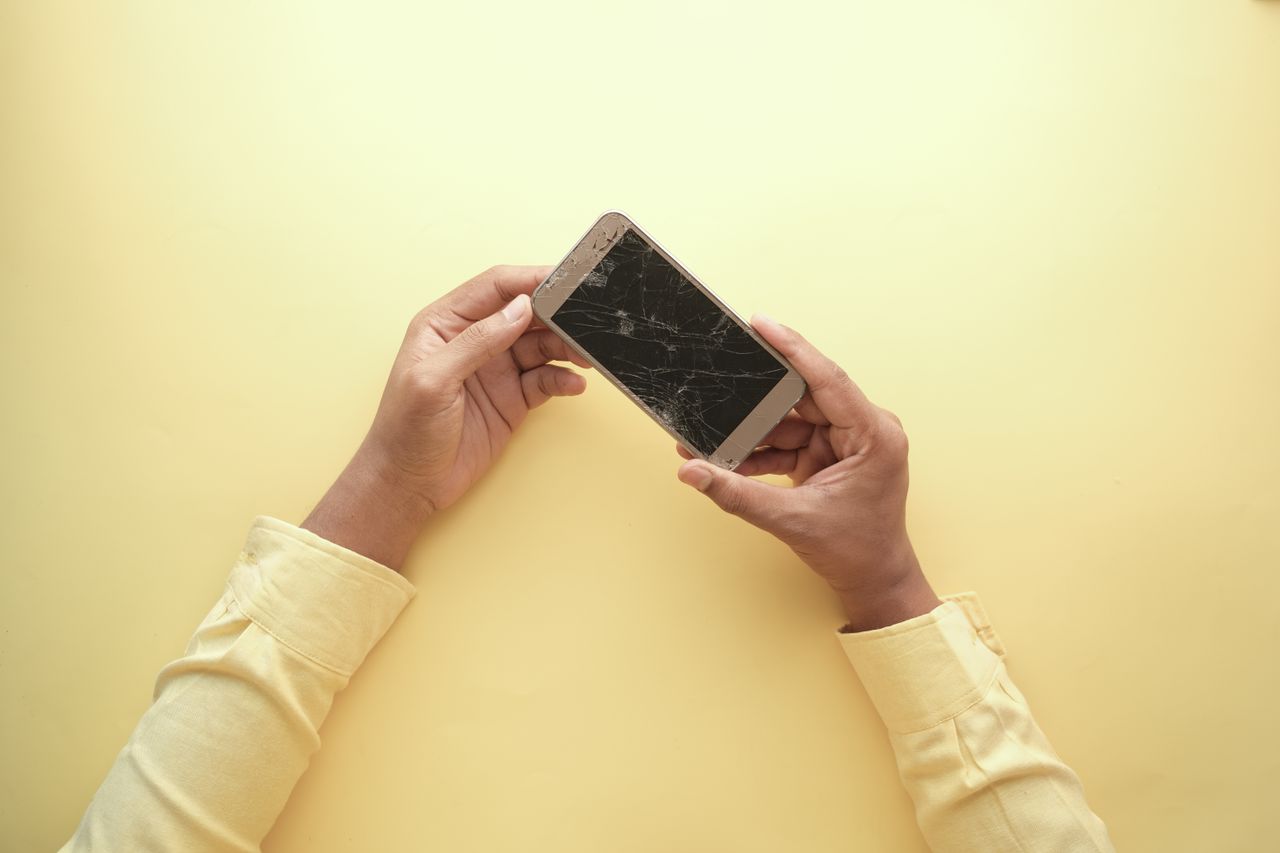
Your phone’s touchscreen is how you do almost everything: unlock it, answer calls, type messages, scroll, pay. So when it stops responding, even partially, the whole phone suddenly feels useless. Maybe taps don’t register, part of the screen ignores you, the phone types letters on its own or swipes happen in the wrong direction.
An unresponsive touchscreen can be caused by something as simple as a dirty screen or a thick screen protector, a software glitch that a restart fixes in seconds, or physical damage that needs a repair. The trick is working out which one you’re dealing with before spending money.
In this guide, we’ll walk through a step-by-step process to fix an unresponsive touchscreen on Android and iPhone, starting with the quickest checks and moving to more involved solutions. We’ll also cover ghost touches, partial dead zones and how to tell when it’s time for a professional repair.
📋 Table of Contents
- First: what kind of problem do you have?
- Step 1: Restart or force restart your phone
- Step 2: Clean the screen and your hands
- Step 3: Remove the screen protector and case
- Step 4: Check temperature and charging
- Step 5: Update your software
- Step 6: Check touch and accessibility settings
- Step 7: Test in safe mode on Android
- Step 8: Run a touchscreen test
- Step 9: Back up your data
- Step 10: Factory reset as a last resort
- When it’s a hardware problem
- How to prevent touchscreen problems
- Frequently asked questions
- Final thoughts
Work through the steps in order. Each one rules out a common cause, and many people find the solution within the first three or four steps. If you skip straight to a factory reset, you may lose time and data on a problem that a simple clean or a new screen protector would have solved.
First: what kind of problem do you have?
Touchscreen problems tend to fall into a few categories. Identifying yours helps you choose the right fix.
- The whole screen doesn’t respond to any touch, even though the display is on.
- Part of the screen doesn’t respond, such as a strip along the top or bottom, or one corner.
- Touches are delayed or only work sometimes.
- Ghost touches: the phone taps, types or swipes on its own.
- The screen responds in the wrong place, with taps registering slightly off from where you touched.
- The problem happens only in one app.
Also think about when it started. After a drop? After getting wet? After an update? After installing a new screen protector? The timing is often the biggest clue.
If the whole screen is unresponsive, start with the restart. If only part of the screen fails, pay special attention to the screen protector and touch tests later in this guide. If you are seeing ghost touches, moisture, chargers and cases are the most common culprits. Matching your symptoms to the right section saves a lot of trial and error.
Step 1: Restart or force restart your phone
A software glitch can freeze the touchscreen while the rest of the phone keeps working. A restart is the quickest fix.
If the screen doesn’t respond at all, you won’t be able to tap a restart button, so use a force restart:
On iPhone 8 and later: press and release volume up, press and release volume down, then press and hold the side button until the Apple logo appears.
On most Android phones: press and hold the power and volume down buttons together for about 10 to 20 seconds until the phone restarts. On some phones, holding the power button alone for a long time works. Check your manufacturer’s instructions if neither method works.
Force restarting doesn’t delete your data. It simply turns the phone off and on again.
If a force restart fixes the problem but it keeps returning, keep an eye on what you were doing just before the freeze. Was a specific app open? Was the phone very hot? Were you charging? Patterns like these point to a specific cause, such as a buggy app or a faulty charger, which you can address directly.
Step 2: Clean the screen and your hands
Touchscreens work by detecting the small electrical charge in your fingertips. Water, oil, lotion, dust and dirt can confuse them.
- Dry your hands. Wet or very sweaty fingers often cause missed or erratic touches.
- Clean the screen with a soft, lint-free microfiber cloth. If needed, lightly dampen the cloth with water. Avoid spraying liquid directly on the phone.
- Avoid harsh cleaners like window cleaner or ammonia-based products, which can damage the screen’s coating.
- Remove gloves unless they’re designed for touchscreens.
It sounds simple, but a quick clean solves a surprising number of touch problems, especially ghost touches caused by moisture.
Rainy days and humid environments can also cause temporary problems. If your phone acts strangely only when you are outside in the rain or right after washing your hands, moisture is almost certainly the cause. Dry the screen and your fingers, and the problem should disappear.
Step 3: Remove the screen protector and case
Screen protectors can cause touch problems, especially if they’re thick, cheap, poorly fitted, cracked, peeling at the edges or have bubbles or dust trapped underneath.
Carefully remove the screen protector and test the screen. If touch works perfectly without it, replace it with a high-quality protector designed for your exact phone model.
Cases can also cause problems if they press on the edges of the screen, which can trigger ghost touches near the sides. Remove the case and test again.
When buying a replacement protector, look for one that specifically mentions compatibility with your phone model and any in-screen fingerprint sensor it may have. Generic protectors that do not quite fit are a frequent cause of touch issues around the edges of the screen.
Step 4: Check temperature and charging
Temperature: extreme cold can make touchscreens slow or unresponsive, and an overheating phone may behave erratically. Let your phone return to room temperature and try again.
Charging: cheap or faulty chargers and cables can cause electrical noise that interferes with the touchscreen, leading to ghost touches or missed taps while charging. If problems only happen while charging, try a different, quality charger and cable.
After updating, restart your phone once more. Some fixes to touch drivers and display software only take full effect after a restart, and it gives the new software a clean start.
Step 5: Update your software
Touch problems are sometimes caused by software bugs, especially right after an update or in specific apps. Updates often include fixes.
- iPhone: go to Settings, then General, then Software Update.
- Android: go to Settings, then System, then Software update, or Software update directly in Settings on Samsung phones.
Also update your apps. If the problem happens only in one app, update or reinstall that app.
Some people turn on accessibility features while exploring settings and forget about them. If your phone suddenly requires longer presses, ignores quick taps or behaves differently with gestures, a quick look through the touch and accessibility settings often reveals a toggle that was switched on by accident.
Step 6: Check touch and accessibility settings
Some settings change how the screen reacts to touch.
On iPhone
- Touch Accommodations in Settings, then Accessibility, then Touch, changes how long you need to hold or how taps are recognized. If it’s on and you didn’t intend it, turn it off.
- Haptic Touch speed can be adjusted in the same area.
- Tap to Wake and Reachability settings can also be checked if certain gestures seem unreliable.
On Android
- Touch sensitivity: many Android phones have an option to increase touch sensitivity for use with screen protectors. On Samsung phones, look for Touch sensitivity in Display. On Pixel phones, look for Increase touch sensitivity or Screen protector mode.
- Accidental touch protection: prevents touches when the phone is in a pocket or bag. Check that it’s working as expected.
- Accessibility settings like Touch and hold delay can make the screen feel unresponsive if set too long.
Apps that draw over other apps deserve special attention. They create an invisible layer above the screen, and if one of them misbehaves, it can block touches to everything underneath. On Android, you can review which apps have this permission under Special app access, often listed as Display over other apps. Turning it off for apps that do not need it is a quick, low-risk test.
Step 7: Test in safe mode on Android
If touch problems seem random, a third-party app may be responsible, especially apps that draw over other apps, such as screen filters, floating bubbles or certain launchers.
Restart your Android phone in safe mode, which disables third-party apps. On many phones, press and hold the power button, then touch and hold Power off until the safe mode option appears.
If the touchscreen works normally in safe mode, uninstall recently installed apps one at a time until the problem disappears. Restart normally to leave safe mode.
Take a photo or screenshot of the drawing test results if you plan to visit a repair shop. It helps the technician see exactly which area of the screen fails, and it gives you a clear before and after comparison once the repair is done.
If the test shows that touches register perfectly everywhere, but the problem still happens in daily use, the cause is likely software, an app, moisture or a charger rather than the screen itself. That is valuable information that can save you an unnecessary repair.
Step 8: Run a touchscreen test
Testing helps you see exactly where the screen fails.
- Samsung phones: the Samsung Members app includes diagnostics with a touchscreen test.
- Some Android phones offer built-in hardware tests through a diagnostic app or service menu.
- On any phone, open a drawing or notes app and slowly drag your finger across the whole screen in lines. Gaps or broken lines reveal dead zones.
If the same area fails consistently, it’s likely a hardware problem.
If you can only use part of the screen, try rotating your phone to landscape mode. Buttons move to different positions, which may let you reach the backup settings using the part of the screen that still works.
Step 9: Back up your data
If the touchscreen is failing, back up your phone as soon as possible, while you can still use it. Use iCloud backup or a computer for iPhone, and Google backup plus Google Photos for Android.
If the screen barely works, you may be able to control your phone using voice assistants, accessibility features, a connected keyboard and mouse on some Android phones, or a computer to start a backup.
Step 10: Factory reset as a last resort
If you suspect a deep software problem and the screen works well enough to navigate, a factory reset can help. Back up everything first, because a reset erases all data.
- iPhone: Settings, then General, then Transfer or Reset iPhone, then Erase All Content and Settings.
- Android: Settings, then System, then Reset options, then Erase all data. On Samsung, General management, then Reset.
If the problem continues even after a reset, it’s almost certainly hardware.
If you decide on a repair, ask whether the shop will back up or preserve your data. Most screen repairs do not affect data, but it is always safer to have a fresh backup before handing your phone to anyone.
When it’s a hardware problem
Signs that the touchscreen hardware is damaged include:
- The problem started after a drop or impact.
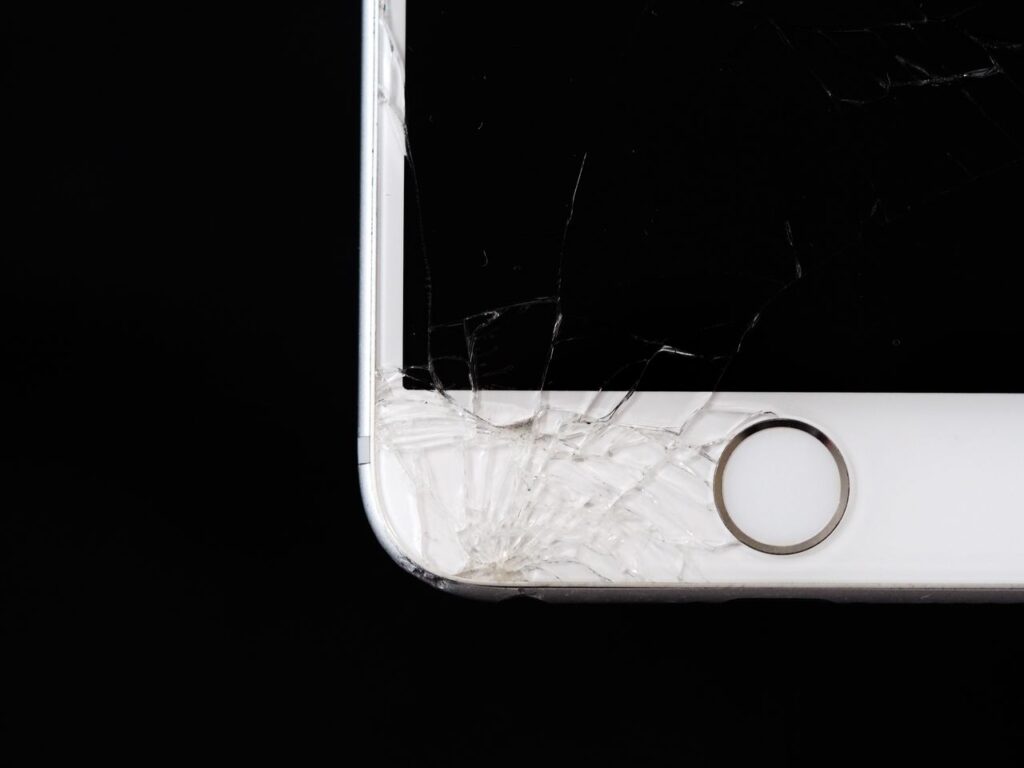
- The screen is cracked, even slightly.
- The phone was exposed to water or liquid.
- The same area of the screen fails consistently.
- Problems continue after a reset and in safe mode.
- The screen shows lines, discoloration or flickering.
- The screen appears to be lifting, which can indicate a swollen battery underneath.
In these cases, contact your manufacturer or an authorized repair service. Screen replacement is a common repair, and many phones can be fixed for much less than the cost of a new device. If your phone is under warranty or covered by insurance, check your coverage first.
If the screen is lifting because of a swollen battery, stop using and charging the phone and get it checked promptly.
Another useful habit is to replace your screen protector as soon as it cracks or starts peeling. A damaged protector can trap dirt and moisture, cause dead zones and even hide cracks in the actual screen underneath. Protectors are cheap compared to screens, so treat them as a replaceable part.
How to prevent touchscreen problems
- Use a high-quality screen protector designed for your exact model.
- Use a case with raised edges that doesn’t press on the screen.
- Keep your screen clean and dry.
- Avoid extreme temperatures.
- Use quality chargers and cables.
- Keep your software updated.
Frequently asked questions
Why is my touchscreen not working but the phone is on?
Usually because of a software freeze, a problem with the screen protector, moisture, or hardware damage. Start with a force restart and cleaning the screen.
What are ghost touches?
Ghost touches are when your phone registers taps or swipes you didn’t make. Common causes include moisture, a damaged screen protector, a faulty charger, a case pressing on the screen or hardware damage.
Can a screen protector stop my touchscreen from working?
Yes. Thick, cheap or damaged protectors can reduce sensitivity or cause dead zones. Remove it to test.
Does a cracked screen always stop touch from working?
Not always. Some cracks only affect the glass, while others damage the touch layer underneath. If touch problems appear after a crack, the touch layer is likely affected.
Will a factory reset fix my touchscreen?
It can fix software-related touch problems. It won’t fix physical damage.
How much does a screen repair cost?
It varies widely by phone model, repair provider and region. Authorized repairs are usually more expensive but use genuine parts. Get a quote before deciding.
Keep in mind that most touchscreen problems give some warning before they become severe, such as occasional missed taps or a small unresponsive area. Acting early, by cleaning, checking the protector and backing up your data, puts you in a much better position if a repair turns out to be necessary.
Final thoughts
An unresponsive touchscreen is frustrating, but it doesn’t always mean an expensive repair. Start with a force restart, clean the screen, remove the protector and case, check temperature and charging, update your software and review touch settings. Test in safe mode and run a touch test to narrow things down. If the problem persists or started after a drop or water exposure, back up your data and get a professional repair. Most touch problems can be solved, one way or another.