Getting a new phone is exciting right up until the moment you realize everything important is still on the old one. Your photos, your chats, your contacts, your two-step verification codes, the playlist you spent years building. Suddenly the shiny new phone feels less like a treat and more like a moving day.
Here’s the encouraging part: moving from one Android phone to another is much easier than it used to be. Android has a built-in transfer process that copies most of your data during setup, and phone makers like Samsung offer their own tools on top of that. The bad news is that a few important things don’t move automatically, and those are exactly the things people discover are missing a week later.
This guide walks you through the whole process from start to finish. We’ll cover what to do before you switch, how the transfer works with a cable or wirelessly, what needs special attention, like WhatsApp chats and authenticator apps, and what to do with your old phone afterward. Take it step by step and you can move to your new phone without losing anything that matters.
📋 Table of Contents
- What transfers automatically and what doesn’t
- Before you switch: prepare your old phone
- How to transfer using Android’s built-in setup
- Switching to a Samsung Galaxy? Use Smart Switch
- Moving your WhatsApp chats
- Don’t forget your authenticator app
- Moving your SIM card or eSIM
- Files, music and other local data
- After the transfer: check everything
- Preparing your old phone to sell, gift or recycle
- Frequently asked questions
- Before you go
What transfers automatically and what doesn’t
It’s worth knowing what to expect before you start. Android’s transfer process has improved a lot, but it isn’t magic.
Usually transferred automatically:
- Your Google account and the data synced to it, such as contacts, calendar events and Gmail.
- Most of your installed apps, which are downloaded fresh from the Play Store.
- Photos and videos, either copied directly or available through Google Photos backup.
- Text messages and call history, when you use the copy option during setup.
- Many device settings, such as Wi-Fi networks, wallpaper and some display preferences.
Often needs extra attention:
- WhatsApp and other chat apps with their own backup systems.
- Authenticator apps used for two-step verification.
- Files stored only on the phone, like downloads, voice recordings and documents.
- Logins inside individual apps. Many apps will ask you to sign in again.
- Banking apps, which often require you to register the new device.
- Your eSIM or physical SIM card.
Keep this list handy. The rest of this guide is about making sure everything in the second group arrives safely.
The difference between the two lists comes down to where the data lives. Anything that syncs to your Google account already exists in the cloud, so the new phone simply downloads it again. Anything that lives only inside a specific app, or only in the phone storage, depends on that app or on you to move it. Once you understand that, the whole process becomes much less mysterious.
Before you switch: prepare your old phone
A little preparation makes the transfer much smoother. Do these things a day or two before you set up the new phone if you can.
Update your old phone
Install any pending system and app updates on the old phone. Transfer tools work best when both phones are reasonably up to date, and updated apps are more likely to restore their data correctly.
Check your Google account backup
Go to Settings, then Google, then Backup. On Samsung phones, you may find it under Accounts and backup. Make sure Backup by Google One or Google backup is turned on, then tap Back up now. This saves your app data, call history, contacts, device settings and text messages to your Google account. It’s a safety net if anything goes wrong with the direct transfer.
Confirm your photos are backed up
Open Google Photos or your preferred photo backup app and make sure everything is backed up. If you don’t use cloud backup, plan to copy your photos to a computer or use the direct cable transfer, which can copy them phone to phone.
Write down your important passwords
You’ll need your Google account password, and possibly your Samsung account password. Make sure you know them or that they’re saved in a password manager you can access. This is also a good moment to check that your account recovery phone number and email are up to date.
Charge both phones
The transfer can take anywhere from a few minutes to over an hour, depending on how much data you have. Charge both phones to at least 50 percent, or better yet, keep them plugged in during the process.
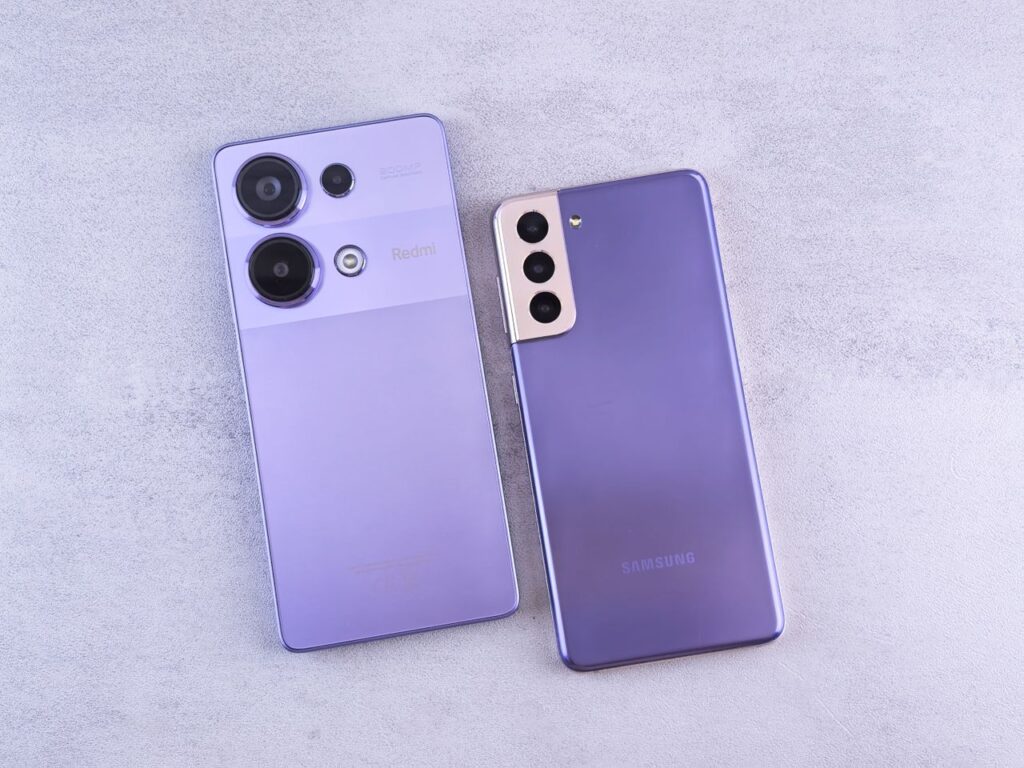
If you have time, also go through your old phone and delete what you don’t want to bring with you. There’s no point transferring thousands of blurry screenshots, years of old downloads and apps you never open. A lighter transfer is a faster transfer, and your new phone starts life cleaner and less cluttered.
Finally, take a few screenshots of your old home screen and your app drawer. Even if the transfer restores most of your apps, the layout may look different, and having a picture of how you had things arranged makes it much quicker to set up the new phone just the way you like it.
How to transfer using Android’s built-in setup
When you turn on a new Android phone for the first time, the setup wizard offers to copy apps and data from your old phone. This is the main transfer method and works between most Android brands.
Option 1: Transfer with a cable
Using a cable is usually the fastest and most complete method, especially if you have lots of photos and videos. You’ll need a cable that connects the two phones, typically USB-C to USB-C. Many new phones include an adapter or the right cable in the box, but not all.
- Turn on the new phone and follow the setup steps until you see an option to copy apps and data.
- Choose to copy from your old phone and select the cable option when asked.
- Connect the two phones with the cable.
- On the old phone, confirm the connection when prompted and unlock it if necessary.
- On the new phone, choose what to copy, such as apps, photos, messages and contacts.
- Wait for the transfer to finish. Keep both phones nearby and connected.
Option 2: Transfer wirelessly
If you don’t have a suitable cable, you can transfer over Wi-Fi. During setup, choose the wireless option. The new phone will display a code or prompt, and the old phone will show a matching confirmation. Keep both phones close together and connected to power. Wireless transfers are convenient but can be slower if you have lots of media.
Option 3: Restore from your Google backup
If your old phone is lost, broken or already reset, you can still restore from the backup you made in your Google account. During setup, sign in with your Google account and choose to restore from a backup. Pick the most recent backup from your old phone and select what to restore. This brings back apps, settings, contacts and messages, though some app data may not be included.
Whichever option you choose, try not to use either phone heavily while the transfer is running. Interrupting the connection, letting a phone go to sleep for too long or moving the phones apart during a wireless transfer can cause it to stop partway. If that happens, don’t panic. You can usually start again, and the setup will pick up the data that has not been copied yet.
Switching to a Samsung Galaxy? Use Smart Switch
If your new phone is a Samsung Galaxy, you can use Samsung Smart Switch, which is built into Samsung phones and available from the Play Store for other Android phones. Smart Switch can transfer more Samsung-specific data, such as Samsung Notes, home screen layout and some settings, when moving between Samsung phones.
Open Smart Switch on both phones, or follow the prompt during setup on the new Galaxy, choose whether to connect by cable or wirelessly, and select what you want to transfer. Smart Switch also works when moving from an iPhone to a Galaxy.
Moving your WhatsApp chats
WhatsApp keeps its own backups, separate from your Google account backup in some respects, so it’s worth handling it deliberately.
On your old phone, open WhatsApp, go to Settings, then Chats, then Chat backup. Make sure backup to your Google account is set up and tap Back up. Wait for it to finish. If you have a lot of media, this can take a while, and it’s best done on Wi-Fi.
On your new phone, install WhatsApp, verify the same phone number and choose to restore your chats from the backup when prompted. Use the same Google account that the backup was saved to.
WhatsApp also offers a direct chat transfer option between Android phones in its settings, under Chats, then Transfer chats, which moves your history without going through the cloud. Either method works. Just don’t skip this step, and don’t uninstall WhatsApp from the old phone until you’ve confirmed your chats appear on the new one.
Other messaging apps, such as Signal and Telegram, have their own methods. Signal uses a dedicated transfer or backup process, while Telegram stores most chats in the cloud automatically.
Don’t forget your authenticator app
This is the step people forget most often, and it can be the most painful to fix. If you use an authenticator app for two-step verification on accounts like email, banking or social media, the codes are tied to that app. If you reset the old phone before moving them, you could lock yourself out of important accounts.
Google Authenticator can sync codes to your Google account if you’ve turned on that option, which makes moving easy. It also has an option to export accounts by scanning a QR code from the old phone with the new one. Look in the app’s menu for Transfer accounts or Export accounts.
Microsoft Authenticator supports cloud backup that you can restore on a new phone after signing in.
Other authenticator apps vary. Some offer encrypted backups, others require you to move each account manually. If your app doesn’t support transfers, log into each account on a computer, turn off two-step verification or remove the old device, and set it up again with the new phone.
Whatever app you use, keep your backup codes in a safe place. Most services give you a set of one-time codes when you set up two-step verification. They’re your emergency key if something goes wrong.
A quick test is worth doing before you move on. Open the authenticator app on the new phone and compare a code with the one shown on the old phone for the same account. If the codes match and refresh together, the transfer worked. Then log out and back into one less important account using the new phone, just to be completely sure.
Moving your SIM card or eSIM
If you use a physical SIM card, simply power off both phones, remove the SIM from the old one using the small tool or a paperclip, and insert it into the new one. Check that your new phone supports the same SIM size.
If you use an eSIM, the process depends on your carrier and your phones. Some Android phones support transferring an eSIM directly during setup. In other cases, you need to contact your carrier or use their app to activate the eSIM on the new phone. Don’t delete the eSIM from your old phone until you’ve confirmed how your carrier handles transfers, because deleting it may require a new eSIM from the carrier.
Files, music and other local data
Anything stored only on your phone, outside apps that back up to the cloud, needs a manual check. This includes:
- Documents and PDFs in your Downloads folder.
- Voice recordings and call recordings.
- Music files you copied to your phone, as opposed to streaming apps.
- Files saved by specific apps, like scanning apps or note apps that don’t sync.
You can copy these by connecting your old phone to a computer and dragging the files to a folder, or by uploading them to cloud storage such as Google Drive. Quick Share, Android’s built-in sharing feature, can also send files directly between the two phones.
After the transfer: check everything
Once the new phone is set up, don’t wipe the old one immediately. Spend a day or two using the new phone and check the following:
- Open your photo gallery and Google Photos and confirm your pictures are there.
- Open your messaging apps and confirm your chats are restored.
- Test your authenticator app by logging into an account that uses it.
- Open your banking apps and complete any device registration.
- Check that your contacts, calendar and email look complete.
- Make a test call and send a text message to confirm your SIM or eSIM works.
- Re-pair Bluetooth devices like headphones, smartwatches and car systems.
If something is missing, it’s easy to fix while you still have the old phone. Once you’re confident everything moved, you can prepare the old phone for its next life.
Preparing your old phone to sell, gift or recycle
Before you hand your old phone to someone else, wipe it properly to protect your personal data.
- Sign out of your Google account and any Samsung account under Settings, then Passwords and accounts or Accounts and backup.
- Remove your SIM card and any memory card.
- Go to Settings, then System, then Reset options, and choose Erase all data (factory reset). On Samsung phones, it’s under General management, then Reset.
- After the reset, the phone should show the welcome screen as if it were new.
Signing out of your accounts first matters because of Factory Reset Protection. If you reset a phone while your Google account is still on it, the next owner may be asked for your password before they can use it.
It’s also a good idea to remove the old phone from your Google account device list once you’re done. Visit your Google account security settings on the web, look for your devices and sign out of the old one. This keeps your account tidy and makes sure that old phone can no longer access your email or backups, even if you forgot to sign out before resetting it.
If your old phone is still in good condition, consider keeping it as a backup device for emergencies, giving it to a family member or trading it in. Many carriers and manufacturers offer trade-in credit, and responsible recycling programs make sure old batteries and materials are handled safely instead of ending up in a landfill.
Frequently asked questions
How long does it take to transfer data to a new Android phone?
It depends on how much data you have and which method you use. A cable transfer with a few gigabytes may take 10 to 20 minutes, while transferring a large photo library wirelessly can take more than an hour. Apps continue downloading in the background after setup.
Can I transfer data after I’ve already set up the new phone?
On many phones, yes. Some phones let you use the transfer tool after setup, and Samsung Smart Switch can be opened at any time. Otherwise, you may need to reset the new phone and go through setup again. Check your phone’s settings for a copy data option before resetting.
Will my apps keep their logins and data?
Some will, many won’t. Apps that support Android backup may restore their data, but banking apps, streaming services and apps with extra security often ask you to log in again. Make sure you know your passwords or use a password manager.
Do I need Wi-Fi to transfer data?
For a cable transfer, Wi-Fi isn’t strictly needed for the copy itself, but you’ll want Wi-Fi to download apps and restore cloud backups. Wireless transfers need both phones close together and work best on a stable connection.
What if my old phone is broken?
If the screen works but the phone is damaged, you may still be able to use a cable transfer. If the phone won’t turn on, you’ll need to rely on your Google account backup, Google Photos and your app backups. This is why regular backups are so important.
Should I factory reset the new phone if something goes wrong?
Only as a last resort. Most missing items can be restored individually by signing into the app or restoring from the app’s own backup. A reset means starting the setup process over again.
Before you go
Switching Android phones is mostly a matter of preparation. Back up the old phone, use the built-in transfer during setup, and give special attention to the things that don’t move on their own, especially WhatsApp chats and authenticator apps. Keep the old phone around for a few days while you check that everything arrived, then wipe it properly before passing it on. Do that, and moving day will feel a lot less like moving day.