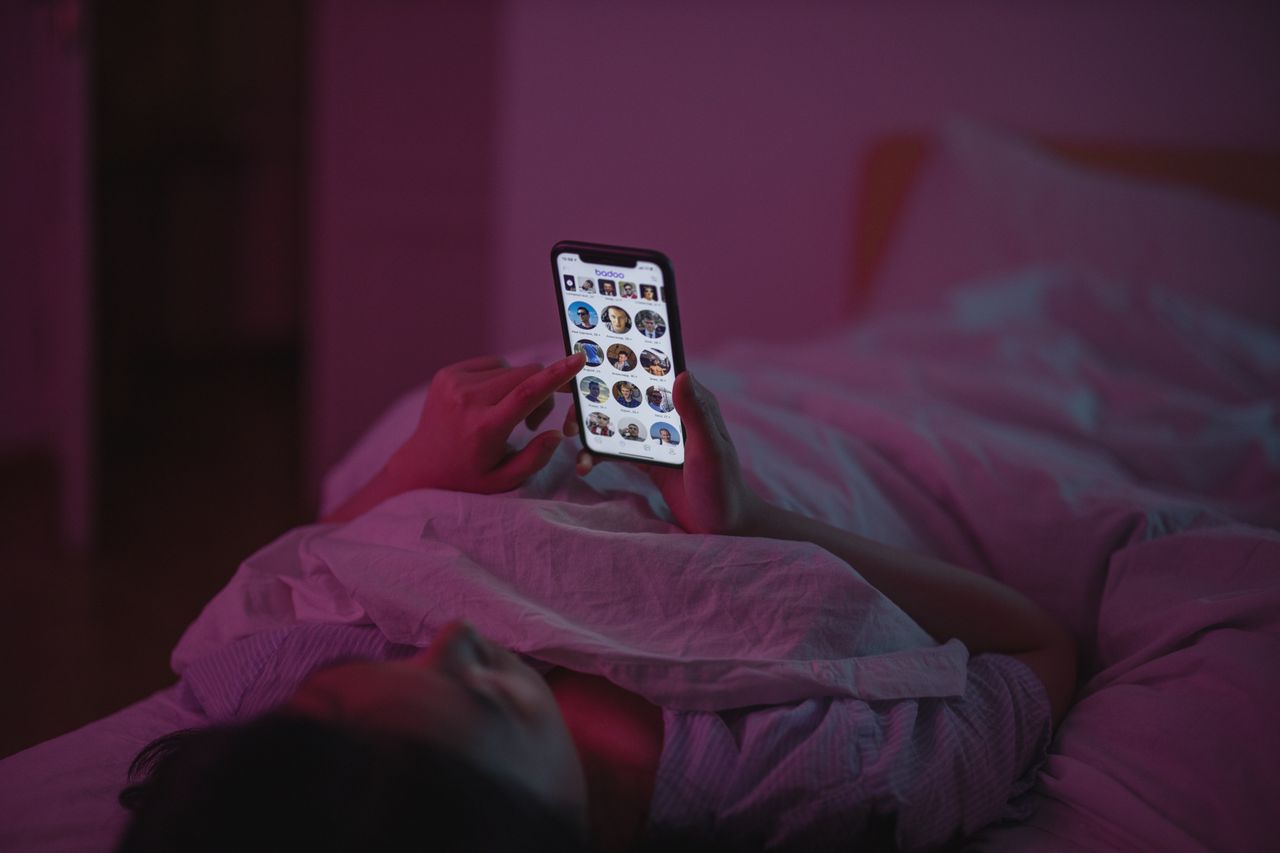
Your iPhone is brilliant at getting your attention. Messages, emails, news alerts, game reminders, shopping deals, group chats about plans you’re not even part of. Each notification feels small, but together they break your concentration dozens of times a day and follow you right into bed.
Apple’s answer to this is Focus, a feature that lets you decide who and what can reach you at different times of day. It’s far more flexible than the old Do Not Disturb switch. You can have one Focus for work, another for sleep, another for the gym, and each can allow different people and apps, change your home screen and even switch on automatically.
The problem is that Focus can feel complicated the first time you open it. There are lots of options, and many people set up one mode, find it confusing and never touch it again. Here, we’ll keep things practical. We’ll explain how Focus works, show you how to build a few modes that are genuinely useful, and share the settings that make the difference between a feature you tried once and a feature you rely on every day.
📋 Table of Contents
- What Focus actually does
- Where to find Focus and how to turn it on
- Build a Sleep Focus that protects your nights
- Build a Work Focus that keeps you productive
- Build a Personal Focus for evenings and weekends
- Driving Focus: safety first
- Settings that make Focus work better
- Common mistakes and how to avoid them
- Frequently asked questions
- Wrapping up
Everything in this guide works on recent versions of iOS. If your iPhone is a few years old, some options may be named slightly differently or may be missing, but the core idea of allowing certain people and apps while silencing everything else has been part of the iPhone for several years now.
What Focus actually does
At its core, a Focus is a set of rules that controls notifications. When a Focus is on, notifications are silenced except for the people and apps you choose to allow. Silenced notifications aren’t lost. They wait quietly in Notification Center, so you can check them when you’re ready.
But Focus can do much more than silence alerts:
- Allow specific people. Your partner, your kids’ school or your boss can still get through, even when everything else is silent.
- Allow specific apps. You might allow your calendar and work chat during a work Focus, but not social media.
- Filter apps. Some apps, like Mail, Messages and Calendar, can show only the content relevant to the current Focus.
- Change your Lock Screen and Home Screen. Each Focus can show different pages of apps, so your work apps appear during work and your fun apps disappear.
- Turn on automatically. A Focus can start at a set time, when you arrive at a location or when you open a particular app.
- Share your status. Apps like Messages can tell people that you have notifications silenced, so they understand why you’re not replying.
Think of Focus as a set of different phones for different parts of your life, all inside the same iPhone.
The beauty of this system is that nothing is lost. Many people are afraid that silencing notifications means missing something important. In practice, the opposite tends to happen. Because the important people and apps are allowed through, the alerts that do reach you feel meaningful again, instead of being buried under a pile of promotions and group chat chatter.
Where to find Focus and how to turn it on
You’ll find Focus in two places:
- Settings, then Focus, where you create and customize modes.
- Control Center, where you can quickly turn a Focus on or off. Swipe down from the top-right corner of the screen and tap the Focus button.
When you open Settings, then Focus, you’ll see a few built-in options such as Do Not Disturb, Sleep, Personal and Work. You can customize these, or tap the plus button to create a new Focus from a template like Driving, Fitness, Gaming, Mindfulness or Reading, or a fully custom one.
A good starting point is to set up just two or three modes. Too many, and you’ll forget which is which.
Before you customize anything, take a moment to think about your day. When do you most need quiet? When do you most need to be reachable? Who absolutely must be able to contact you at any hour? Answering these questions first makes the setup much faster, because you’re building around your real routine instead of clicking through options at random.
Build a Sleep Focus that protects your nights
If you only set up one Focus, make it Sleep. A good Sleep Focus helps you wind down, keeps your phone quiet overnight and still lets truly important calls through.
Step 1: Set your schedule
The Sleep Focus works closely with the sleep schedule in the Health app and the Alarms in the Clock app. In Settings, then Focus, then Sleep, you can set a schedule or link it to your sleep schedule. Choose the time you usually go to bed and wake up.
Step 2: Choose who can reach you
Under People, choose Allow notifications from and add the people you’d want to hear from in the middle of the night, such as close family. You can also allow calls from your Favorites contacts. Turn on Allow repeated calls, which lets a second call from the same person within three minutes ring through. This is an important safety net, because someone with an emergency will usually try again.
Step 3: Choose which apps can notify you
Under Apps, allow only what you need overnight. For most people, that’s very little. Perhaps a smart home security app or a medical app. Leave everything else silent.
Step 4: Dim the Lock Screen
Turn on Dim Lock Screen so the screen stays dark and calm if it wakes up during the night.
Step 5: Use Wind Down
If you use the Health app’s sleep schedule, you can add a Wind Down period before bedtime. During Wind Down, your Sleep Focus can turn on early and you can add shortcuts to calming apps, like a reading app or a meditation app, to your Lock Screen. It’s a gentle nudge to put the phone down.
After your first week with a Sleep Focus, check in with yourself. Did anything important get missed? Did anything wake you up that shouldn’t have? Adjust the allowed people and apps based on what actually happened. A Sleep Focus is personal, and the best version is the one tuned to your family, your work and your habits rather than a generic template.
One more tip that many people find helpful: charge your iPhone across the room instead of on the nightstand. Combined with a Sleep Focus, it removes the temptation to check your phone in bed, and it means you have to get up to turn off the alarm in the morning, which makes it harder to hit snooze five times.
Build a Work Focus that keeps you productive
A Work Focus helps you concentrate during the day without missing important messages.
Allow the right people
Add colleagues, your manager and anyone you need to hear from during work hours. Consider adding family members who might need you urgently, such as your partner or your kids’ school.
Allow the right apps
Allow your work email, calendar, work chat and any apps essential to your job. Silence social media, games, shopping and news. You’ll still see those notifications later.
Create a work Home Screen
This is one of the most effective Focus features. Under Customize Screens, you can choose which Home Screen pages appear while the Focus is on. Create a Home Screen page with only your work apps and widgets, such as calendar, reminders and your email app. Then choose that page for your Work Focus. When work time starts, your distracting apps simply aren’t there.
To make a new Home Screen page, long-press an empty area of your Home Screen, swipe to the last page and add apps from the App Library. You can hide pages you don’t want during work without deleting any apps.
Turn it on automatically
Under Set a Schedule, add a schedule for your working hours on weekdays. If you work in an office, you can also set the Focus to turn on when you arrive at your workplace’s location. Automatic switching is what makes Focus useful, because you don’t have to remember to turn it on.
Use Focus filters
Focus filters let some apps change what they show. For example, you can set Mail to show only your work account during the Work Focus, Calendar to show only your work calendar, and Messages to show only conversations with people you allowed. Look for Focus Filters at the bottom of the Focus settings screen.
Give your Work Focus a trial week before you judge it. The first few days may feel strange, especially if you’re used to checking social media between tasks. By the end of the week, most people notice that they finish work with more energy because they were not constantly pulled in different directions.
If your job involves being on call or responding quickly to customers, you can still use a Work Focus. Simply allow those specific apps and people, and silence everything else. The goal isn’t to make you unreachable, but to make sure the right things reach you without the noise.
Build a Personal Focus for evenings and weekends
A Personal Focus is the opposite of Work. It silences work email and chat so you can actually switch off in the evenings and on weekends.
Allow your friends and family, your personal messaging apps and anything related to your hobbies. Silence your work apps. Use Focus filters to hide your work email account and work calendar. Then schedule it for evenings and weekends, or simply turn it on when you leave work.
If you find it hard to stop checking work messages, this Focus can make a real difference. The messages still arrive, but they don’t buzz in your pocket during dinner.
Weekends are where the Personal Focus really shines. Many people find that their phone feels lighter and more enjoyable when work alerts are hidden for two days. If you worry about missing something urgent, allow one or two key colleagues through, or let repeated calls ring. That small safety valve makes it much easier to fully relax.
Driving Focus: safety first
The Driving Focus is designed to reduce distractions behind the wheel. It can turn on automatically when your iPhone detects motion consistent with driving or when it connects to your car’s Bluetooth or CarPlay.
While active, it silences notifications and can send an automatic reply to people who message you, letting them know you’re driving. You can allow certain contacts to break through with an urgent message.
Set it up under Settings, then Focus, then Driving, and choose how it should turn on. If you often ride as a passenger, you can turn it off with a tap when it activates.
If you have teenagers who are learning to drive, it’s worth setting this up together with them. The automatic reply removes the pressure to answer friends while on the road, and they can still be reached by parents if something urgent comes up. It’s a simple feature that can make driving safer for the whole family.
Settings that make Focus work better
A few extra options are easy to miss but make a big difference.
Share Focus Status
When enabled, apps like Messages show people that you have notifications silenced. They can still choose to notify anyway if their message is urgent. This reduces the awkwardness of not replying and gives people a way to reach you when it really matters. Find it under Settings, then Focus, then Focus Status.
Time Sensitive notifications
Some apps can mark notifications as Time Sensitive, like a delivery arriving or a calendar event starting soon. In each Focus, you can allow or block these. They’re often worth allowing during work but blocking during sleep.
Share Across Devices
If you have an iPad, Mac or Apple Watch, turn on Share Across Devices so turning on a Focus on one device turns it on everywhere. Otherwise, your Mac might buzz even though your iPhone is silent.
Silence lists vs allow lists
In newer versions of iOS, you can choose either to allow notifications only from certain people and apps, or to silence notifications from certain people and apps while allowing everything else. Allow lists are stricter and better for deep focus. Silence lists are better when you only want to mute a few noisy apps.

Emergency Bypass deserves a special mention. Open a contact in the Contacts app, tap Edit, then tap Ringtone or Text Tone and turn on Emergency Bypass. That person will always be able to make your phone ring or chime, regardless of which Focus is active. It’s ideal for an elderly parent, a partner or a child, and it gives you peace of mind to keep everything else silent.
If you use widgets, you can also add a Focus control or Shortcuts to your Lock Screen so switching modes takes a single tap. The fewer steps involved, the more likely you’re to actually use the feature in the moment, instead of meaning to turn it on and forgetting.
Common mistakes and how to avoid them
People often give up on Focus because of a few common problems. Here’s how to avoid them.
- Too many modes. Start with Sleep, Work and Personal. Add more only if you feel you need them.
- Forgetting to allow important people. Always include close family in every Focus, or at least allow repeated calls, so emergencies get through.
- Missing alarms worries. Alarms in the Clock app always ring, even in Sleep Focus or Do Not Disturb.
- Not using schedules. Turning Focus on manually works, but automatic schedules are what make it effortless.
- Ignoring Notification Center. Silenced notifications are waiting there. Make a habit of checking it after a Focus ends.
It also helps to review your Focus settings every few months. Jobs change, friendships change, and new apps come and go. A five-minute check to update allowed people and apps keeps your Focus modes accurate, so they keep working for you instead of quietly drifting out of date.
Frequently asked questions
Will my alarms still go off during a Focus?
Yes. Alarms set in the Clock app ring regardless of which Focus is active, including Sleep and Do Not Disturb.
Can people tell when I have a Focus turned on?
Only if Share Focus Status is enabled, and only in apps that support it, such as Messages. They see that you have notifications silenced, not which Focus you’re using or why.
What’s the difference between Do Not Disturb and other Focus modes?
Do Not Disturb is simply a Focus that silences almost everything. Other Focus modes are customizable versions with their own allowed people and apps, schedules, Home Screens and filters.
Can emergency calls get through during a Focus?
If you allow repeated calls, a second call from the same number within three minutes rings through. You can also allow specific contacts. Some contacts can also be given Emergency Bypass in their contact card, which lets their calls and messages make sound even when Focus is on.
Does Focus affect my Apple Watch?
Yes, if Share Across Devices is enabled and your watch is set to mirror your iPhone. The same Focus will turn on for both devices.
Why are some notifications still coming through?
Check which people and apps are allowed, whether Time Sensitive notifications are permitted and whether a contact has Emergency Bypass turned on. Phone calls from allowed contacts and repeated calls can also come through.
Wrapping up
Focus is one of the most useful features on the iPhone, but only if you set it up in a way that fits your real life. Start with a Sleep Focus that protects your nights, a Work Focus that keeps distractions away during the day and a Personal Focus that lets you switch off. Turn on schedules, allow the people who matter and give your Home Screen a different face for each part of your day. Within a week, you’ll likely wonder how you ever lived with every notification buzzing at once.
Most importantly, remember that Focus is a tool you control, not a rule you must follow. If a particular day is unusual, switch modes freely. The goal is a phone that respects your attention, not another set of settings to stress about.