Imagine you’re listening to a playlist on your phone on the way home. You walk through the door, tap a button and the same song keeps playing on the speaker in your living room, right where it left off. Your phone is free for messages, calls and photos, and the music doesn’t stop when a notification arrives. That’s Spotify Connect, and it’s one of the most useful Spotify features that many people never use.
Spotify Connect lets you use your phone, tablet or computer as a remote control to play music on other devices: smart speakers, TVs, game consoles, sound systems, cars and even your laptop. Unlike Bluetooth, the music streams directly from the internet to the speaker, so it usually sounds better, drains less battery and keeps playing even if you leave the room.
In this guide, we’ll explain how Spotify Connect works, how to use it on Android, iPhone and PC, how it compares to Bluetooth, how to play music on your TV and smart speakers, how to listen together with friends and family, and how to fix the most common connection problems.
📋 Table of Contents
- What is Spotify Connect?
- What devices support Spotify Connect?
- How to use Spotify Connect on Android and iPhone
- How to use Spotify Connect from a PC or Mac
- Play Spotify on your TV
- Spotify Connect vs Bluetooth: which should you use?
- Listen together with Jam
- Control who can use your speakers
- Fix common Spotify Connect problems
- Frequently asked questions
- Final thoughts
If you already own a smart speaker, a smart TV or a game console, there is a good chance you have Spotify Connect available and have never used it. This guide will help you get it working in a couple of minutes, and explain when it is better than Bluetooth and when it is not.
What is Spotify Connect?
Spotify Connect is a feature that lets you control Spotify playback on one device from another device. Your phone becomes a remote control, while the music plays on a speaker, TV or computer.
The key difference from Bluetooth is where the music comes from. With Bluetooth, your phone streams the music and sends the audio to the speaker. With Spotify Connect, the speaker or TV streams the music directly from Spotify’s servers. Your phone simply tells it what to play.
This has several advantages:
- Your phone’s battery lasts longer, because it isn’t streaming audio constantly.
- Calls and notifications don’t interrupt the music.
- You can leave the room with your phone and the music keeps playing.
- Sound quality is often better, because the device streams directly instead of receiving compressed Bluetooth audio.
- Anyone with Spotify in the house can control the music from their own phone, depending on settings.
A helpful way to picture it is a restaurant. With Bluetooth, your phone is both the waiter and the kitchen: it takes the order and also cooks every dish. With Spotify Connect, your phone only takes the order. The speaker is the kitchen, and it does all the cooking on its own. That is why your phone stays cool and its battery lasts longer.
What devices support Spotify Connect?
A wide range of devices support Spotify Connect, including:
- Smart speakers from many brands, including speakers with Google Assistant and Amazon Alexa.
- Smart TVs and streaming devices with the Spotify app, such as many Samsung, LG and Android TV models, Fire TV and others.
- Game consoles with the Spotify app.
- Sound systems and soundbars from many audio brands.
- Computers running the Spotify desktop app.
- Cars with built-in Spotify or compatible infotainment systems.
- Devices with Chromecast built-in, which can receive Spotify from the Connect menu.
If you’re not sure whether your device supports it, look for Spotify Connect in its specifications or simply check whether it appears in Spotify’s device list.
Even older devices can sometimes join the Connect world. A computer running the desktop app, an older smart TV with the Spotify app or a game console you already own can all act as Connect speakers. Before buying anything new, check what you already have at home.
How to use Spotify Connect on Android and iPhone
- Make sure the speaker, TV or other device is turned on. For many devices, it should be on the same Wi-Fi network as your phone, at least for the first connection.
- Open Spotify on your phone and start playing something.
- Tap the device icon, a small speaker and screen symbol at the bottom of the Now Playing screen or the mini player.
- Choose your device from the list.
- The music switches to that device. Your phone shows the device name in green at the bottom.
You can now control playback, change songs, adjust volume and browse your library from your phone. To switch back to your phone, tap the device icon again and choose This phone.
Once you have connected to a device once, it often appears in the list automatically in the future, even before you open the device own app. If you use the same speaker every day, switching becomes a single tap that quickly becomes second nature.
You can also adjust the speaker volume using your phone volume buttons while Connect is active, which is handy when you are across the room. The volume changes on the speaker, not on your phone, so you do not need to look for the speaker remote.
How to use Spotify Connect from a PC or Mac
The Spotify desktop app works both as a remote and as a playback device.
To play on another device from your computer: click the Connect to a device icon near the volume control at the bottom right of the desktop app and choose a speaker or TV.
To play on your computer from your phone: open the Spotify desktop app and sign in. On your phone, tap the device icon and choose your computer. This is great for playing music through your computer’s speakers or a sound system connected to it, while controlling it from your phone across the room.
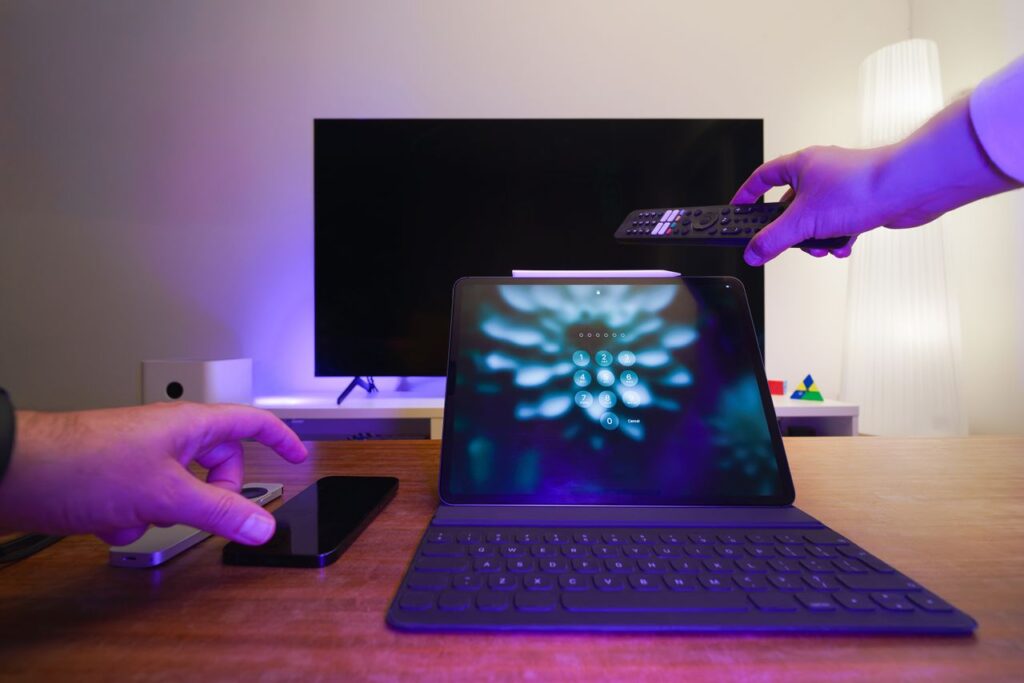
Using your computer as a Connect speaker is also handy at work. If your desk has good speakers or headphones plugged into your computer, you can control the music from your phone without switching windows or interrupting what you are doing on screen.
Play Spotify on your TV
Playing Spotify on a TV turns your living room speakers or soundbar into a music system and shows album artwork and lyrics on the big screen.
- Install the Spotify app on your smart TV, streaming stick or game console, if it’s not already installed.
- Open the app on the TV. You can sign in using a code shown on the screen, or simply use Spotify Connect from your phone.
- On your phone, open Spotify, tap the device icon and choose your TV.
If your TV supports Chromecast built-in, it may also appear in the device list even without the Spotify app open.
Spotify on a TV is also great for family gatherings. Everyone can see what song is playing, lyrics may appear on screen for sing-alongs, and the sound comes through the TV speakers or soundbar, which are often much better than a phone speaker.
Spotify Connect vs Bluetooth: which should you use?
Both have their place.
Use Spotify Connect when:
- You’re at home with Wi-Fi and a compatible speaker or TV.
- You want better battery life and uninterrupted music.
- You want to move around with your phone without breaking the connection.
- Several people want to control the music.
Use Bluetooth when:
- There’s no Wi-Fi, for example at the beach or on a hike with a portable speaker.
- The speaker doesn’t support Spotify Connect.
- You want to play audio from other apps too, not just Spotify.
Many portable speakers support both. If yours does, use Connect at home and Bluetooth on the go.
In practice, many people find that once they start using Connect at home, they rarely go back to Bluetooth indoors. The music simply keeps playing no matter what you do with your phone, and that small change makes listening feel a lot more relaxed.
Listen together with Jam
Spotify Jam lets several people add songs to a shared queue and listen together, which is great for parties, road trips and family gatherings.
- One person, usually a Premium user, starts a Jam from the device menu or the share options in Spotify.
- Others join by scanning a code, tapping a link or joining from a nearby device, depending on the setup.
- Everyone can add songs to the queue, and the host can manage who joins.
Features and requirements for Jam can change, so check the Spotify app for the current options in your region.
Jam works best when everyone agrees on a few simple rules, like adding one or two songs at a time so the queue stays balanced. The host can remove songs or people if needed, which keeps things friendly at bigger gatherings.
Control who can use your speakers
In a busy household, you may want to control who can take over the speaker.
In Spotify Settings and privacy, under Devices or Connect to a device, you’ll find options such as Show local devices only and settings related to allowing others to see and control your devices. Some speakers also have their own settings for guest access. Use them to prevent visitors on your Wi-Fi from unexpectedly switching the music.
These controls are particularly useful in shared apartments and offices, where many people are on the same Wi-Fi. Without them, someone in another room might accidentally take over your speaker while trying to play music on their own device.
Fix common Spotify Connect problems
Your device doesn’t appear in the list
- Make sure the device is turned on and awake. Some TVs and speakers hide from the network in standby.
- Check that your phone and the device are on the same Wi-Fi network, especially for the first connection. Guest networks often block devices from seeing each other.
- Open the Spotify app on the TV or speaker app at least once.
- Restart the speaker, TV, router and your phone.
- Update the Spotify app and the device’s firmware.
- On iPhone, check that Spotify has permission to access the Local Network in Settings, then Privacy and Security, then Local Network.
- On Android, make sure location or nearby device permissions aren’t blocking device discovery.
Music keeps stopping or switching devices
- Someone else may be using your account on another device. With an individual plan, only one device can play at a time.
- Check for weak Wi-Fi near the speaker.
- Turn off battery saving modes that might pause the Spotify app on your phone.
Volume is too low or too high
Some devices have their own volume limits. Adjust the volume on the device itself as well as in Spotify, and check the device’s app for volume or equalizer settings.
Device shows but won’t play
Sign out and back in on the device, or remove and re-add it in the device’s companion app. Updating the device’s software often solves this.
If you have tried everything and a device still refuses to cooperate, check the manufacturer support page for that specific speaker or TV. Some devices require a separate setup step in their own app before they appear in Spotify Connect, and the instructions are usually short and clear.
Frequently asked questions
Do I need Spotify Premium to use Spotify Connect?
Spotify Connect is available to both free and Premium users on many devices, though features may vary. Some functions, like full on-demand control on certain devices, may require Premium.
Does Spotify Connect use my phone’s data?
Very little. The speaker or TV streams the music itself using its own Wi-Fi connection. Your phone only sends small control commands.
Can I use Spotify Connect without Wi-Fi?
Connect generally needs the playback device to be connected to the internet. Without Wi-Fi, use Bluetooth instead.
Why does Spotify say playing on another device?
Your account is active on a different device. Tap the device icon to see which one and switch back if needed. If you don’t recognize it, change your password.
Can several people control the same speaker?
Yes. People on the same network can often see and control Connect devices, and Jam lets several people add songs to a shared queue.
Does music stop if I leave the house with my phone?
No. The speaker keeps playing because it streams directly. You can even control it remotely in some cases, as long as your phone stays connected to your account.
Start with one room and one device, get comfortable with how it works, and then add more. Many people end up with a simple setup: a speaker in the kitchen, the TV in the living room and the computer at the desk, all controlled from the same phone app.
Final thoughts
Spotify Connect turns your phone into a remote for every speaker, TV and computer in your home. It saves battery, avoids interruptions and often sounds better than Bluetooth. Tap the device icon, choose where you want to listen and enjoy the freedom of leaving your phone anywhere while the music plays on. Add Jam for parties and family time, and use Bluetooth when you’re out of Wi-Fi range. Once you get used to it, you’ll wonder how you ever lived without it.