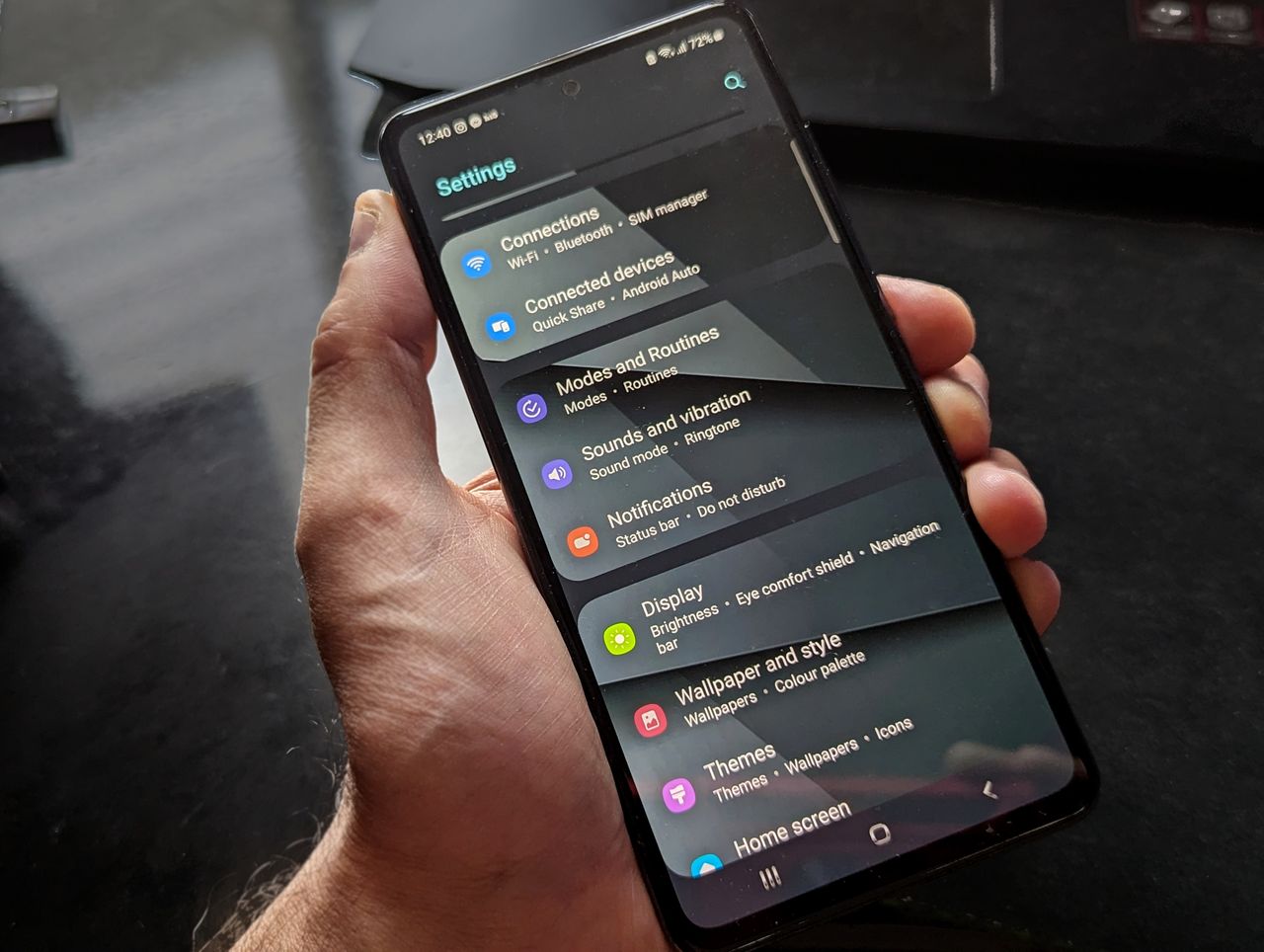
Most of us set up a new Android phone in about ten minutes, tap through the welcome screens as fast as possible and never look at the Settings app again unless something breaks. That’s completely understandable, but it also means you’re probably missing some of the most useful features your phone has to offer.
Android is packed with settings that make your phone safer, easier to read, kinder to your battery and less annoying to use. Many of them are switched off by default, tucked inside submenus with names that don’t really explain what they do. Below, we’ve picked 15 hidden Android settings that are genuinely worth turning on, explained what each one does in plain English and shown you where to find it.
Because every phone maker customizes Android a little, menu names vary between brands like Samsung, Google Pixel, Motorola and Xiaomi, and some features depend on your Android version. If you can’t find a setting where we describe it, type its name into the search bar at the top of the Settings app. That search is one of the most underrated features on any phone.
📋 Table of Contents
We have deliberately left out flashy features that only work on one brand of phone or that you’ll play with once and forget. Every setting on this list is something we think most people will keep using, whether they have a brand new flagship or a budget phone from a few years ago.
Safety settings everyone should turn on
Let’s start with the settings that could help you on a bad day. They take a minute to set up and you’ll be glad they’re there if you ever need them.
1. Emergency information
If you’re ever in an accident, first responders and good Samaritans can see emergency information on your lock screen without unlocking your phone. You can add your name, blood type, allergies, medications and emergency contacts.
Look for Safety and emergency in Settings, then Emergency information or Medical info. On Pixel phones, this lives inside the Personal Safety app. Add at least one emergency contact. It’s a small thing that can make a big difference.
2. Emergency SOS
Emergency SOS lets you call for help by pressing the power button quickly several times, usually five. Depending on your phone, it can call emergency services, share your location with your emergency contacts and even start recording video.
You’ll find it under Safety and emergency, then Emergency SOS. Take a moment to check how it’s configured. Some people prefer to turn on a countdown alarm so they don’t trigger a call by accident while the phone is in a pocket.
3. Theft protection and remote lock
Recent versions of Android include theft protection features designed for the situation everyone dreads: someone grabs your phone out of your hand. Features such as theft detection lock can use the phone’s sensors to notice a snatch-and-run motion and lock the screen automatically. Offline device lock can lock the phone if it’s disconnected from the network for too long, and remote lock lets you lock your phone using just your phone number from another device.
On supported phones, look under Google, then All services, then Theft protection, or search Settings for theft. Availability depends on your phone and Android version, but if you see these options, turn them on.
4. Find My Device location
If you lose your phone, Google’s device finder lets you locate it on a map, play a sound, lock it or erase it from another device. It only works if it’s turned on before you lose the phone, so check it now. Search Settings for Find and make sure the feature is enabled. Samsung phones also offer their own service, often called SmartThings Find, which you can enable alongside Google’s.
Here is a simple way to make sure these safety settings are actually useful: once you have set them up, test them. Ask a family member to look at your lock screen and find your emergency information. Read through the Emergency SOS screen so you know exactly what will happen when you press the button. Open the device finder website on a computer and check that your phone appears there. A safety feature you have never tested is a safety feature you can’t fully trust.
It’s also worth telling your emergency contacts that you have added them. If your phone ever shares your location with them during an emergency, it helps if the message doesn’t come as a complete surprise. A short conversation now can save confusion and precious minutes later.
Settings that make daily use easier
These settings won’t save the day in an emergency, but they’ll make your phone more pleasant to use every single day.
5. Show battery percentage
The battery icon alone is surprisingly vague. Is that a quarter left or a third? Turning on the battery percentage removes the guessing. Go to Settings, then Battery, and look for Battery percentage. On some Samsung phones, it’s under Notifications, then Status bar.
6. Notification history
Ever swiped away a notification by accident and had no idea which app it came from? Notification history keeps a record of notifications from the last 24 hours, even the ones you dismissed. Go to Settings, then Notifications, and turn on Notification history. From now on, you can open that screen to see what you missed.
7. Notification snoozing
Sometimes a notification is important, just not right now. With notification snoozing turned on, you can drag a notification slightly to the side or tap a small icon to snooze it for 15 minutes, an hour or longer. It’s a great way to turn your notification shade into a simple to-do list. Search Settings for Snooze to find it.
8. Share Wi-Fi with a QR code
When friends visit and ask for the Wi-Fi password, you don’t need to read out a long string of random characters. Go to Settings, then Network and internet or Connections, tap the Wi-Fi network you’re connected to and look for Share or a QR code icon. Your phone shows a QR code that the other person can scan with their camera to join instantly. You may need to confirm with your PIN or fingerprint first.
9. App pinning
App pinning, sometimes called screen pinning, locks your phone to a single app. It’s perfect when you hand your phone to a child to watch a video or show a friend a photo, because they can’t wander into your messages or email.
Search Settings for App pinning or Pin windows and turn it on. Make sure the option to ask for your PIN before unpinning is enabled too. To use it, open the recent apps screen, tap the app’s icon above its preview and choose Pin.
If you only adopt one habit from this section, make it notification history. Once you know it exists, you’ll use it often, whether it’s to find a delivery code you dismissed, a message preview you swiped away too quickly or a reminder from an app you didn’t recognize. It turns a fleeting notification into something you can always look up again within the day.
Wi-Fi sharing deserves a special mention for families. Instead of writing the password on a sticky note or reciting it to every guest, just keep the QR code handy. Some people take a screenshot of the code and save it as a favorite in their gallery so they can show it even faster, though you should treat that screenshot like the password itself and avoid sharing it publicly.
Settings for your eyes and your sleep
Phones are bright, and we use them at all hours. These settings make screens easier on your eyes and help you wind down at night.
10. Extra dim
Even at the lowest brightness, your screen can feel too bright in a dark bedroom. Extra dim, sometimes called Reduce brightness or Extra brightness reduction, lowers the screen below its normal minimum. You can add it as a Quick Settings tile so it’s one tap away at night. Search Settings for dim to find it.
11. Bedtime mode
Bedtime mode, part of Digital Wellbeing on many phones, can turn your screen grayscale, silence notifications and dim wallpaper on a schedule. The grayscale effect does a good job of making endless scrolling less tempting. Look under Digital Wellbeing and parental controls, then Bedtime mode. Samsung calls a similar feature Sleep mode within its Modes and Routines.
12. Eye comfort or night light
Night light reduces blue light by giving your screen a warm amber tint in the evening. Many people find it more comfortable to read at night. Look under Display for Night light or Eye comfort shield and set it to turn on automatically at sunset.
These settings work best together. A common combination is night light starting at sunset, extra dim available as a Quick Settings tile and bedtime mode starting about 30 minutes before you want to be asleep. Within a week or two, many people notice that they reach for their phone less in bed simply because the grayscale screen is far less interesting than full color.
If you share a bedroom, extra dim is also a small kindness to the person next to you. A bright screen in a dark room can be disruptive, and dimming it below the normal minimum makes late-night messages or alarms much less intrusive.
Accessibility features that help everyone
Accessibility settings are designed for people with disabilities, but many of them are useful for anyone. Don’t be put off by the name.
13. Live Caption
Live Caption automatically adds captions to videos, podcasts, voice messages and even some calls, all processed on your phone. It’s brilliant for watching videos in a quiet room or a noisy bus. Press a volume button and look for the caption icon under the volume slider, or search Settings for Live Caption.
14. Magnification and font size
If you squint at your screen, increase the font size and display size under Display or Accessibility. Many people set these too small out of habit. A slightly larger font often makes your phone far more comfortable to use, and you’ll notice less eye strain by the end of the day. Magnification also lets you triple tap or use a shortcut to zoom into any part of the screen temporarily.
15. Accessibility shortcuts and the accessibility menu
The accessibility menu adds a floating button that gives you large on-screen controls for things like screenshots, volume and the power menu. It’s handy if one of your physical buttons is broken or hard to press. Look under Accessibility for Accessibility Menu or Assistant menu on Samsung phones.
A good example of why accessibility features matter for everyone is Live Caption on a commute. You can follow a video or voice message without headphones and without disturbing anyone. Another is a larger font for people who are simply tired at the end of a long day. Accessibility isn’t a special category of user, it’s all of us at different moments.
A few bonus settings worth a look
We promised 15, but here are a few more that didn’t quite make the main list.
- Clipboard access notifications: Android can show a small message when an app reads your clipboard. Look under Privacy for Show clipboard access. It helps you notice apps that read copied text without good reason.
- Adaptive battery: this learns which apps you use and limits background activity for the ones you rarely open. Check it under Battery.
- Quick Share visibility: if you use Quick Share to send files nearby, set your visibility to contacts only rather than everyone, except when you briefly need to receive something from a stranger.
- Private space: newer Android versions on some phones let you create a separate, locked area for sensitive apps. Search Settings for Private space to see if your phone supports it.
Clipboard notifications in particular are an eye-opener. Copy a password, a bank account number or a private message, and you might notice which apps quietly check what you copied. Most of the time there’s an innocent explanation, such as a shopping app looking for a discount code, but it’s useful to know when it happens. If an app reads your clipboard repeatedly for no clear reason, consider whether you really need it.
Adaptive battery is usually turned on by default, but it’s worth confirming. Some people switch it off while troubleshooting and forget to turn it back on. When it’s active, the phone gradually learns your routine and puts rarely used apps into a deeper sleep, which can add a noticeable amount of time to your battery life without any effort on your part.
How to explore Settings without breaking anything
If this list made you curious about what else is hiding in your phone, that’s a good instinct. A few tips to explore safely:
- Use search. Typing a word like battery, privacy or notification shows every related setting in one list.
- Change one thing at a time. If something behaves strangely afterward, you’ll know exactly what to undo.
- Read the description. Most settings include a short line of text explaining what they do. It’s worth the two seconds.
- Be careful with Developer options. That menu is for advanced users. We have a separate guide explaining which developer settings are safe to change.
- Avoid anything you don’t understand under Security or Device admin apps. When in doubt, leave it alone.
Settings menus can feel intimidating, but almost nothing you’ll find in the normal Settings app can permanently harm your phone. Most changes can be reversed with a single tap.
One more tip: when you find a setting you like, add it to your Quick Settings panel if your phone allows it. Swipe down twice from the top of the screen, tap the pencil or edit icon, and drag the tiles you use most into the first row. Features like extra dim, hotspot, Do Not Disturb, flashlight and screen recording are far more useful when they are one swipe away instead of buried three menus deep.
Frequently asked questions
Why can’t I find some of these settings on my phone?
Android phones from different brands use different menu names, and some features depend on your Android version or the phone’s hardware. Use the search bar in Settings. If a feature still doesn’t show up, your phone may not support it yet, or it may arrive in a future update.
Will turning these settings on drain my battery?
Most of them have little or no effect on battery life. Features like extra dim and bedtime mode can even save a bit of power. Live Caption uses some processing power while it’s actively captioning, but it’s off when nothing is playing.
Are these settings the same on Samsung phones?
Samsung’s One UI includes most of these features but often names them differently and puts them in different menus. For example, battery percentage may be under Notifications and Status bar, and extra dim appears as Extra dim or Reduce brightness. The Settings search works well on Samsung phones.
Is theft protection available on all Android phones?
Not all of them. Theft protection features roll out through Google Play services and newer Android versions, and availability depends on your phone, its software version and your region. If you don’t see the options, check again after your next system update.
Can I reset all settings if I change too much?
Most phones offer a way to reset settings without deleting your data. Look under System, then Reset options, or General management, then Reset on Samsung phones. Choose the option that resets settings or app preferences, not the factory reset, which erases everything.
Wrapping up
Your Android phone can do a lot more than most people ever discover. Spend ten minutes going through this list, starting with the safety settings, and you’ll end up with a phone that’s safer, calmer and easier to live with. The best part is that once these settings are on, they quietly do their job in the background, and you’ll probably forget they’re there until the day you really need them.
If you want to go further, pick one menu each week and explore it properly. One week it could be Display, the next week Notifications, then Battery, then Privacy. Little by little you’ll build a phone that feels like it was set up specifically for you, which, in a way, it was. And if a friend ever complains that their phone is annoying, you’ll be the person who knows exactly which switch to flip.