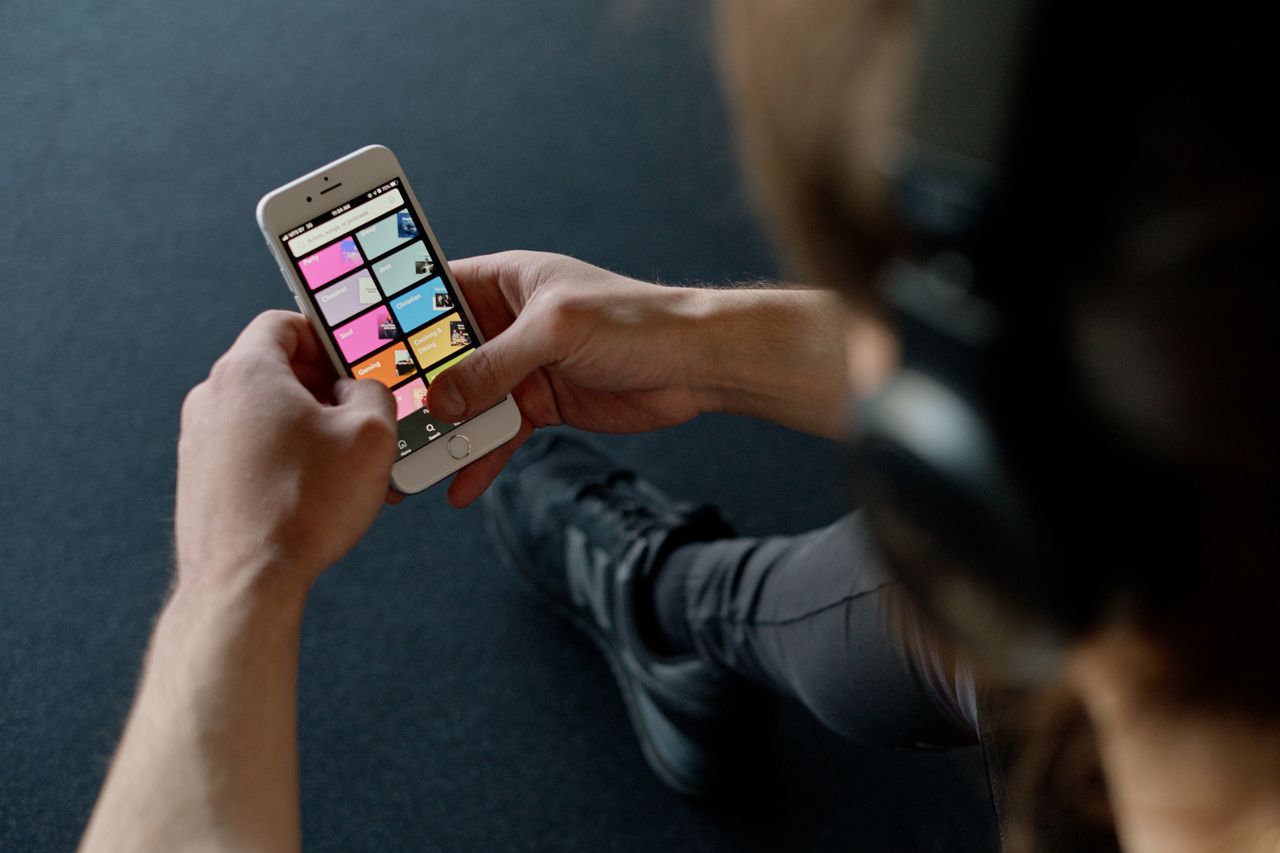
There’s a special kind of disappointment that comes from opening Spotify on a plane, in the subway or on a road trip through the mountains and seeing a message that you’re offline. The playlist you were looking forward to is greyed out, the podcast won’t load, and you’re left with the hum of the engine for the next three hours.
The fix is simple: download your music before you need it. Spotify lets you save playlists, albums and podcasts to your phone, tablet or computer so they play without an internet connection. Once you know how it works, you’ll never get caught without music again, and you’ll save a lot of mobile data along the way.
In this guide, we’ll walk through how to download Spotify music for offline listening on Android, iPhone and PC, what you need before you start, the limits you should know about, how to choose download quality and storage location, and how to fix the most common download problems. Spotify updates its app regularly, so menu names may change slightly over time, but the overall process has stayed the same for years.
📋 Table of Contents
- What you need before you start
- How to download Spotify music on Android
- How to download Spotify music on iPhone and iPad
- How to download Spotify music on PC and Mac
- Turn on Offline mode to test your downloads
- Choose the right download quality
- Download limits you should know about
- Smart ways to manage your offline library
- How to remove downloads and free up space
- Fixes for common download problems
- Frequently asked questions
- Final thoughts
This guide is written for real-life situations: a long flight, a weekly commute through tunnels, a gym with terrible reception or a phone plan with a tight data limit. If any of those sound familiar, a few minutes of setup will make your listening a lot smoother.
What you need before you start
Before you tap any download button, check these three things.
A Spotify Premium plan for music downloads
Downloading songs, albums and playlists for offline listening is a Premium feature. That includes the individual plan and family, duo and student plans where they’re available. If you use Spotify Free, you won’t see a download option for music.
The good news for free users is that podcasts can be downloaded on the free plan. If most of your offline listening is podcasts, you may not need Premium at all.
Enough free storage
Downloaded music takes up space on your device. How much depends on the download quality you choose. As a rough guide, an hour of music at normal quality takes somewhere around 40 to 50 MB, while very high quality can take roughly three times that. A few long playlists at high quality can easily add up to several gigabytes. Check your free storage before downloading a large library.
A good Wi-Fi connection
You can download over mobile data, but it’s usually better to use Wi-Fi, especially for big playlists. By default, Spotify typically avoids downloading over cellular data unless you turn that option on, which protects your data plan.
A tip many people overlook: check your available storage on your phone settings before starting, not inside Spotify. That gives you a clear picture of how much room you really have, including space used by photos and other apps. If you are already close to full, free some space first, otherwise downloads may stop halfway.
How to download Spotify music on Android
- Open the Spotify app and make sure you’re signed in to your Premium account.
- Go to the playlist, album or podcast you want to save. For your liked songs, tap Your Library, then Liked Songs.
- Tap the download icon, a small downward arrow in a circle, near the top of the playlist or album.
- Wait for the download to finish. A green arrow appears next to each downloaded song.
To see everything you’ve downloaded, open Your Library and tap the Downloaded filter at the top.
Choose where downloads are saved on Android
If your Android phone has a memory card slot, you can store Spotify downloads on the card to save internal storage. In Spotify, open Settings, look for Storage and choose the storage location. Spotify will move your downloads, which may take a while if you already have a large library. Use a reliable, reasonably fast card from a reputable brand.
If you plan to download a large library, start it the night before a trip and leave your phone plugged in and connected to Wi-Fi. Large downloads can take a while, and Android may pause background activity to save battery if the phone is unplugged. Keeping Spotify open on screen while it downloads can also help it finish faster.
How to download Spotify music on iPhone and iPad
- Open the Spotify app and sign in to your Premium account.
- Open a playlist, album or podcast.
- Tap the download icon near the top.
- Wait for the green download arrows to appear next to the songs.
As on Android, the Downloaded filter in Your Library shows everything that’s available offline. iPhones don’t support memory cards, so all downloads use the phone’s internal storage. If space is tight, choose a lower download quality or download fewer playlists.
Android phones from some brands are aggressive about saving battery and may stop apps working in the background. If your downloads keep pausing when the screen turns off, open your phone settings, go to Apps, choose Spotify and set its battery usage to unrestricted or not optimized while you download. You can switch it back afterwards if you prefer.
How to download Spotify music on PC and Mac
You can also download music for offline listening in the Spotify desktop app on Windows and Mac. This is handy for laptops you use on trips or in places with unreliable internet.
- Open the Spotify desktop app, not the web player. The web player in your browser doesn’t support downloads.
- Go to a playlist or album you want to download.
- Click the download icon near the top.
- Wait for the download to complete.
In the desktop app settings, you can usually choose where offline files are stored. That’s useful if your laptop’s main drive is small and you want to keep music on a second drive.
On laptops, keep in mind that downloads count toward your five-device limit just like phones and tablets. If you use Spotify on a work computer, a home computer and two phones, you may be closer to the limit than you think. Remove downloads from devices you no longer use so you have room on the ones that matter.
If you share an iPad with family members, remember that downloads are tied to the Spotify account signed in on that device, not to the iPad itself. If someone else signs in with their own account, your downloads will not be available until you sign back in.
Turn on Offline mode to test your downloads
The best way to make sure your music really is available offline is to test it before you leave home.
On mobile, open Settings in Spotify and look for Offline mode in the playback or data-saving section. On the desktop app, the option is usually in the app menu. When Offline mode is on, Spotify only shows and plays music that’s downloaded. If a playlist you expected to hear is greyed out, the download didn’t finish.
Remember to turn Offline mode off when you’re back online, otherwise Spotify won’t stream anything new.
Testing with Offline mode is especially worth doing before long flights. Airlines often ask you to switch to airplane mode before takeoff, and that is exactly when you discover whether your music is really there. Five seconds of testing at home is far better than discovering a half-finished download at 30,000 feet.
Choose the right download quality
Spotify lets you choose the quality of downloaded music separately from streaming quality. You’ll find it in Settings, usually in the audio quality section, under Download or Download quality.
- Low or Normal: smallest files, good for phones with little storage and for casual listening through basic earbuds.
- High: a good balance between sound quality and file size for most people.
- Very high: the best standard quality, ideal for good headphones, but files are noticeably larger.
- Lossless: in markets and plans where Spotify offers lossless audio, this option gives the highest quality, but files are much larger than very high quality.
If you mostly listen on the bus with simple earbuds, high quality is usually plenty. If you have excellent headphones and lots of storage, very high or lossless may be worth it. Changing the quality only affects new downloads. To re-download existing music at a new quality, remove the download and download it again.
A simple rule of thumb: match the quality to your headphones and your storage. There is little point filling a 64 GB phone with very high quality files if you mostly listen through cheap earbuds on a noisy bus. On the other hand, if you have good wired or high-end wireless headphones and plenty of space, higher quality can make a noticeable difference.
Download limits you should know about
Spotify sets a few limits on offline downloads to protect artists’ rights. At the time of writing, the main ones are:
- You can download up to 10,000 songs per device.
- You can have downloads on up to 5 devices per account.
- You need to go online at least once every 30 days to keep your downloads. Spotify uses this check to confirm your Premium subscription is still active.
If you cancel Premium, downloaded music stops being available offline. Your playlists themselves stay in your library, you simply can’t listen to them offline anymore.
If you hit the 30-day limit while traveling somewhere without internet, Spotify will ask you to connect before your downloads play again. Even a short connection on hotel or airport Wi-Fi is usually enough to refresh the check and keep your music available for another month.
Families on a shared plan should note that the limits apply to each person account, not to the plan as a whole. Every family member can download music on their own devices without using up anyone else allowance.
Smart ways to manage your offline library
A few habits make offline listening much easier:
- Download Liked Songs. If you regularly like songs you enjoy, downloading Liked Songs means new favorites are saved automatically the next time you’re on Wi-Fi.
- Create a travel playlist. Build one playlist for a trip, download it, and remove it when you get home.
- Download podcasts automatically. Spotify can save new episodes of shows you follow. Look for the automatic download options in a podcast’s settings, where available.
- Remove what you’ve finished. Old downloads quietly take up space. Delete playlists and podcast episodes you no longer need.

Another useful habit is to give your offline playlists clear names, such as Offline Gym or Offline Road Trip. When you are offline and scrolling quickly, it makes it obvious which playlists will actually play, and it reminds you which ones to clean up later.
How to remove downloads and free up space
To remove a downloaded playlist or album, open it and tap the download icon again. Spotify asks if you want to remove the download. Confirm, and the files are deleted from your device, while the playlist stays in your library.
To remove everything at once, open Spotify Settings, go to Storage and choose Remove all downloads. This is useful before selling a phone or when you need space fast. You can always download again later.
It is worth checking your downloaded library every month or two, especially if you download podcasts automatically. Podcast episodes can be long, and video podcasts in particular take up much more space than audio. A quick tidy-up keeps Spotify from slowly taking over your phone storage.
Fixes for common download problems
Songs won’t download or get stuck
- Check that you’re connected to the internet and that Download using cellular is on if you’re not on Wi-Fi.
- Make sure you have enough free storage.
- Restart the Spotify app, then your device.
- Update Spotify to the latest version.
Downloads disappeared
This usually happens if you haven’t gone online in more than 30 days, if you logged out, if you exceeded the device limit or if Premium was paused or canceled. Sign in, go online and download again.
Songs are greyed out in Offline mode
They weren’t downloaded, or the download didn’t finish. Turn off Offline mode, connect to Wi-Fi and let the download complete.
Download option doesn’t appear
Check that you’re signed in to a Premium account, and that you’re using the mobile or desktop app, not the web player.
If downloads keep failing on one device but work on another, the problem is almost always local to that device: storage, battery saving settings, a weak connection or an outdated app. Checking those four things solves the vast majority of download issues without needing to contact support.
Frequently asked questions
Can I download Spotify music with a free account?
You can download podcasts with a free account, but downloading music for offline listening requires Premium.
Can I transfer Spotify downloads to a USB drive or another app?
No. Downloaded songs are protected and only play inside the Spotify app on the device where you downloaded them.
How long do Spotify downloads last?
They stay on your device as long as your Premium subscription is active and you go online at least once every 30 days.
Do downloads use mobile data?
Only if you allow downloading over cellular. Otherwise, Spotify waits until you’re on Wi-Fi. Playing music that’s already downloaded doesn’t use data.
Why is Spotify using so much storage?
Downloads, especially at high quality, and the app’s cache both take space. Lower the download quality, remove old downloads and clear the cache in Storage settings.
Can I download on my smartwatch?
On some smartwatches, including certain Wear OS and Apple Watch models, Spotify supports offline downloads with Premium. Check the Spotify app on your watch for a download option.
Final thoughts
Downloading Spotify music for offline listening takes a minute and saves you from silent flights, dead zones and data overages. With Premium, tap the download icon on any playlist or album on Android, iPhone or the desktop app, choose a download quality that fits your storage, and test everything with Offline mode before you leave. Keep an eye on the 30-day check-in and clear out old downloads now and then, and your music will be ready whenever the signal isn’t.